Email marketing
Send to part of your list with smart segments
Build a segment from your clinic data, like 'not seen in 6 months and nothing booked', see the live count, then send a campaign to just those people.
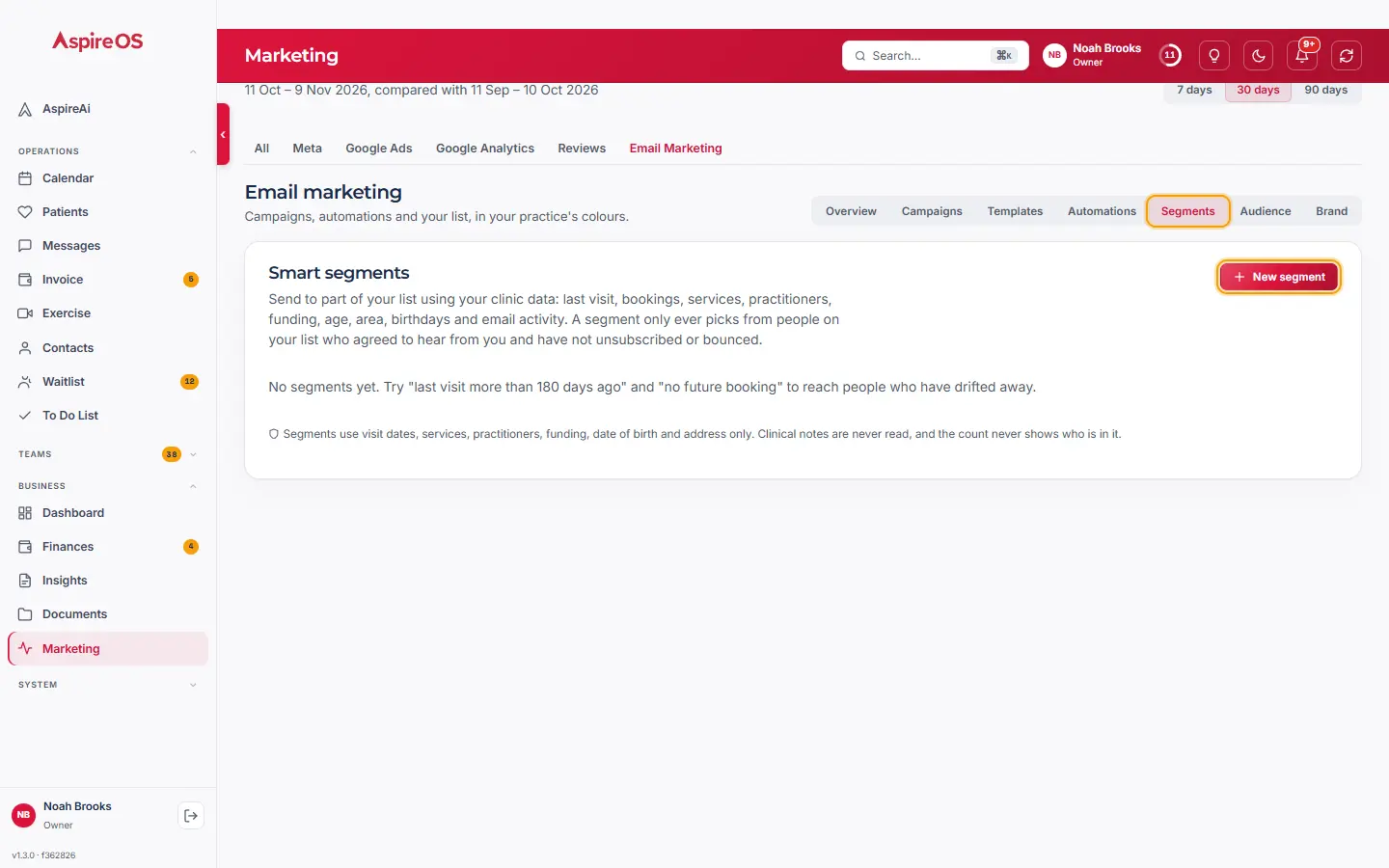
Open Segments
Go to Marketing, then Email Marketing, then Segments. Click New segment.
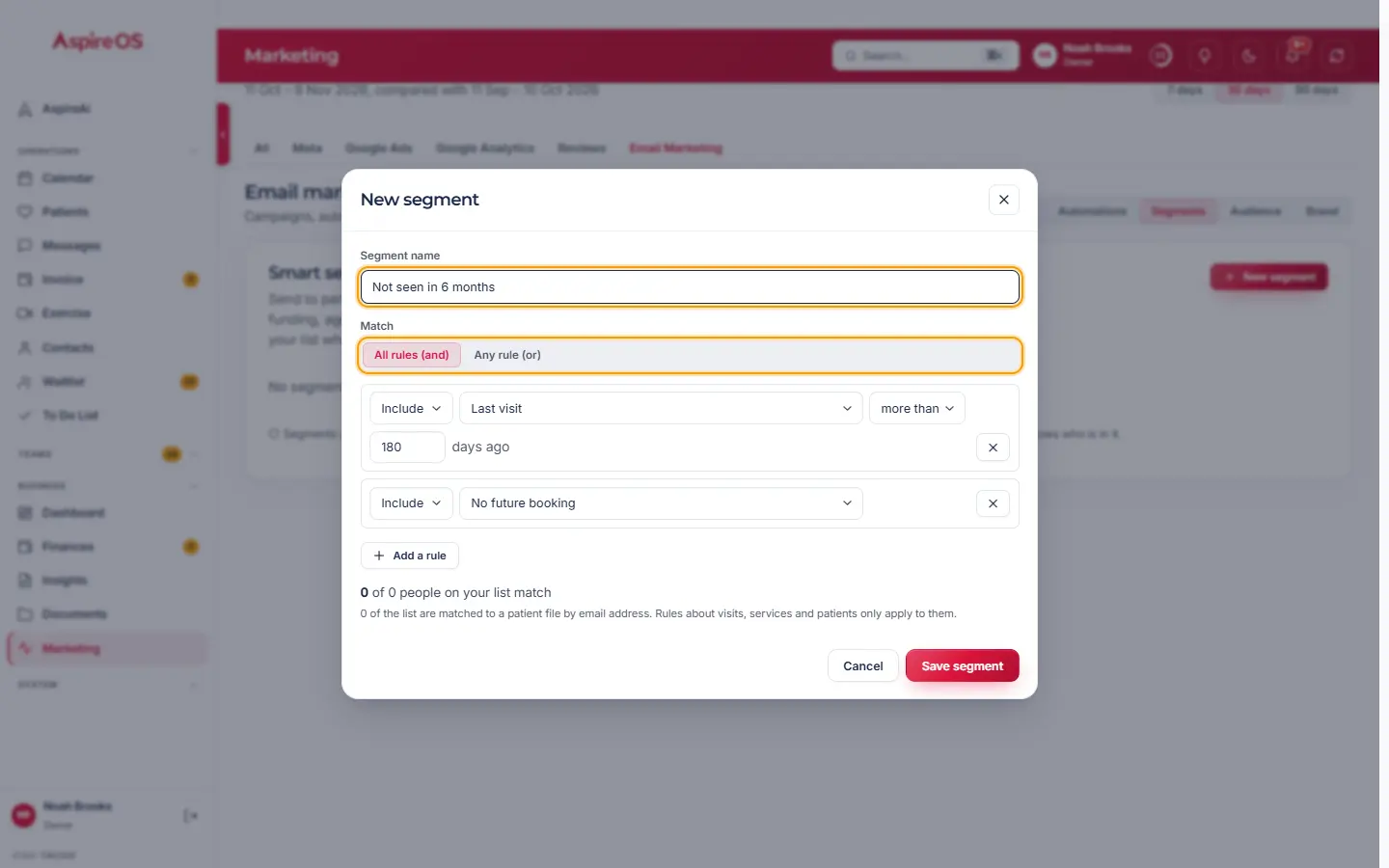
Name it and choose how rules combine
Type a Segment name you'll recognise, like Not seen in 6 months. Under Match, choose All rules (and) to need every rule, or Any rule (or) to need just one.
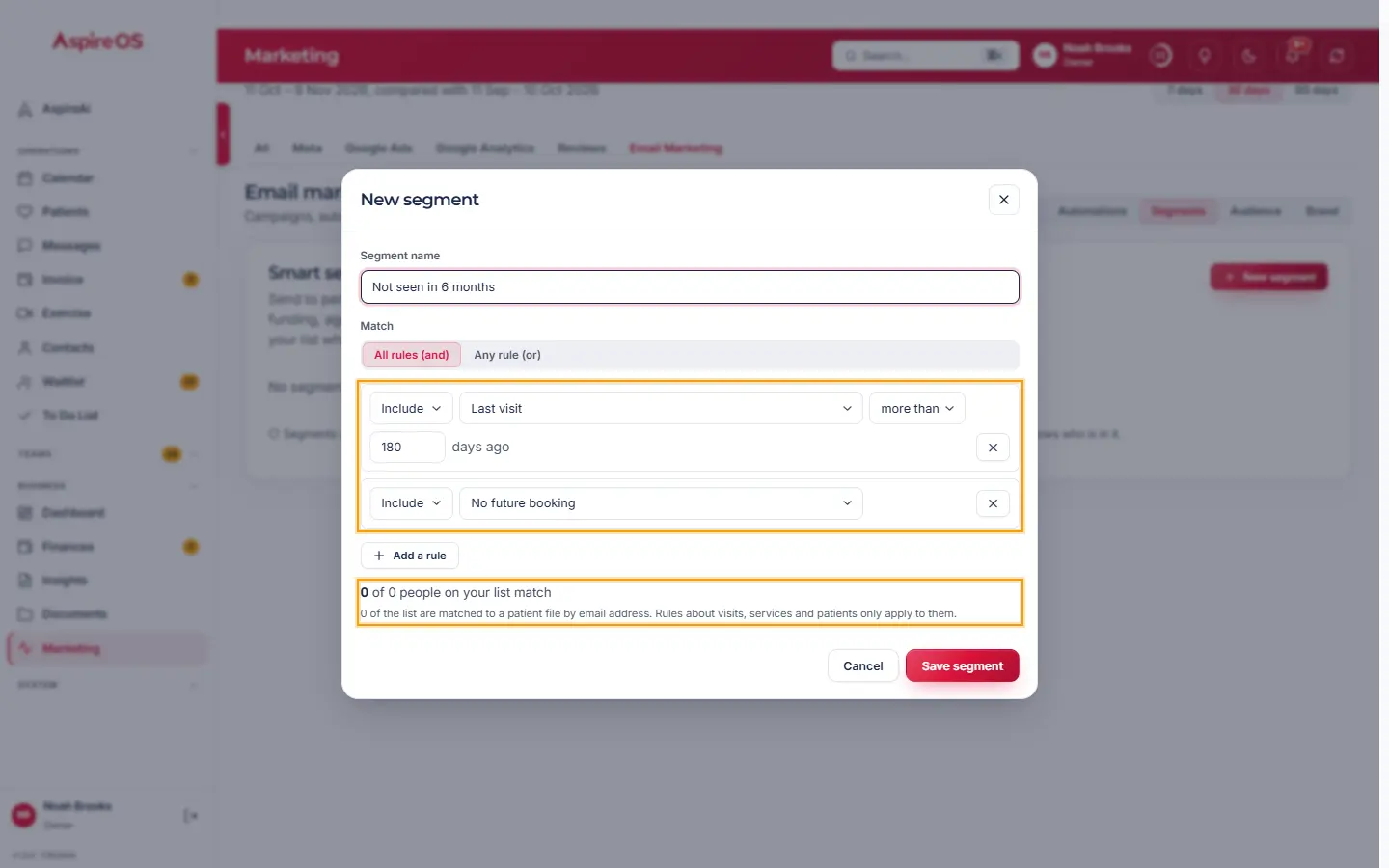
Set the rules and check the count
Each rule is Include or Exclude plus a condition, such as Last visit more than 180 days ago, or No future booking. Click Add a rule for more: services, practitioners, funding, age, area, birthdays or email activity. The count below updates as you go.
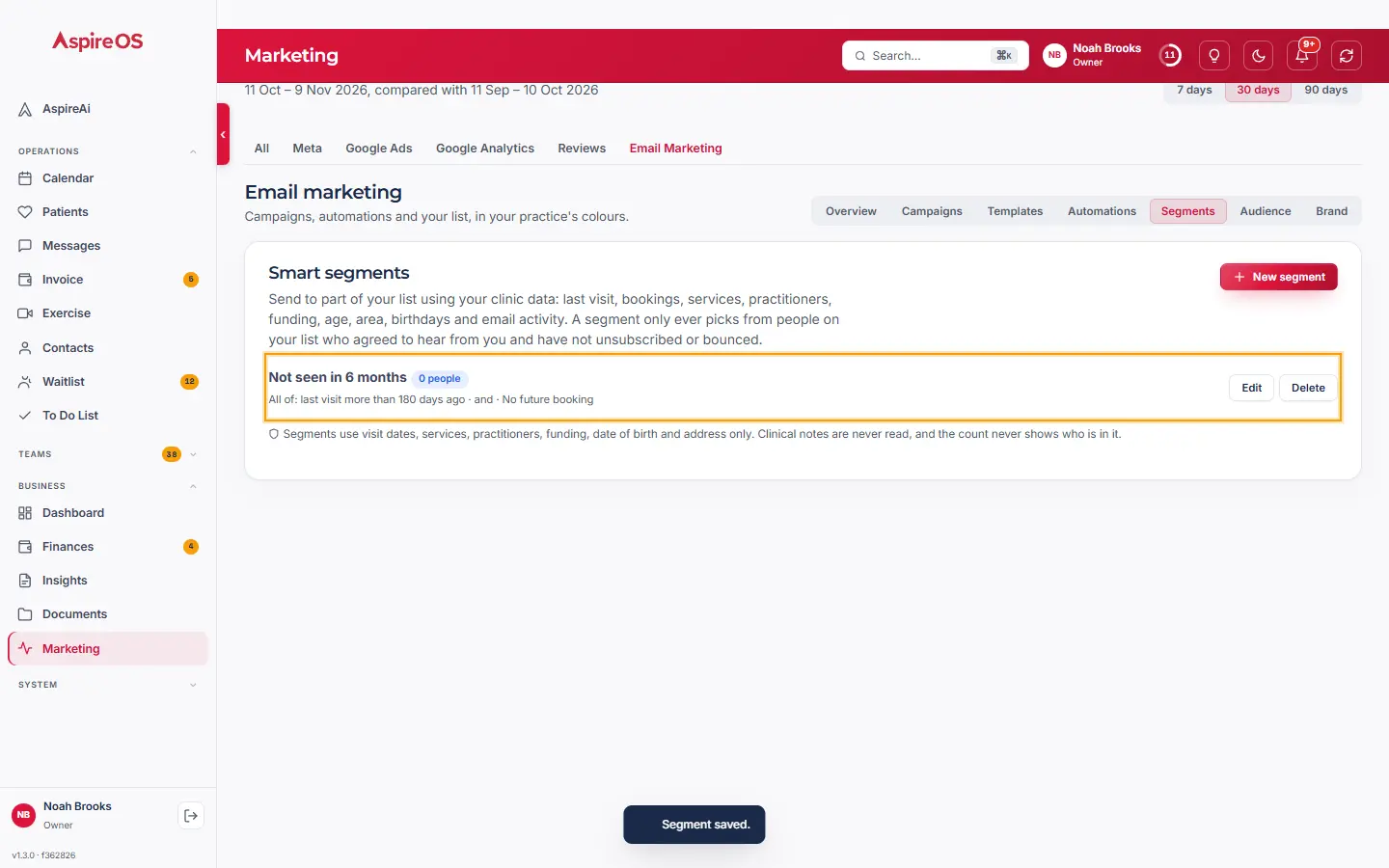
Save the segment
Click Save segment. It appears in your list with its rules and how many people are in it. Use Edit to change it or Delete to remove it.
Send a campaign to it
Create a campaign as usual. Under Send to, choose A smart segment and pick yours from the list. The number of people who will receive it shows underneath.
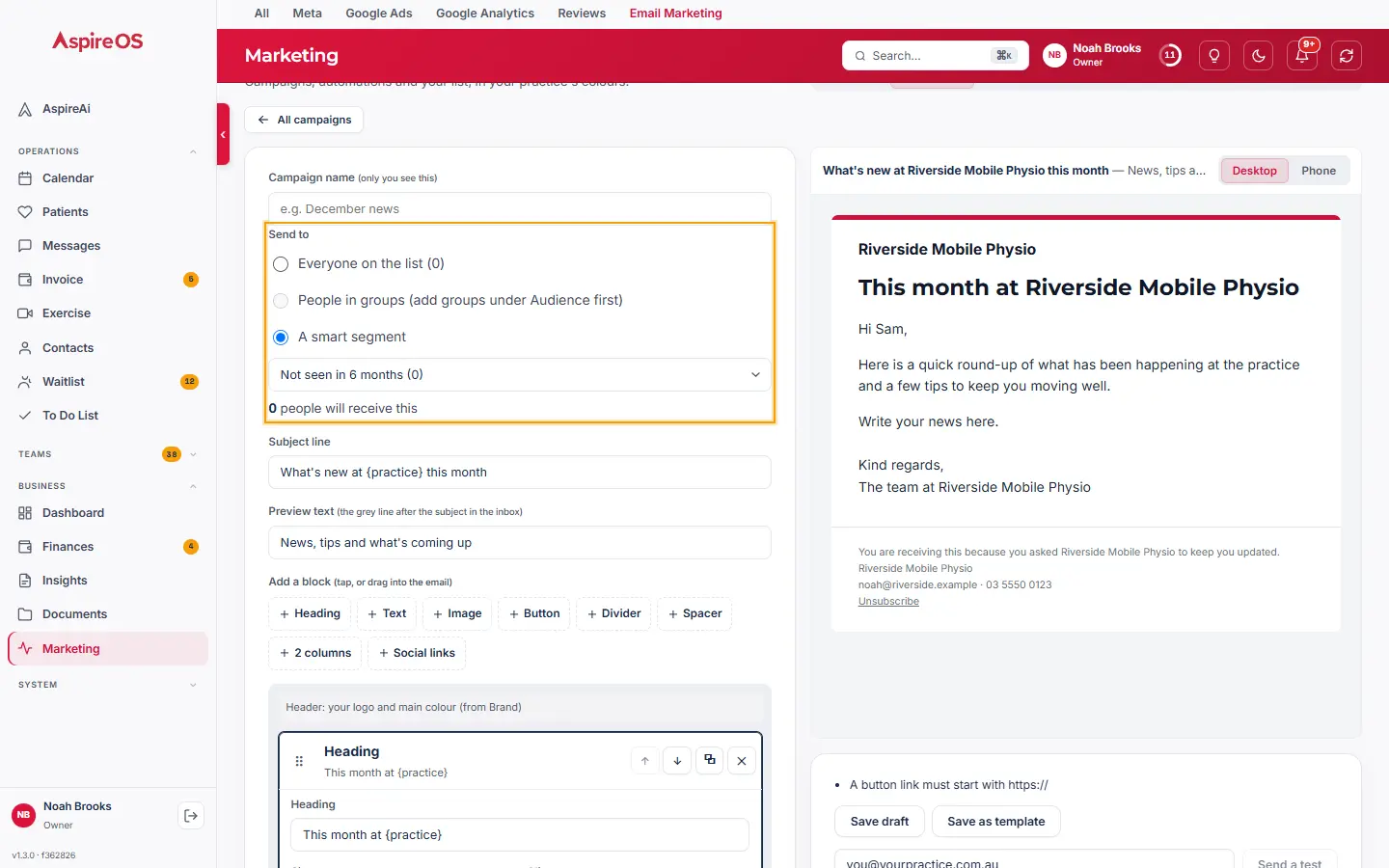
Screenshots taken 10 November 2026 on sample data. Your screens may differ slightly as AspireOS improves.
Still stuck?
Ask AspireAi inside AspireOS: it can walk you through any of these, or send a note to our support team for you.