Email marketing
Design and send an email campaign
Pick a layout, edit it block by block in your practice's colours, check it on desktop and phone, then send a test, schedule it or send it now.
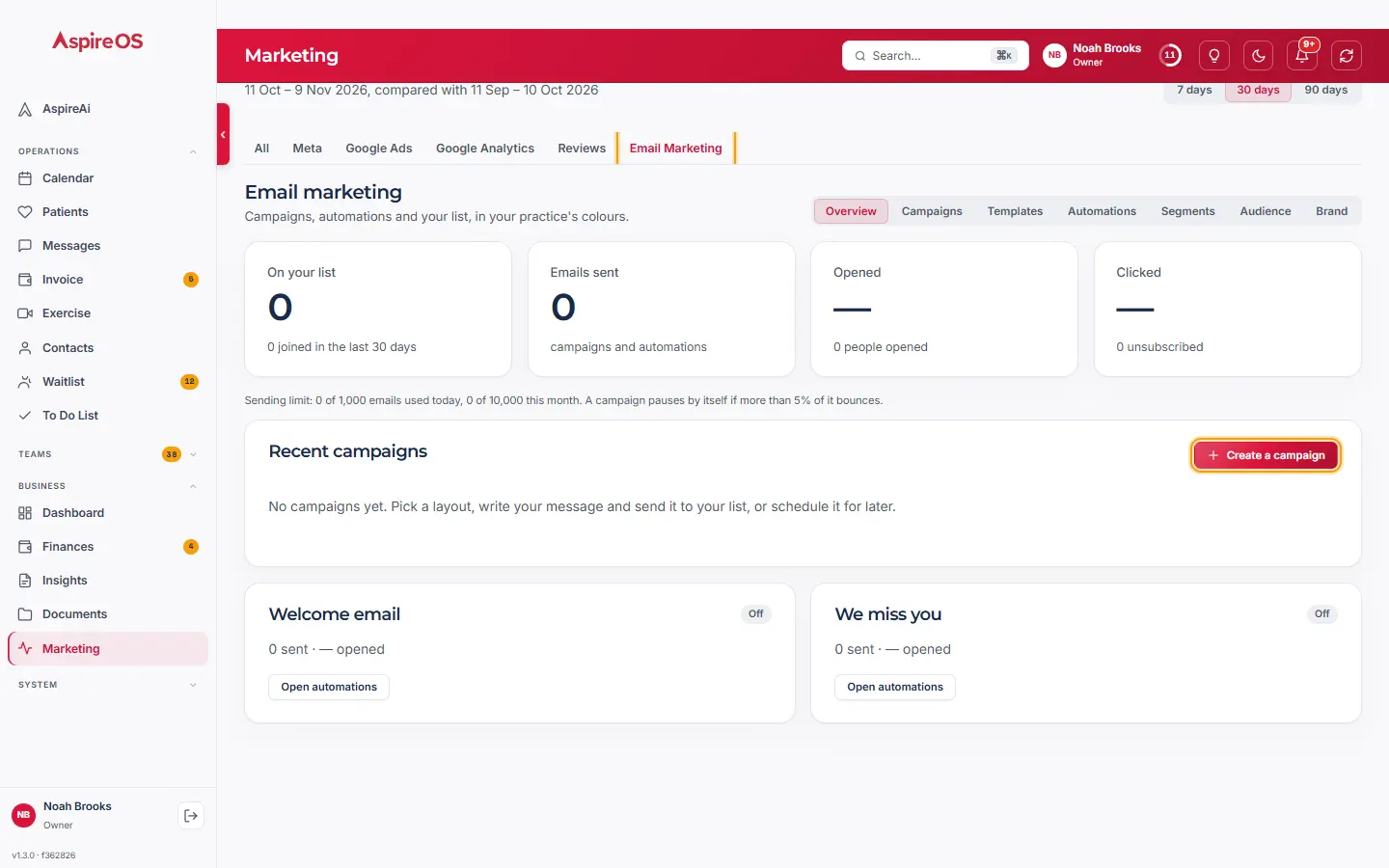
Open Email Marketing
Go to Marketing, then the Email Marketing tab. Click Create a campaign.
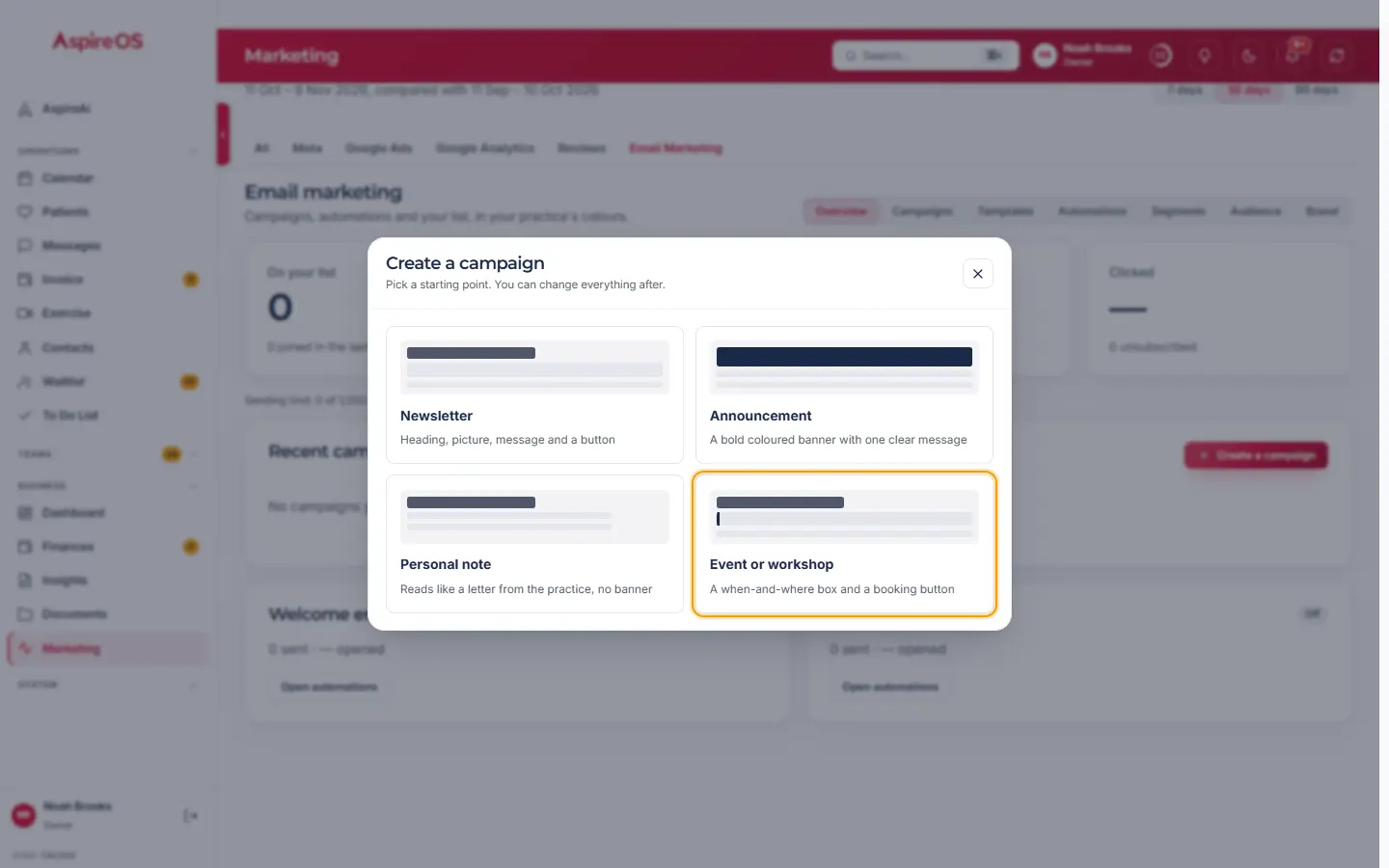
Pick a starting layout
Choose Newsletter, Announcement, Personal note or Event or workshop. You can change everything afterwards.
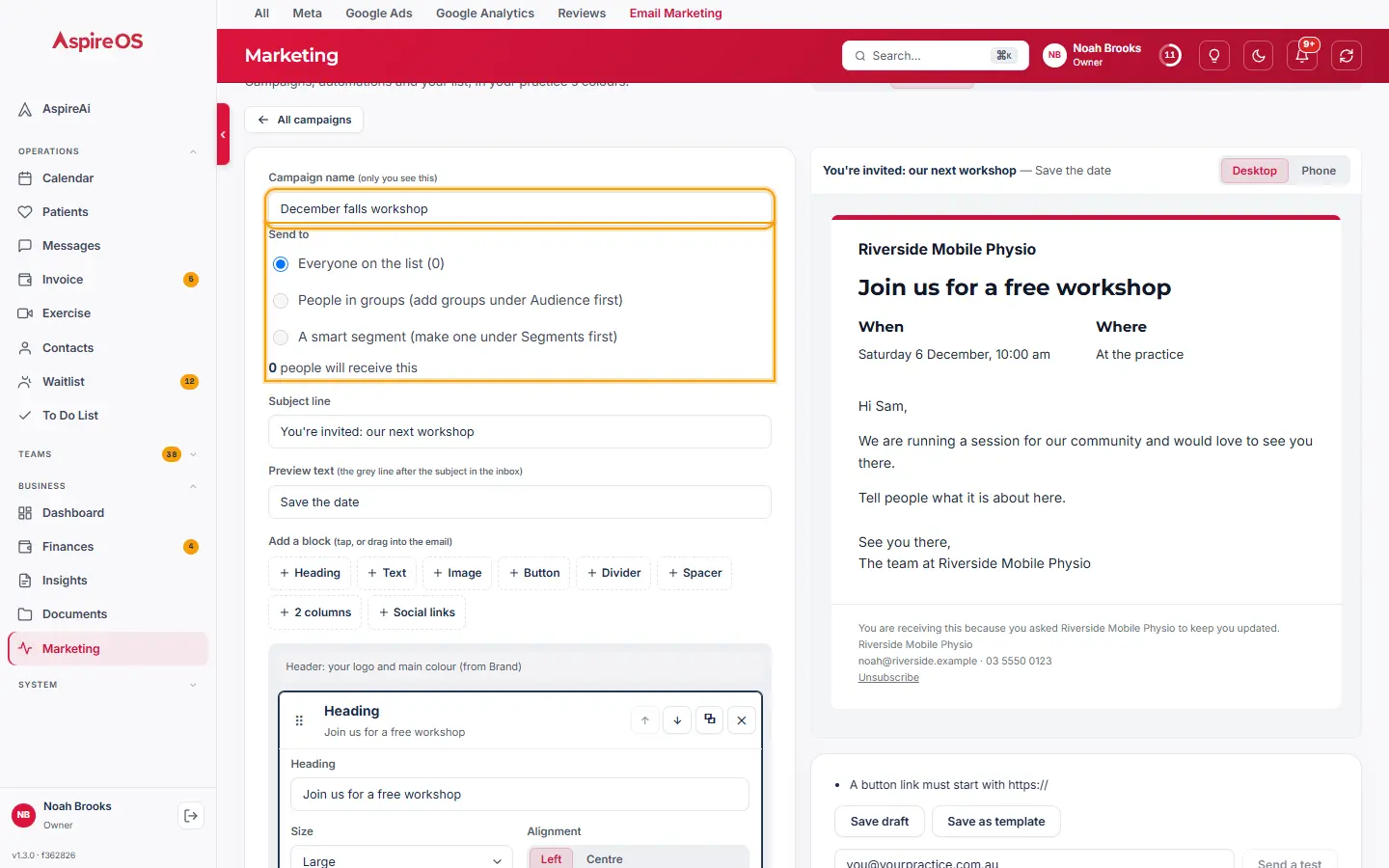
Name it and choose who gets it
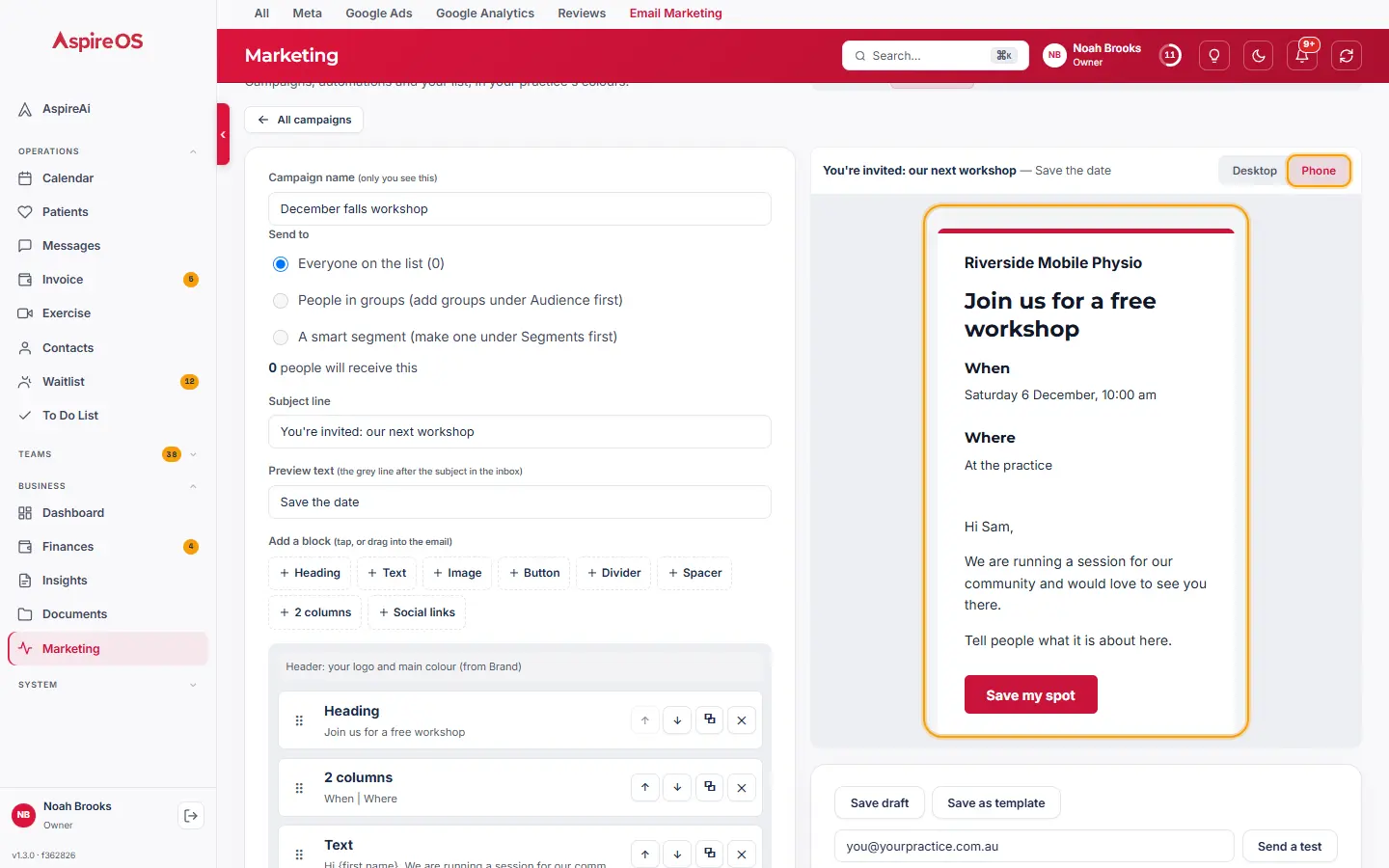
Give the campaign a name (only you see this). Under Send to, pick Everyone on the list, People in groups, or A smart segment. The count below shows how many people will receive it. Then write the Subject line and Preview text.
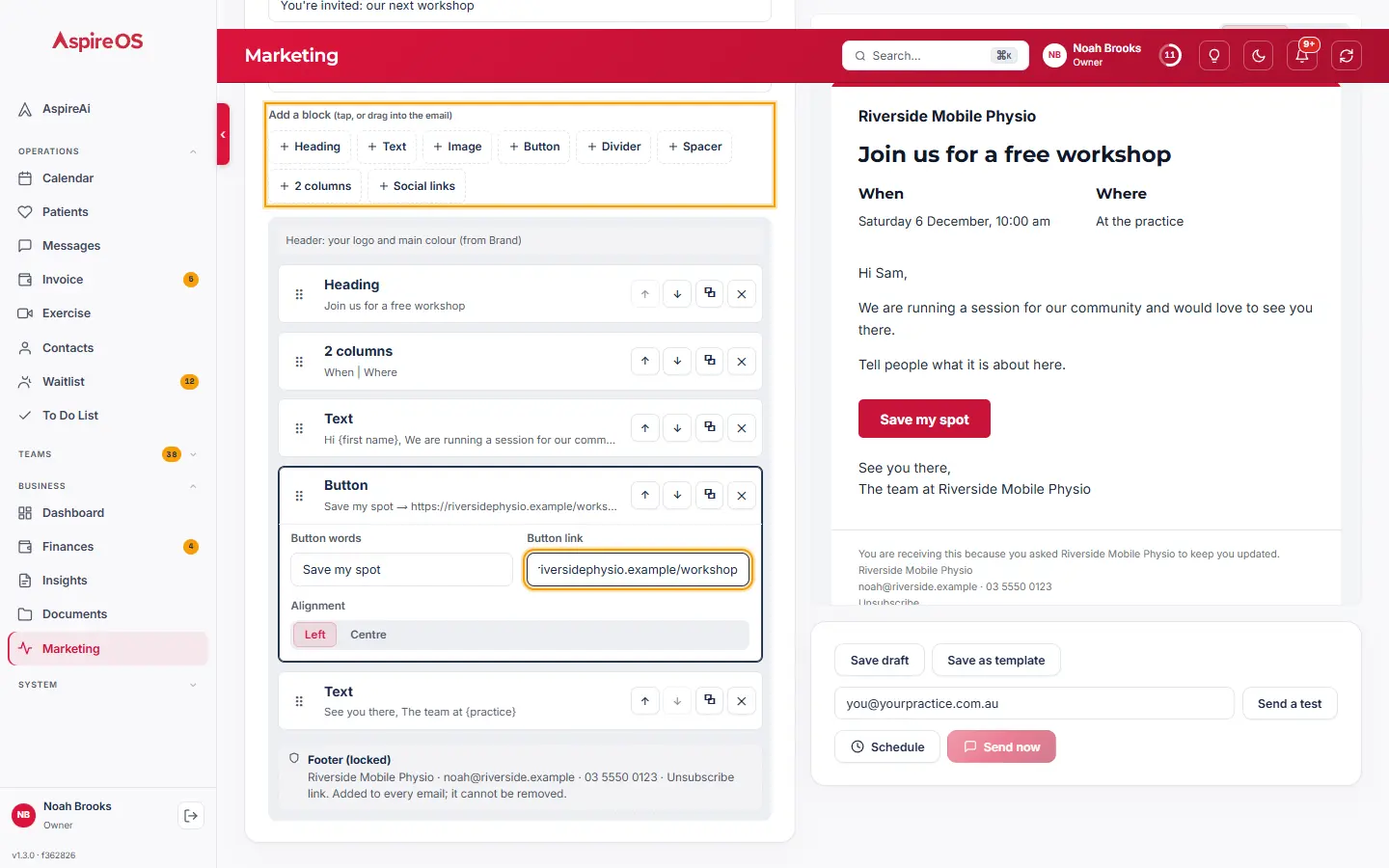
Edit the blocks
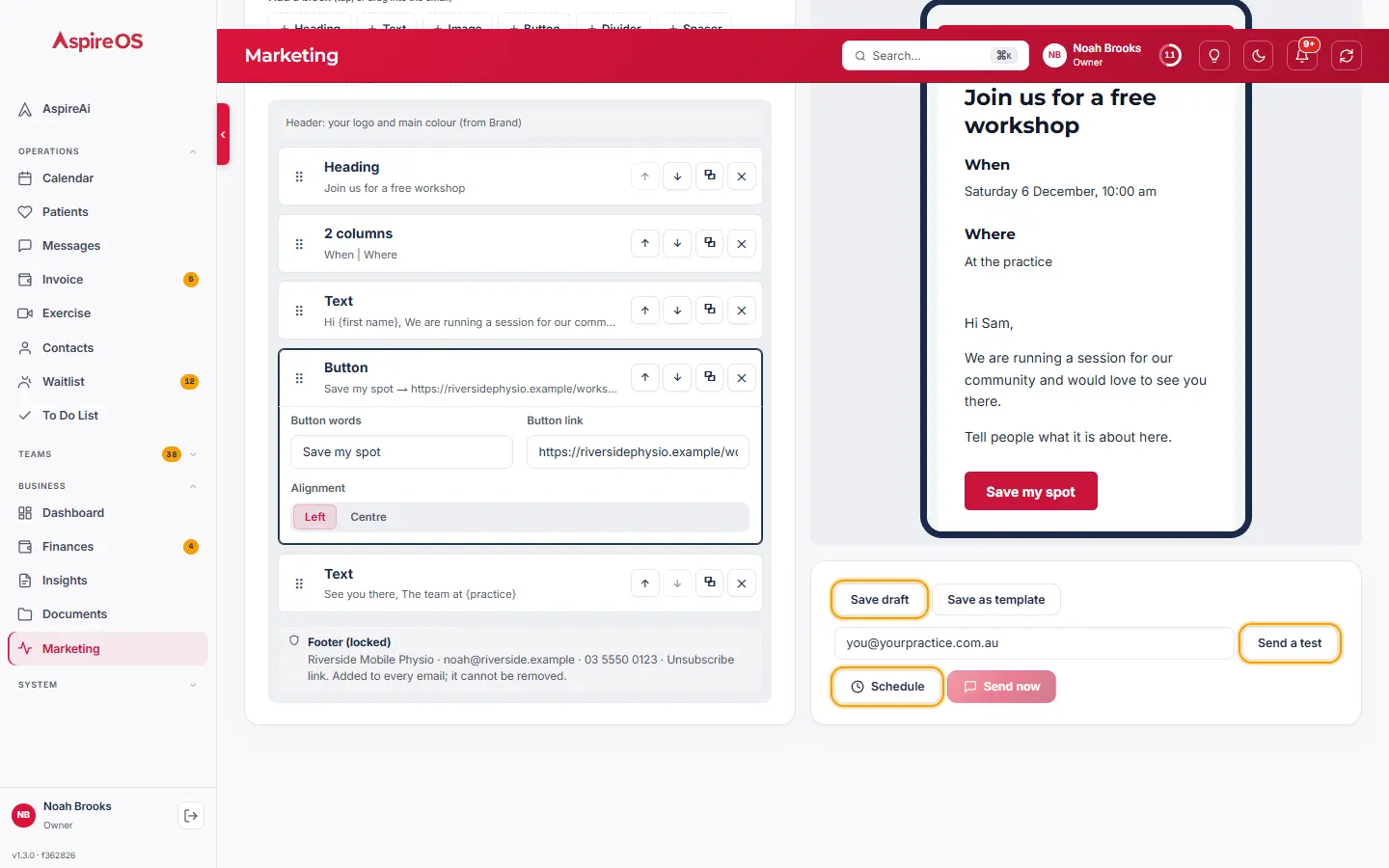
Click a block to edit it, for example the button's words and link (links must start with https://). Tap or drag a block from Add a block to add a heading, text, image, button, divider, spacer, 2 columns or social links. Use the arrows to move a block, or ✕ to remove it.
Check the preview
The preview on the right updates as you type. Click Phone to see how it looks on a phone, and Desktop to switch back. Your logo, colours and the unsubscribe footer are added for you.
Save, test, then send
Click Save draft to keep working later, or Save as template to reuse the design. Type your own email and click Send a test to see it in your inbox. When you're happy, click Schedule or Send now.
Schedule it for later
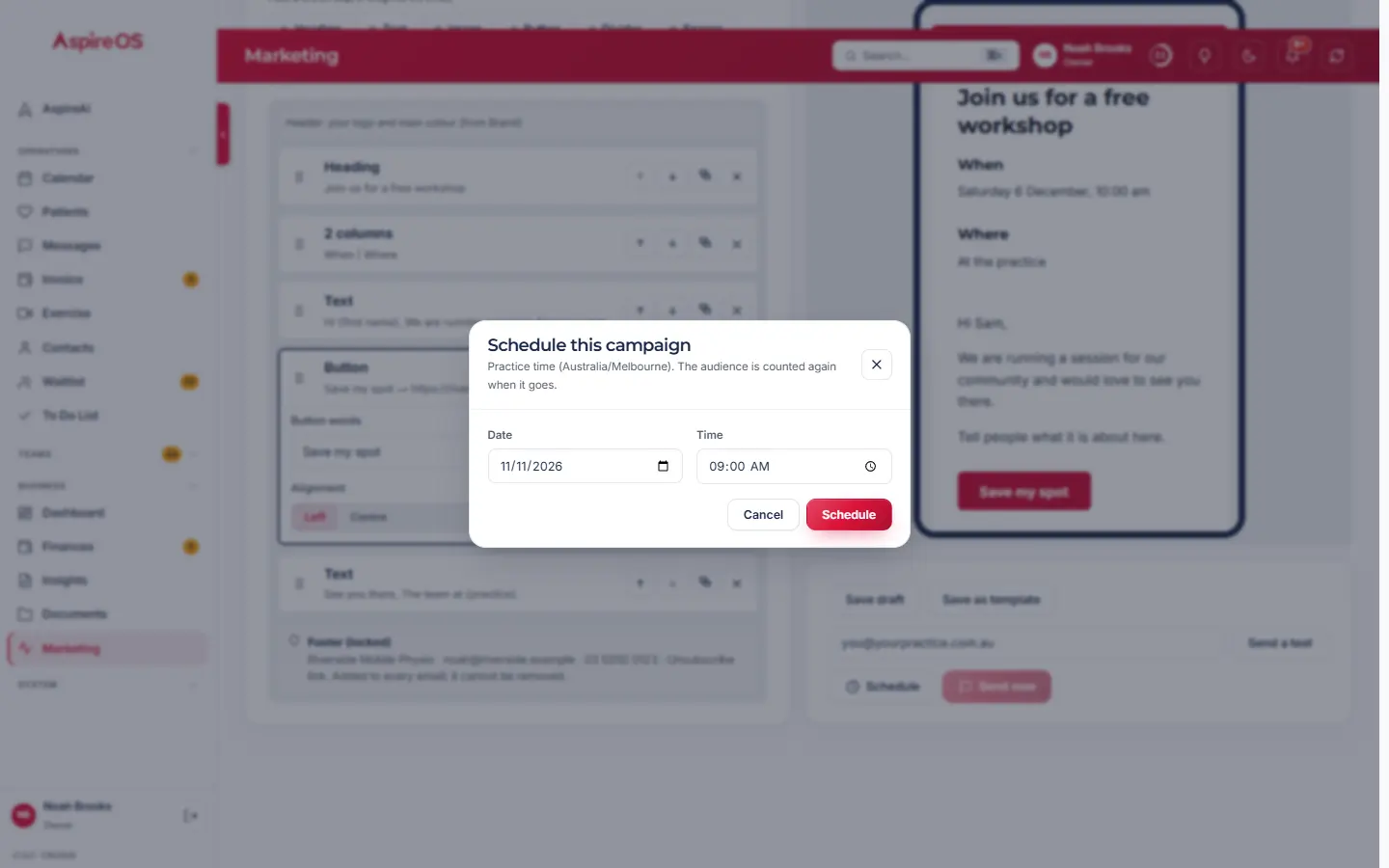
If you clicked Schedule, choose the date and time (practice time) and click Schedule. The audience is counted again when it goes out.
Screenshots taken 10 November 2026 on sample data. Your screens may differ slightly as AspireOS improves.
Still stuck?
Ask AspireAi inside AspireOS: it can walk you through any of these, or send a note to our support team for you.