Team
Track candidates with Recruitment & onboarding
Add candidates, move them through your hiring stages, score them, then carry new starters through onboarding.
Open Recruitment
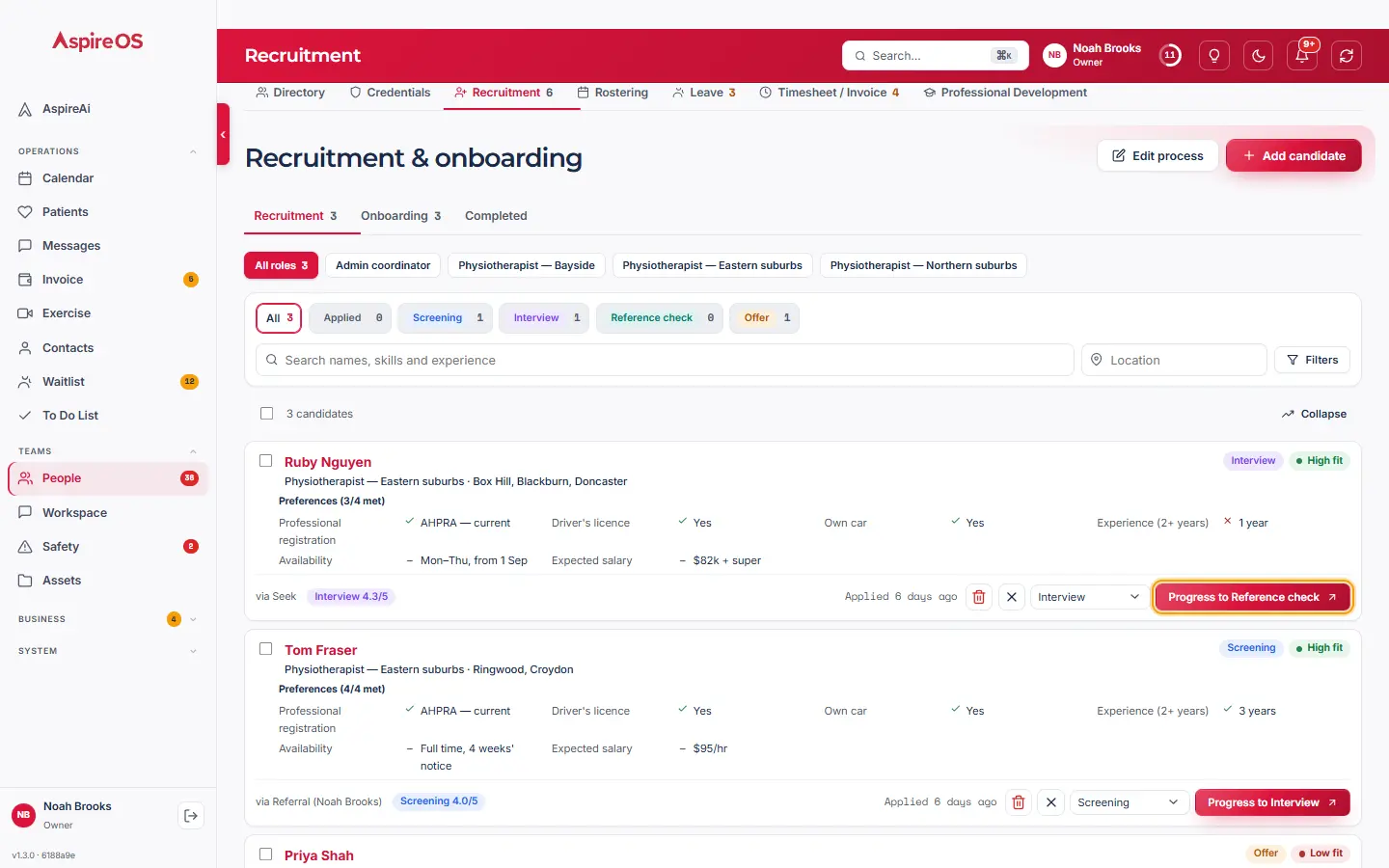
Go to People, then the Recruitment tab. Recruitment & onboarding lists every candidate, with their role, fit and stage.
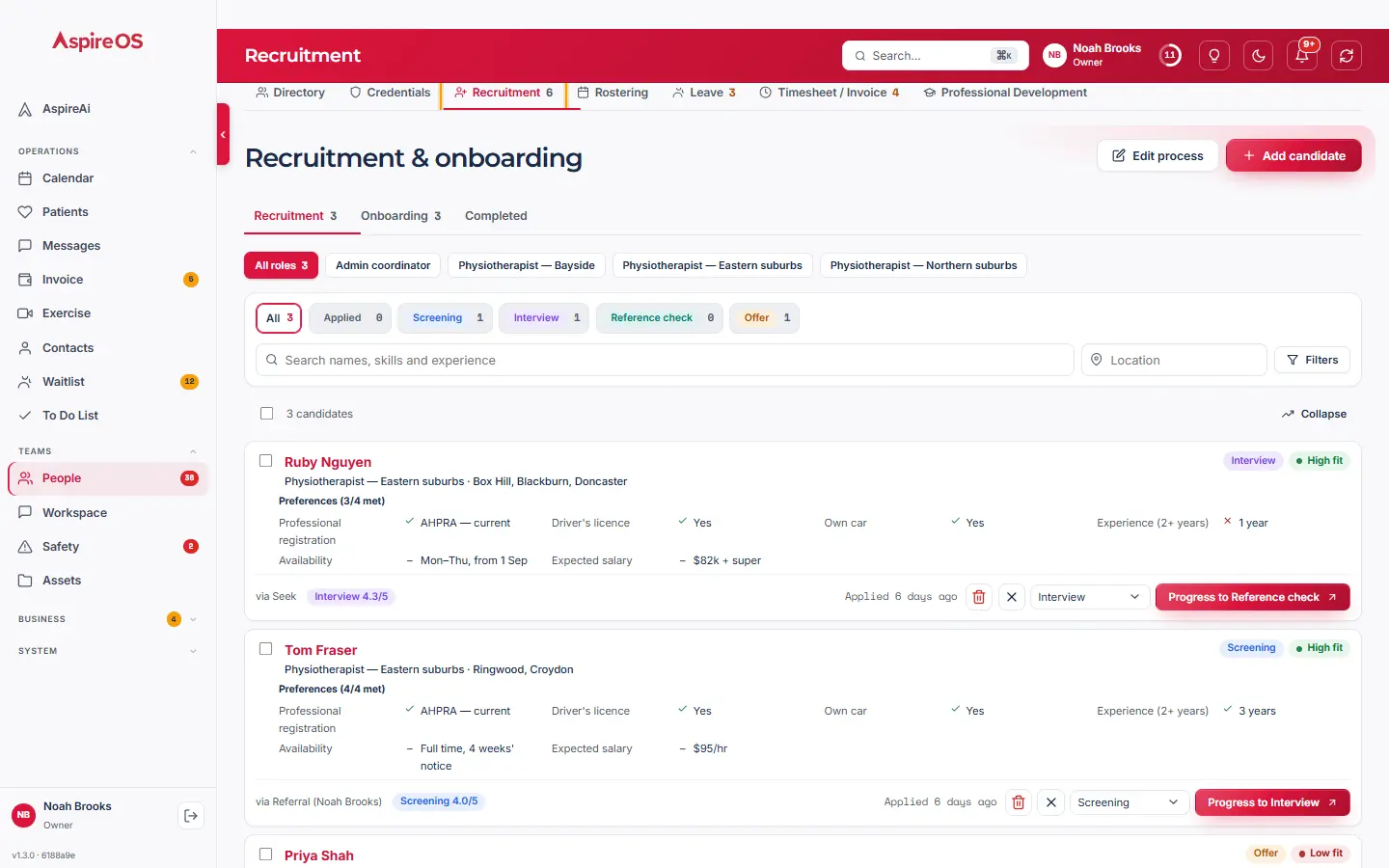
Add a candidate
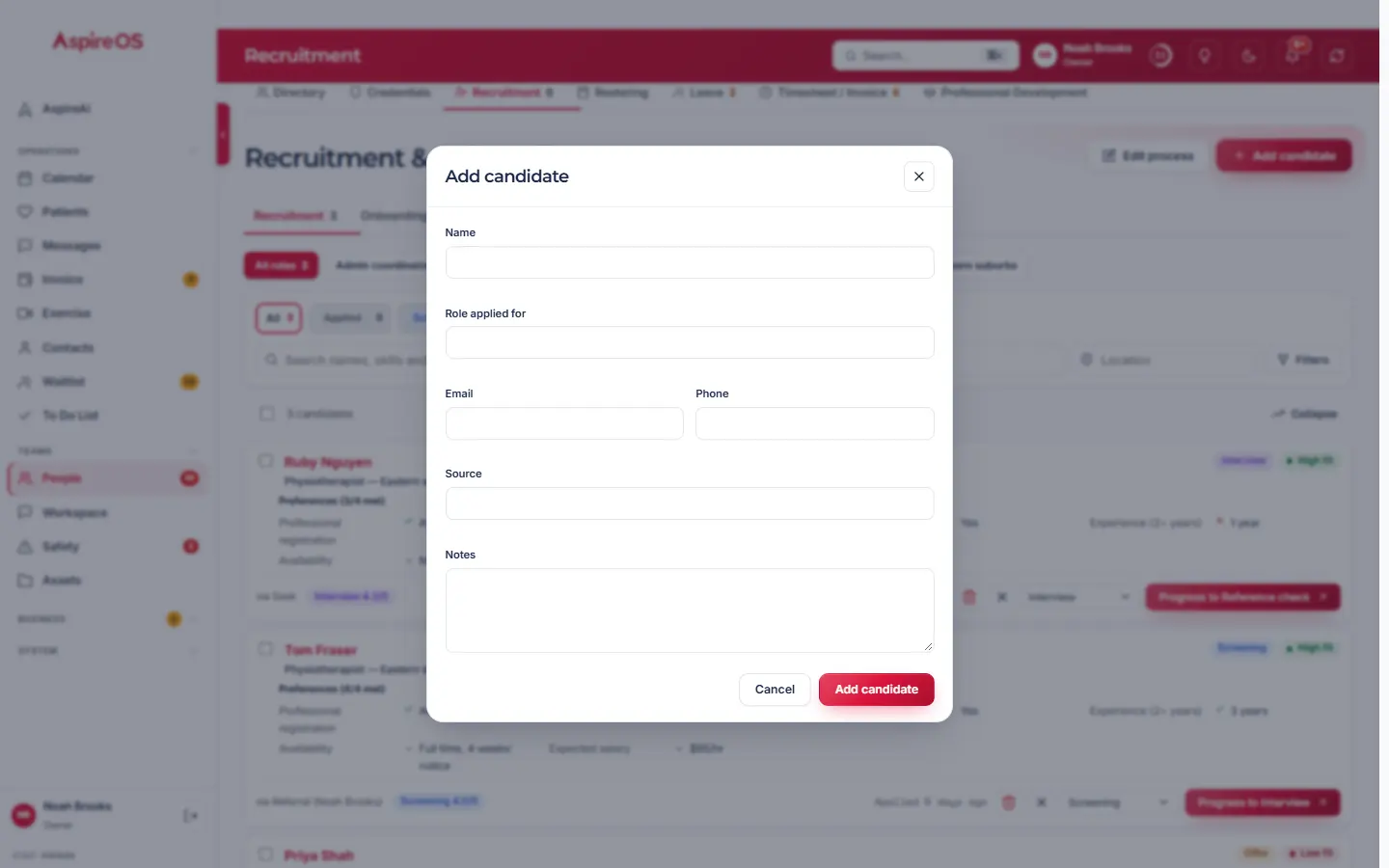
Click Add candidate. Enter their name, the role applied for, email, phone, where they found you (Source) and any notes, then click Add candidate.
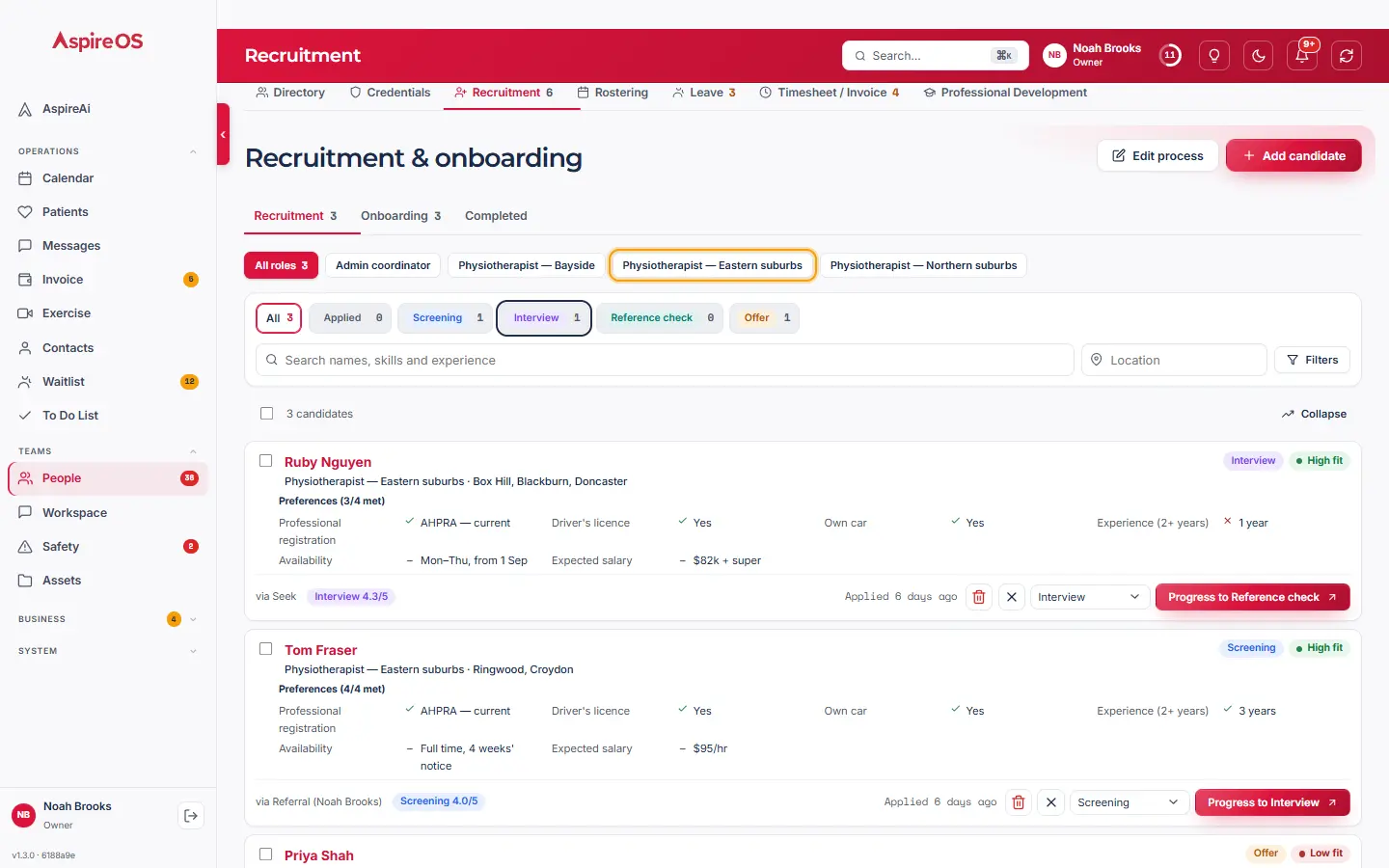
Filter by role and stage
Click a role to see only its candidates, and a stage (Applied, Screening, Interview, Reference check, Offer) to narrow it down. You can also search names, skills and experience, or by location.
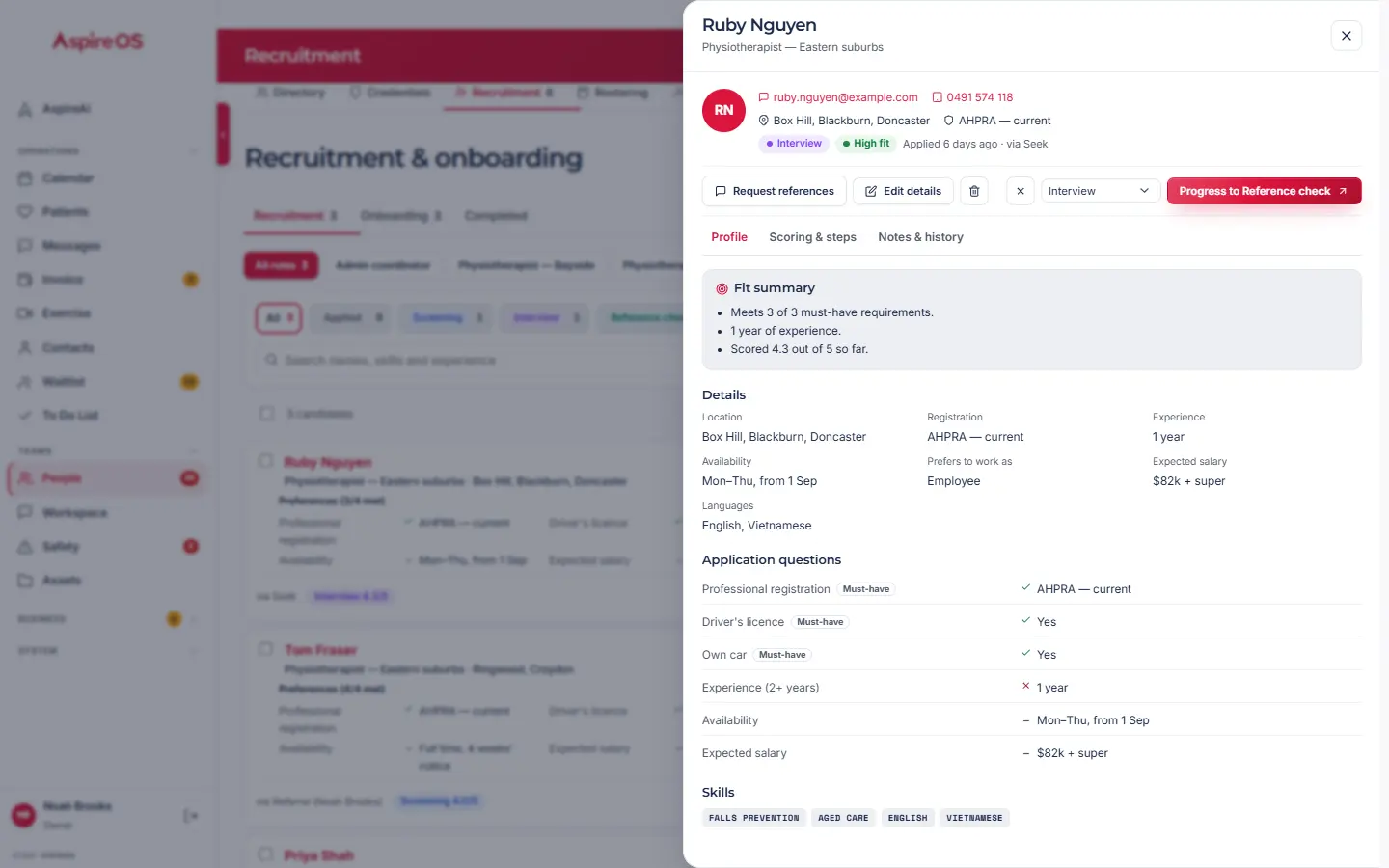
Open a candidate
Click a candidate's name to see their fit summary, details, answers to your application questions and skills. Use Scoring & steps to score them and Notes & history to keep notes.
Move them to the next stage
Click Progress to … (for example Progress to Reference check) on their card, or pick a stage from the drop-down. The cross marks them Not suitable, and the bin removes them from the pipeline.
Set up your hiring process
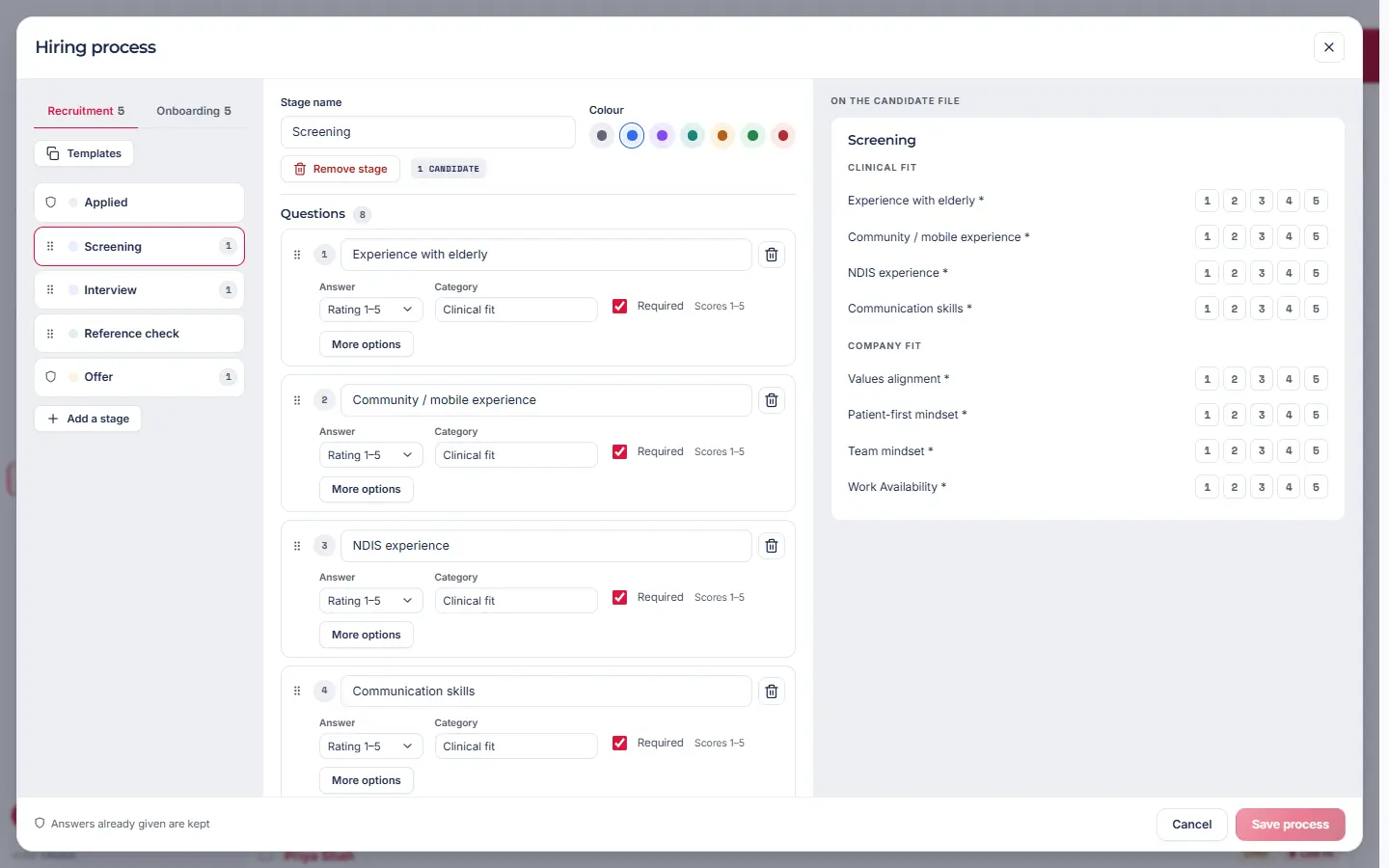
Click Edit process to add, rename, colour or reorder stages, and to write the questions scored at each stage. Click Save process when you're done. Answers already given are kept.
Carry new starters through onboarding
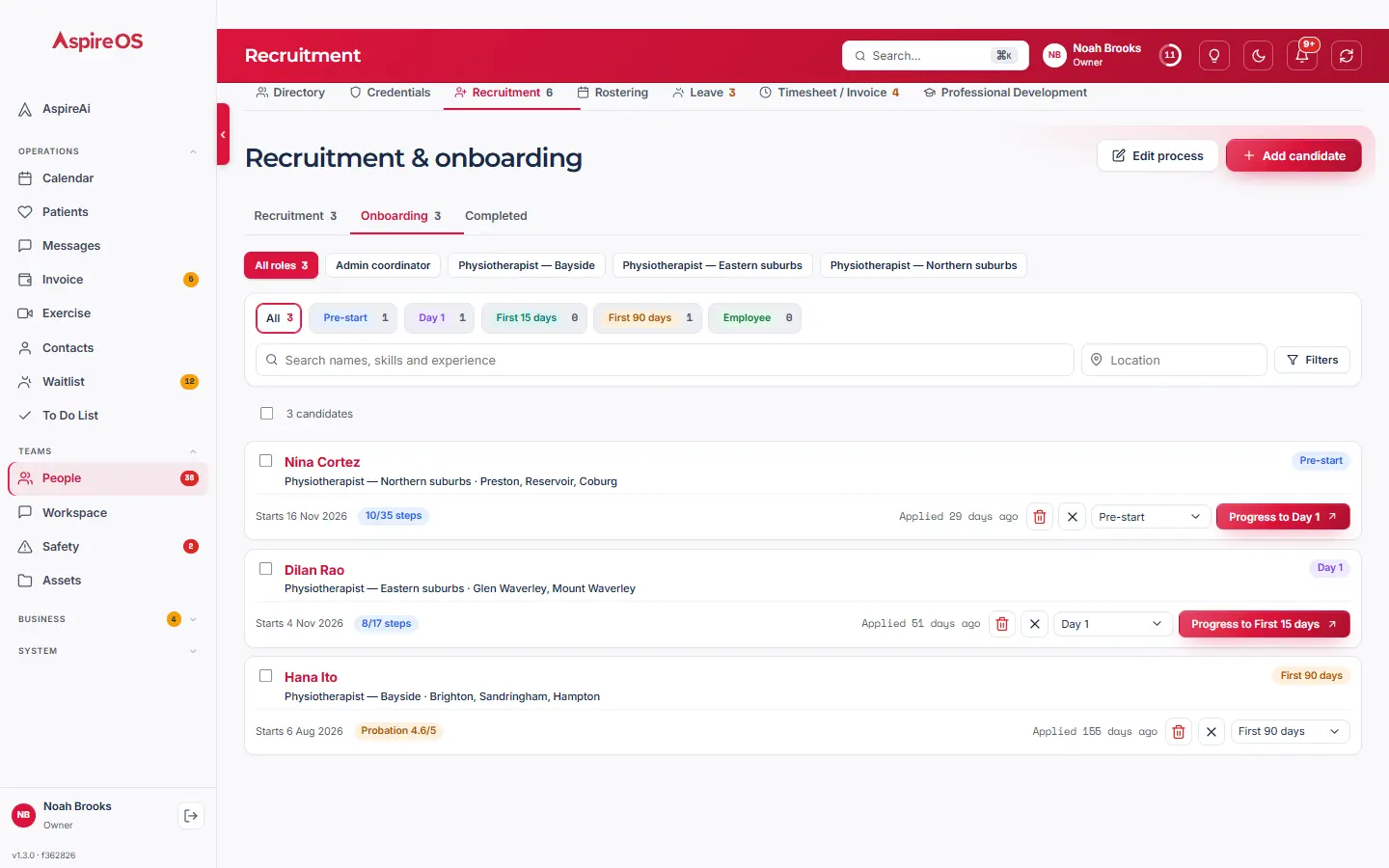
Once hired, they move to the Onboarding tab: Pre-start, Day 1, First 15 days, First 90 days, then Employee. Each card shows their start date and steps done.
Screenshots taken 10 November 2026 on sample data. Your screens may differ slightly as AspireOS improves.
Still stuck?
Ask AspireAi inside AspireOS: it can walk you through any of these, or send a note to our support team for you.