Account & security
Turn on two-factor sign-in
Add a second step at sign-in with an authenticator app on your phone, and require it for your whole team.
Open your own row under People & access
Go to Settings, then the People & access tab. Under Your team, click your own name to open your details.
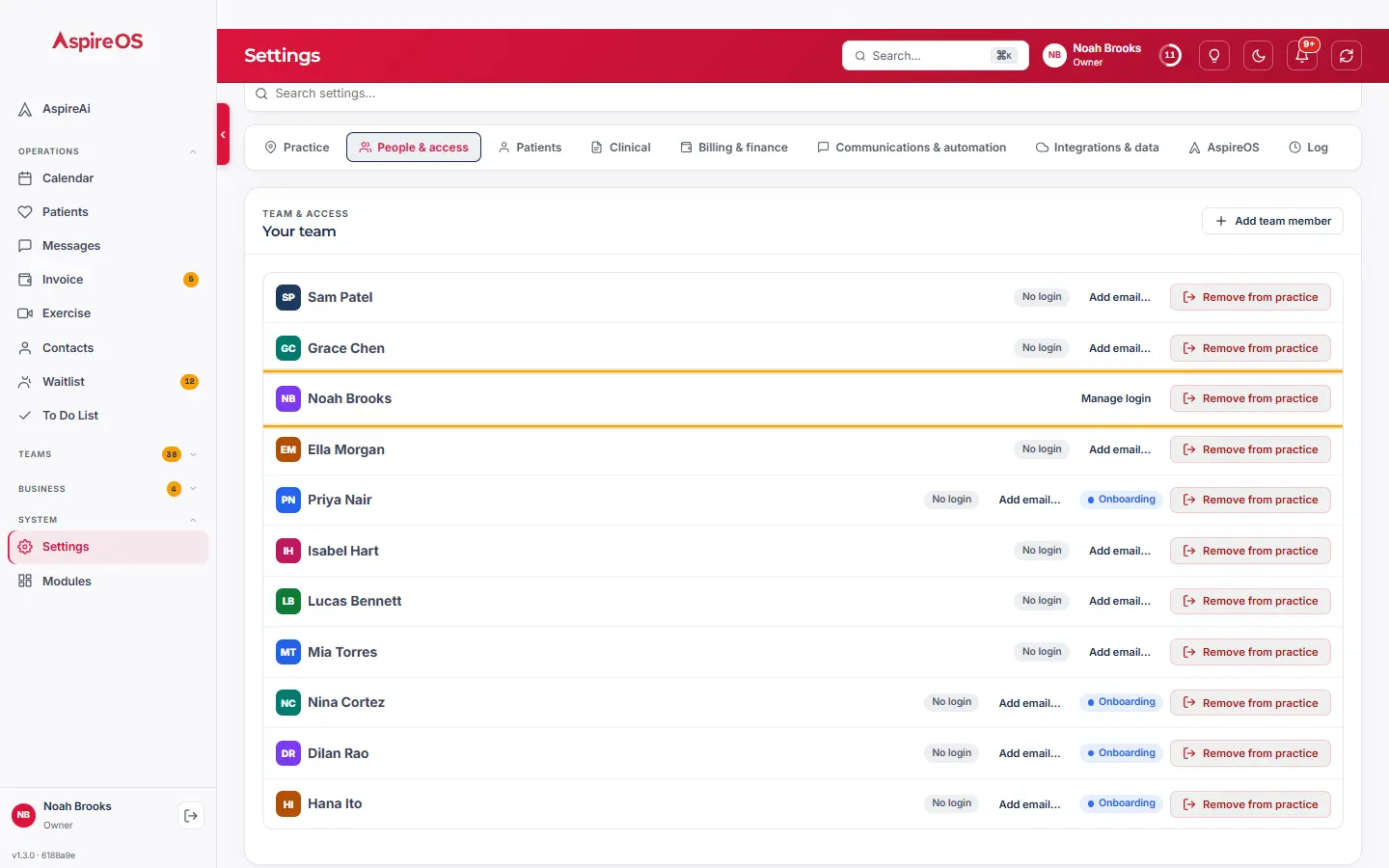
Click Enable two-factor
Scroll to Your sign-in (only you can see this part). Under 2 Factor Authentication, click Enable two-factor.
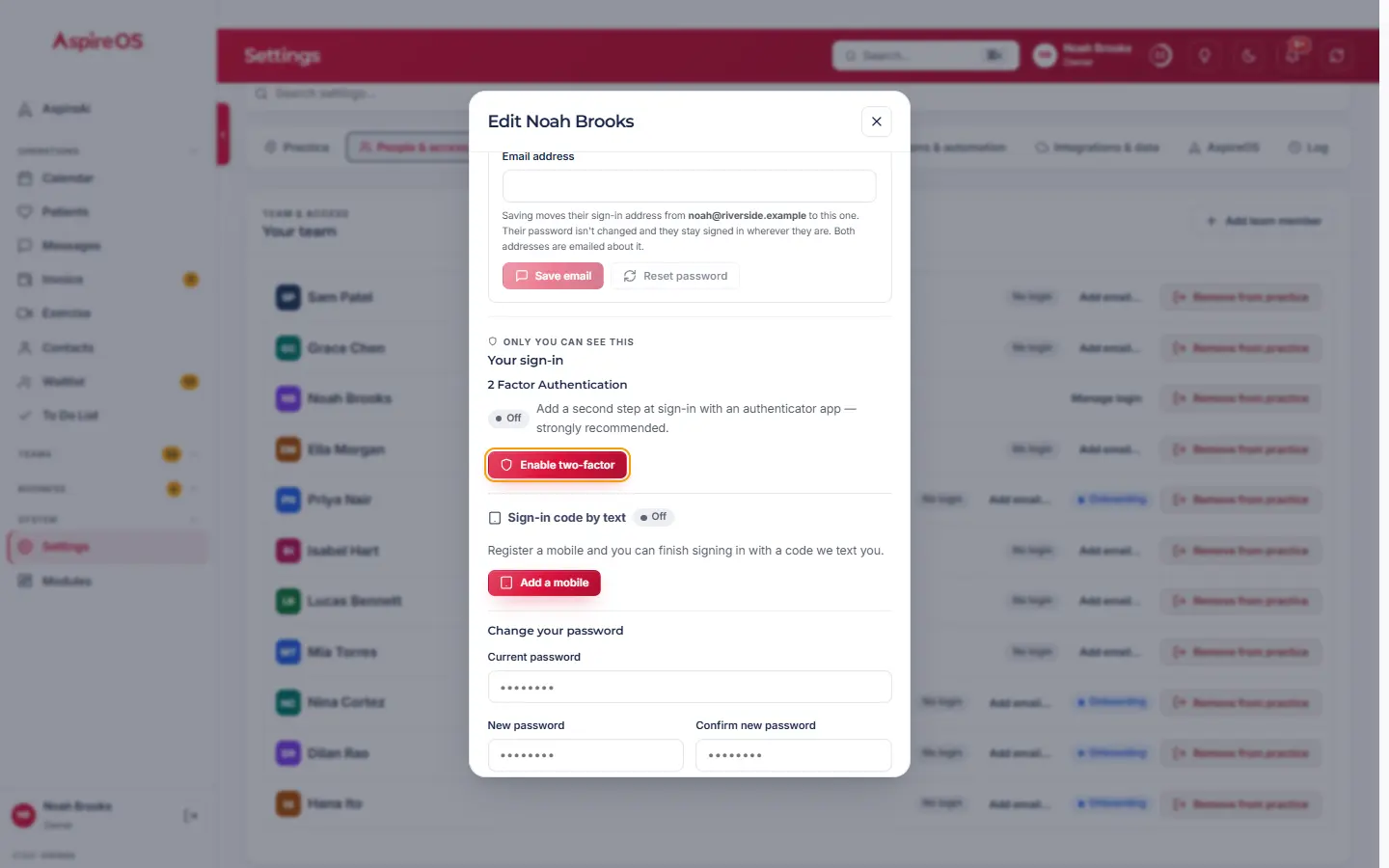
Scan the QR code
Open an authenticator app on your phone and scan the QR code. Can't scan? Type in the key shown beside it instead. Then type the 6-digit code your app shows.
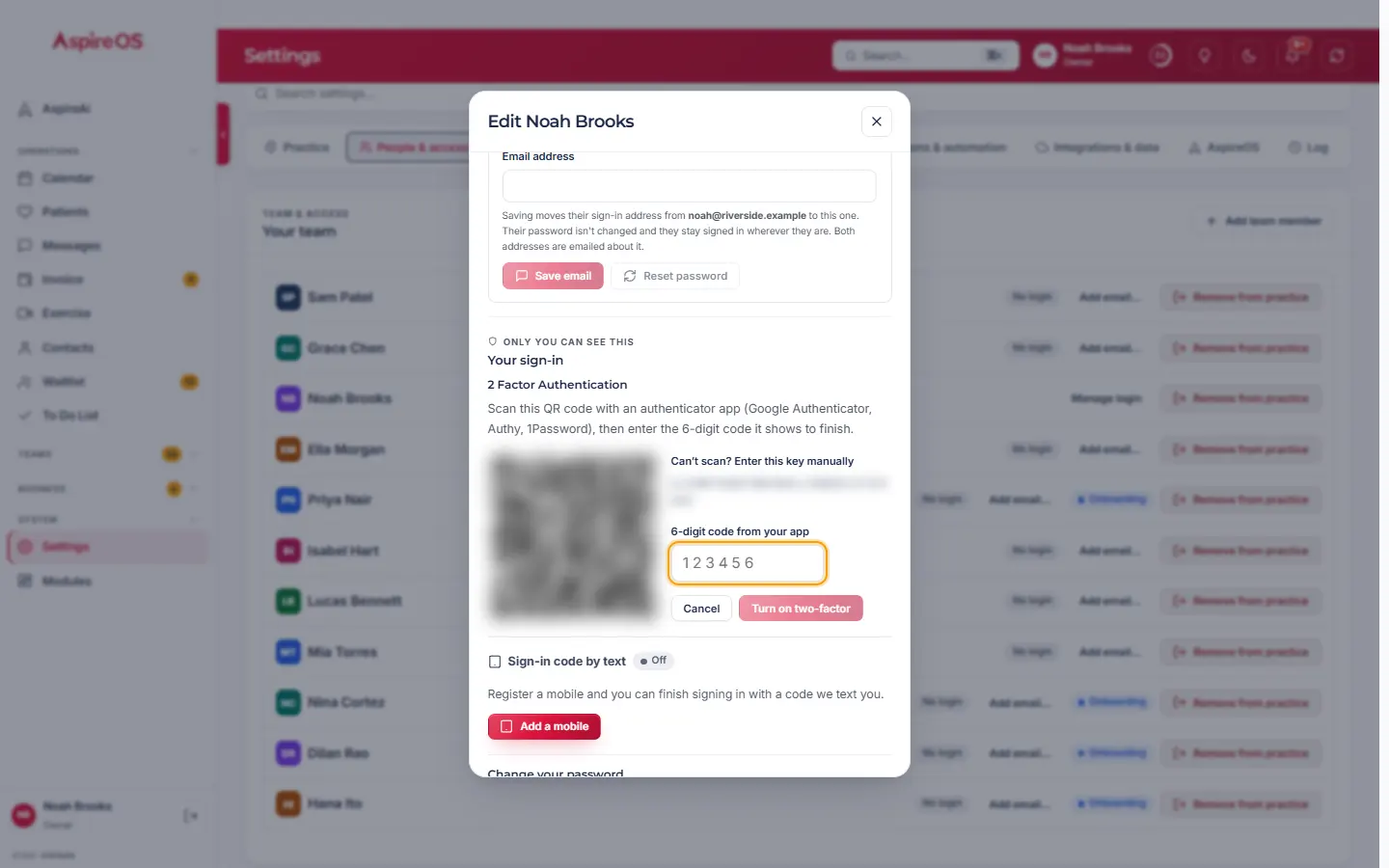
Click Turn on two-factor
Click Turn on two-factor. AspireOS then shows your recovery codes once: write them down or save them somewhere safe, in case you lose your phone.
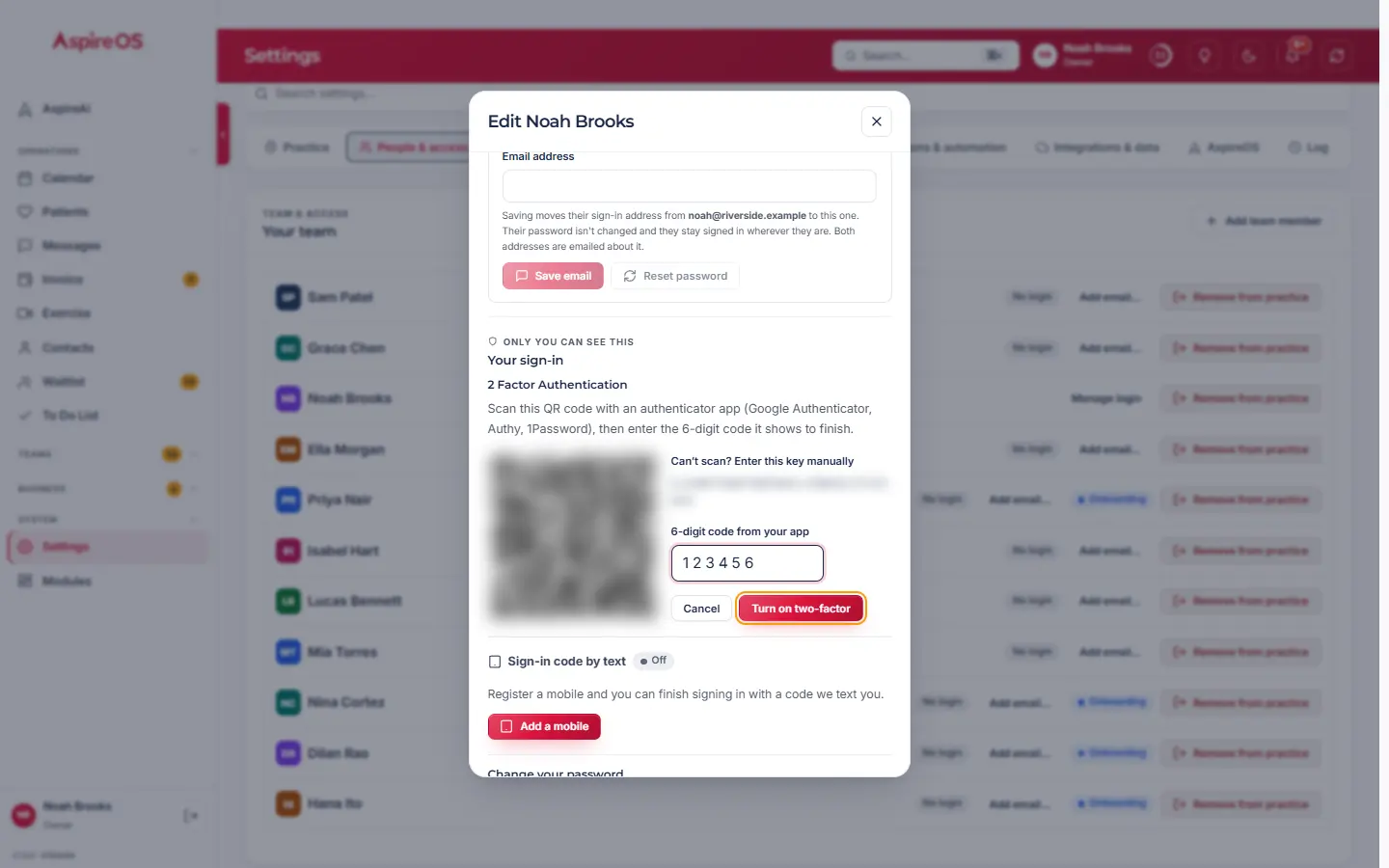
Owners: require it for the team
Back on People & access, the Two-factor for all staff card lets an owner require two-factor for all staff. Owners and admins need it by default, with a 7-day countdown before it's required.
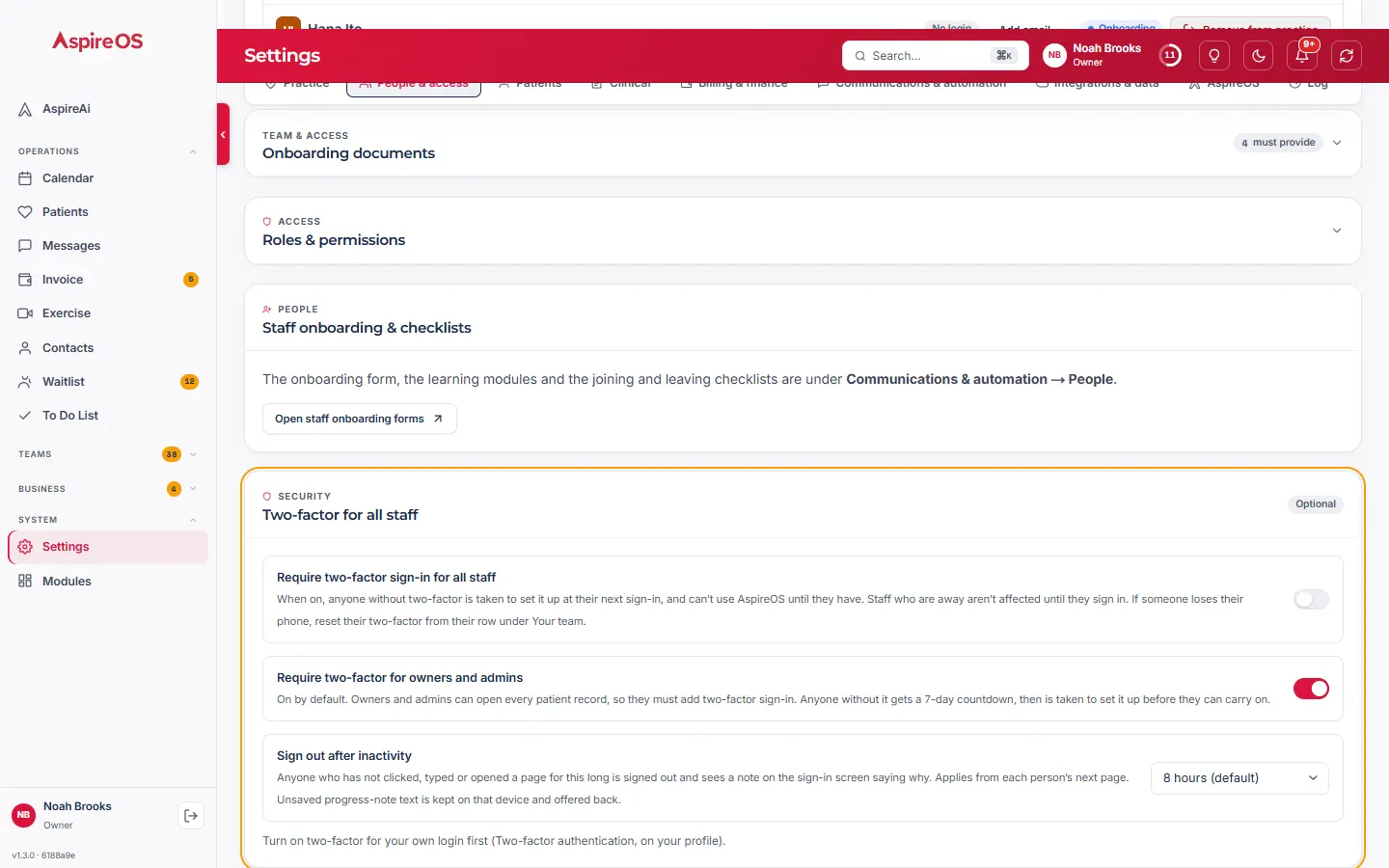
Screenshots taken 10 November 2026 on sample data. Your screens may differ slightly as AspireOS improves.
Still stuck?
Ask AspireAi inside AspireOS: it can walk you through any of these, or send a note to our support team for you.