Account & security
Manage your AspireOS subscription
See your plan, choose monthly or yearly, set how many people you pay for, and pay by card or direct debit.
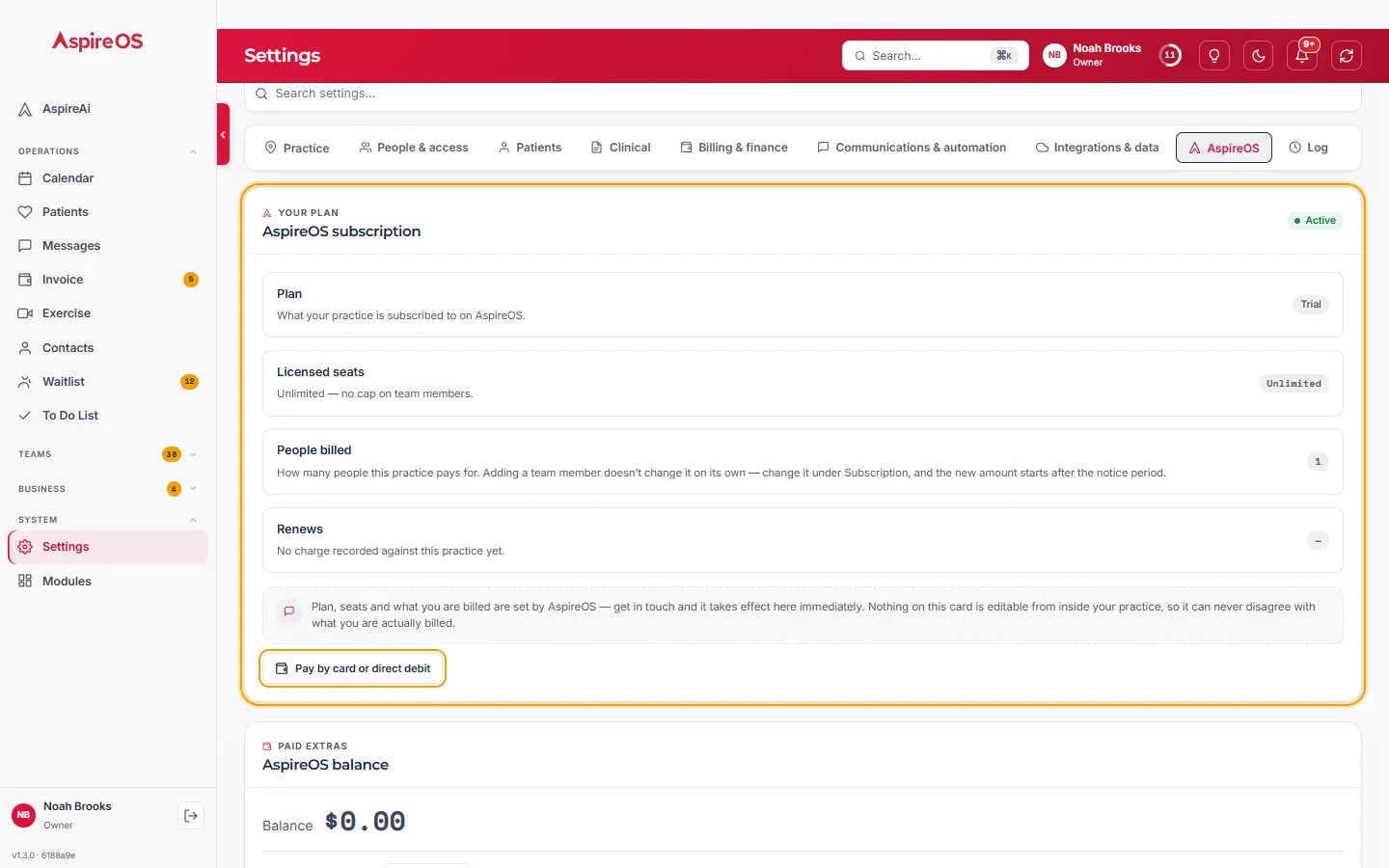
Open the AspireOS subscription card
Go to Settings, then the AspireOS tab. The AspireOS subscription card shows your plan, licensed seats, people billed and when it renews. Click Pay by card or direct debit.
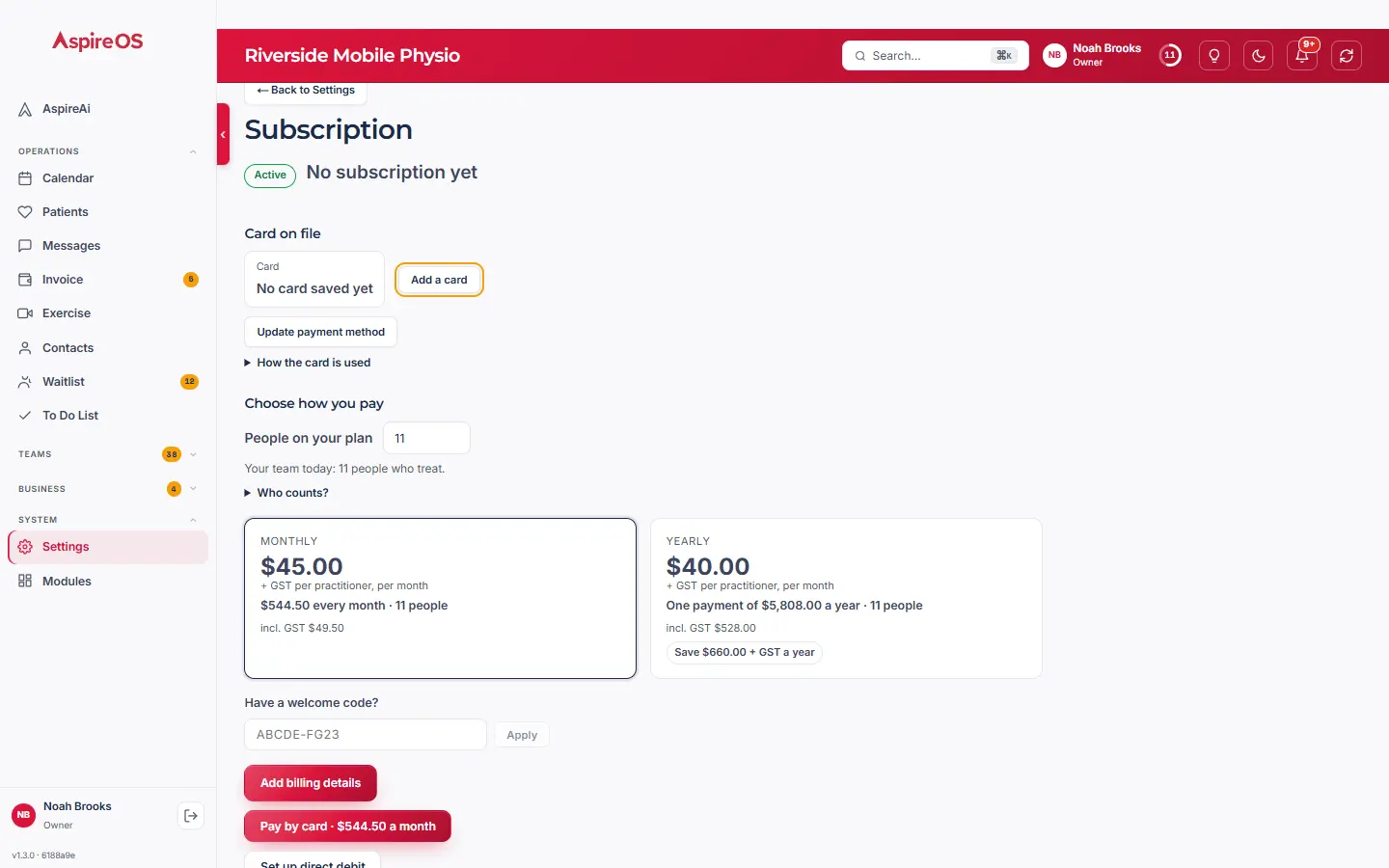
Save a card
On the Subscription page, under Card on file, click Add a card to save the card your subscription is charged to. Use Update payment method to change it later.
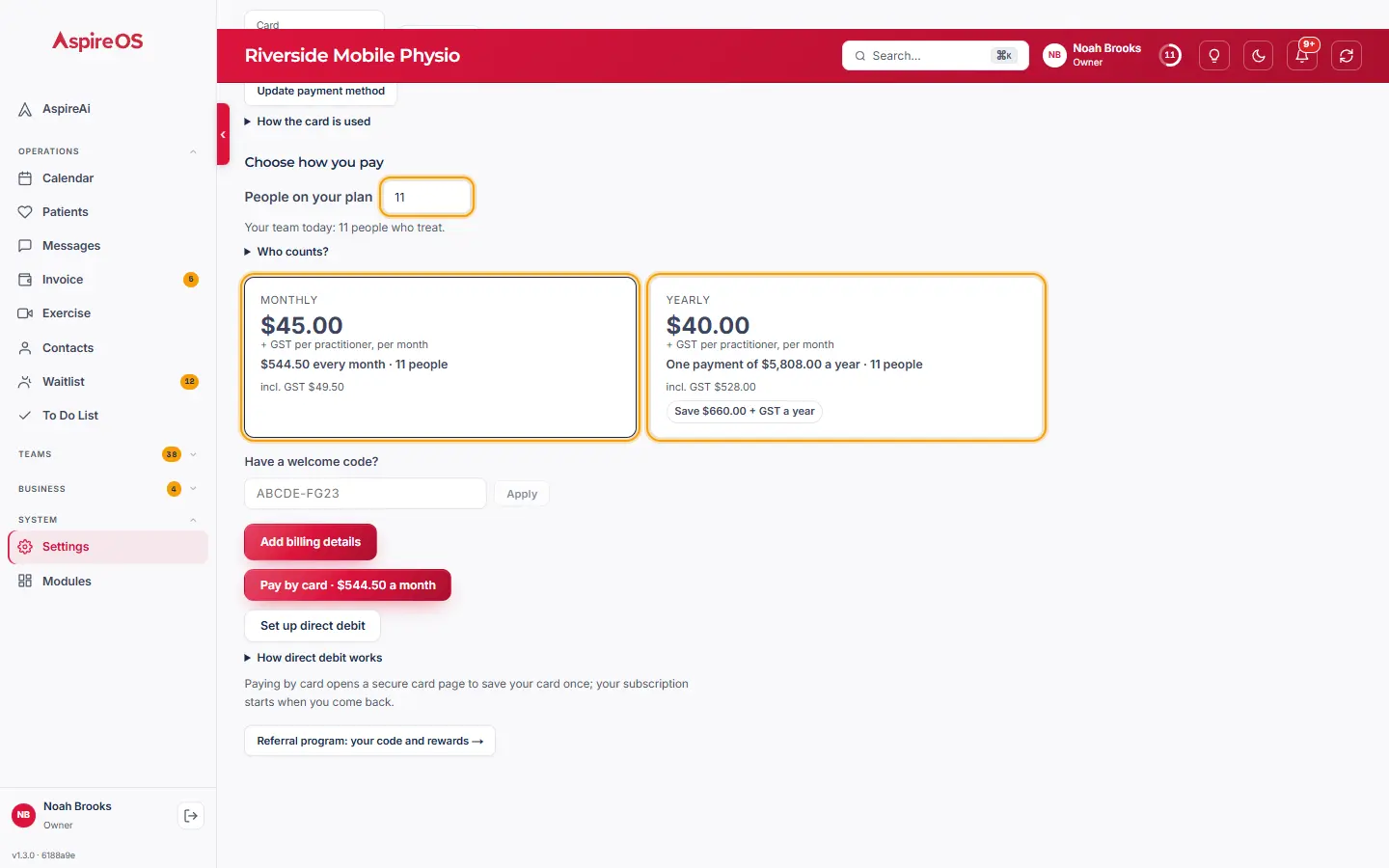
Choose people and monthly or yearly
Under Choose how you pay, set People on your plan, then pick Monthly or Yearly. Each option shows the total, with GST, before you pay. Yearly costs less per person.
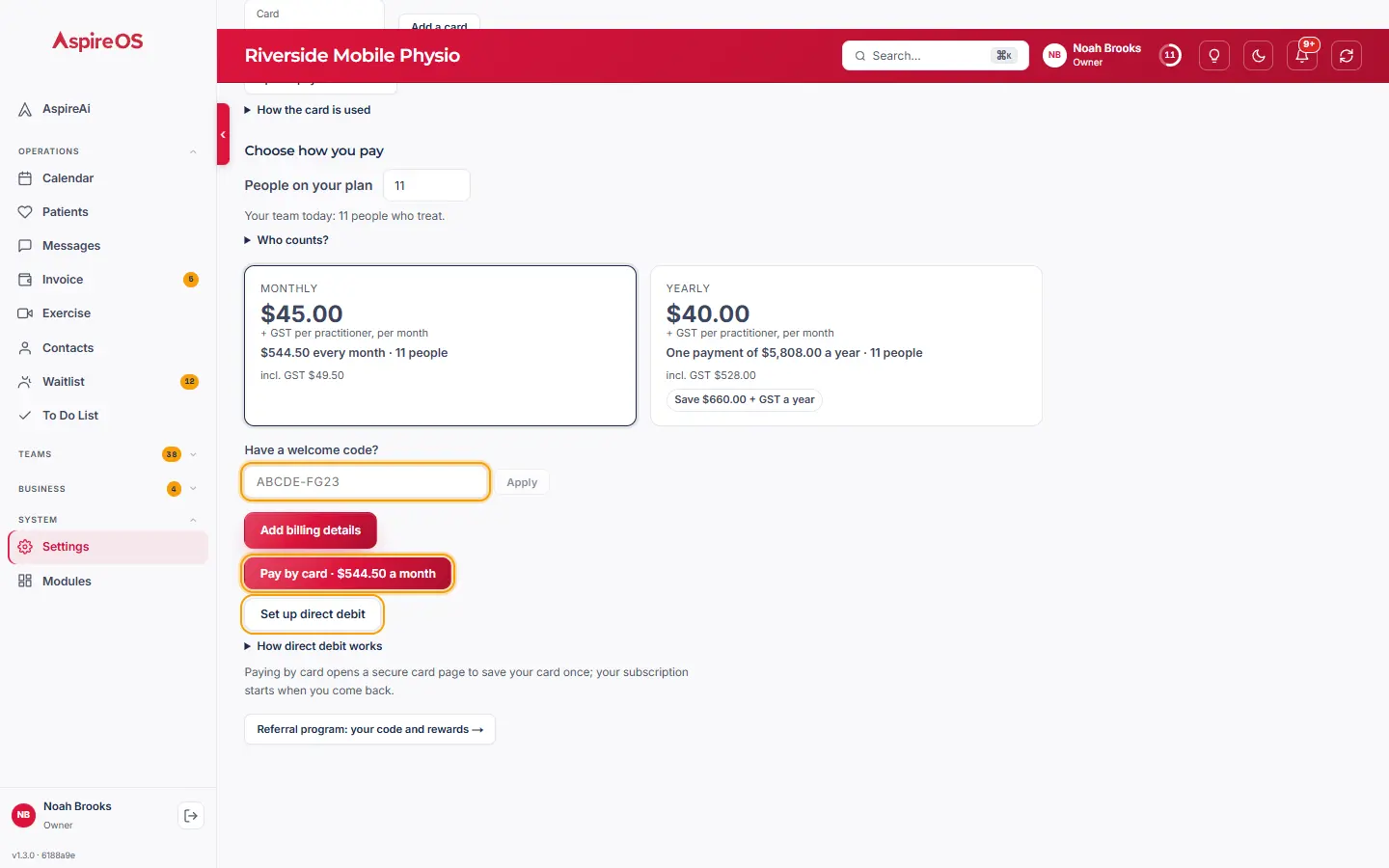
Add a code, then pay
Have a welcome code? Enter it and click Apply. Click Add billing details for your invoices, then Pay by card or Set up direct debit. Paying by card opens a secure card page, and your subscription starts when you come back.
Screenshots taken 10 November 2026 on sample data. Your screens may differ slightly as AspireOS improves.
Still stuck?
Ask AspireAi inside AspireOS: it can walk you through any of these, or send a note to our support team for you.