Invoicing & claims
Create and send an invoice, then record payment
Complete a visit to draft its invoice, check the lines, email it, and record the payment when it comes in.
Complete the visit
Open the visit on the Calendar and click Complete under Update status.
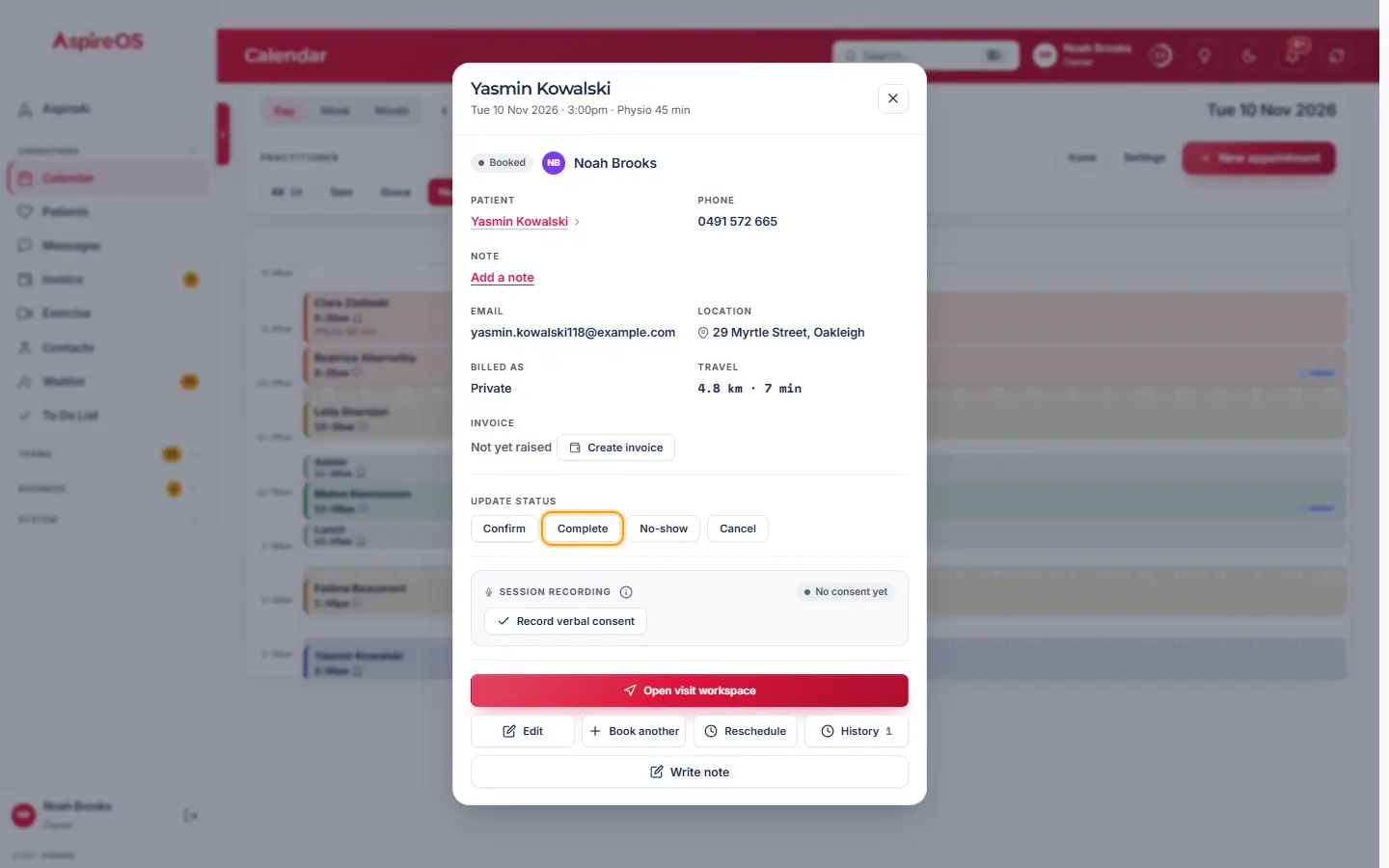
A draft invoice is made for you
Completing the visit drafts an invoice priced from your fee schedule for the patient's funding type. It shows under Invoice on the visit, for example INV-2189 · Draft. Click it to open it.
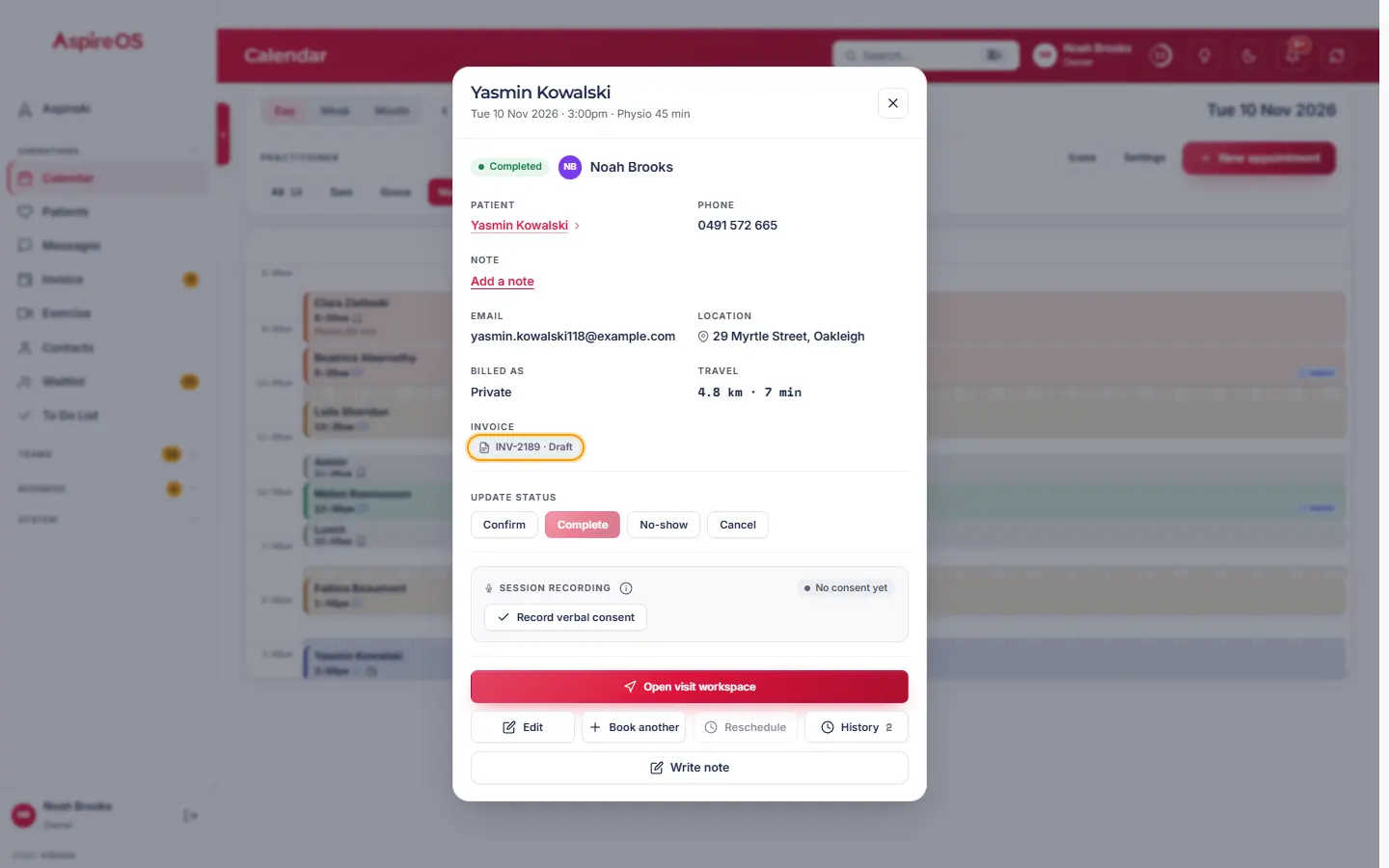
Check the invoice lines
Check the bill-to, due date and line items. Use Add line or Add a product for anything extra, such as equipment.
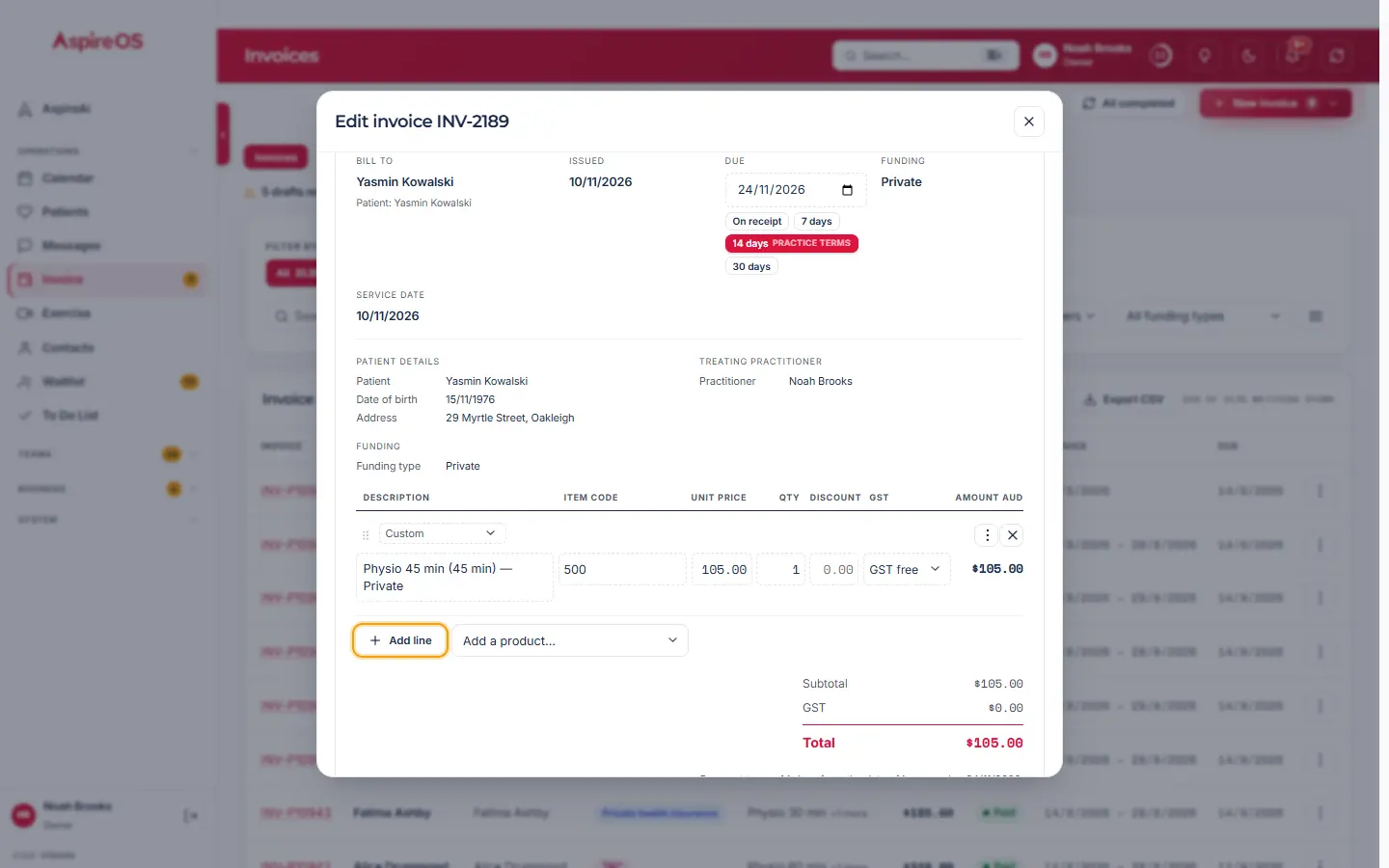
Send it
Scroll to the bottom, check the payment options and notes, then click Send Invoice. Save invoice keeps it as a draft for later.
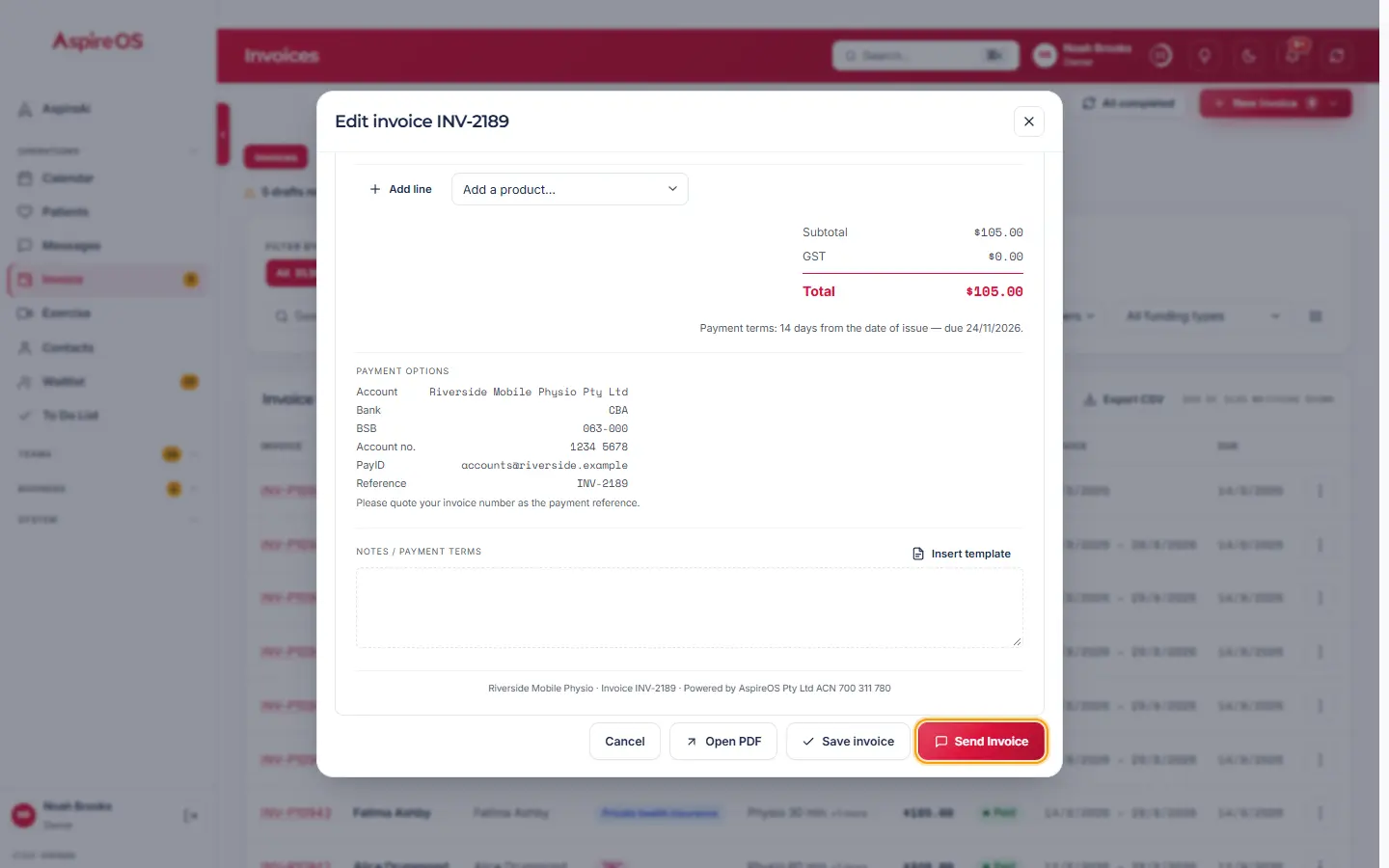
Check the email and send
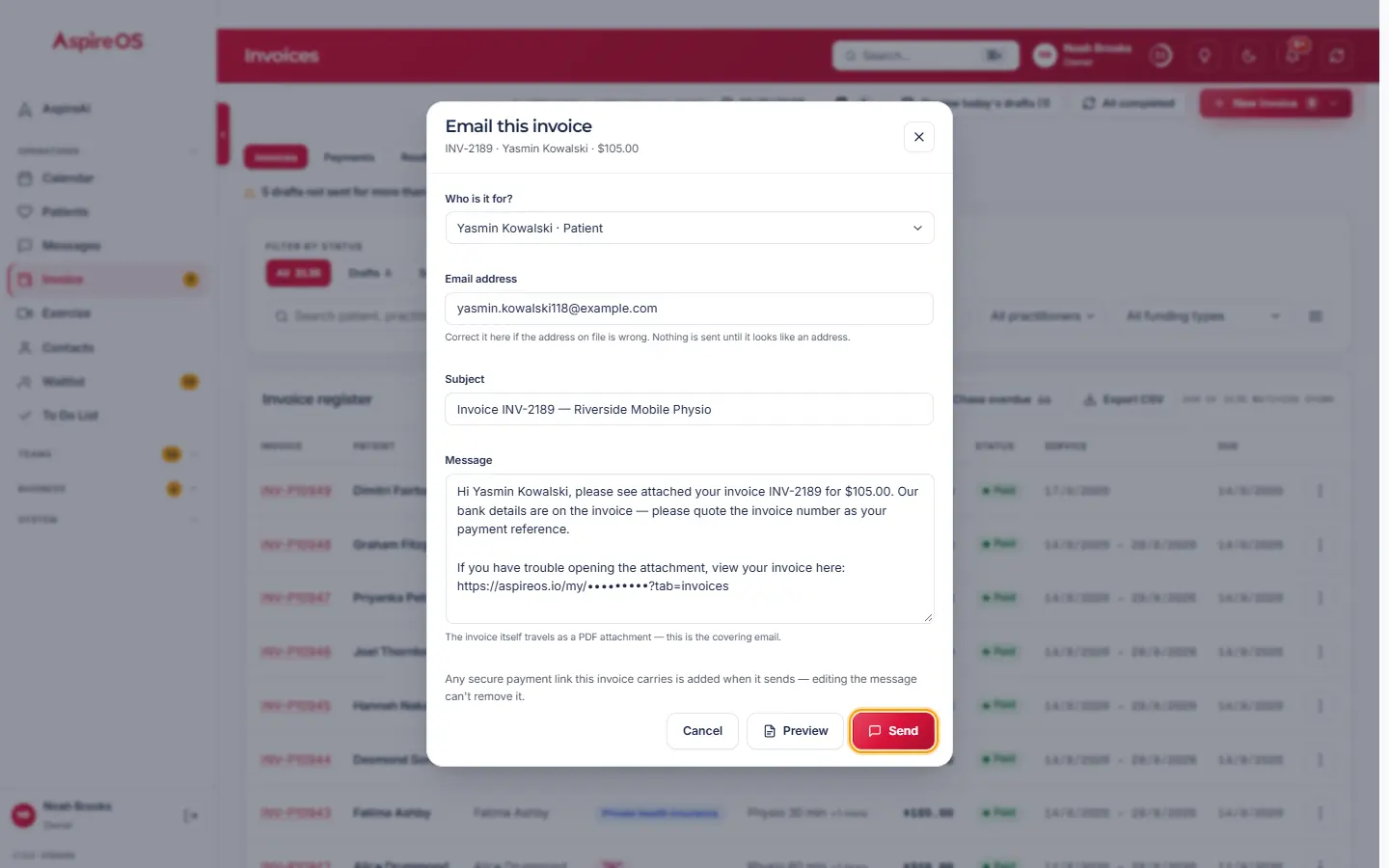
Choose who it is for, check the email address, subject and message, then click Send. The invoice goes as a PDF attachment, with a secure pay link if you take card payments.
Record a payment on a sent invoice
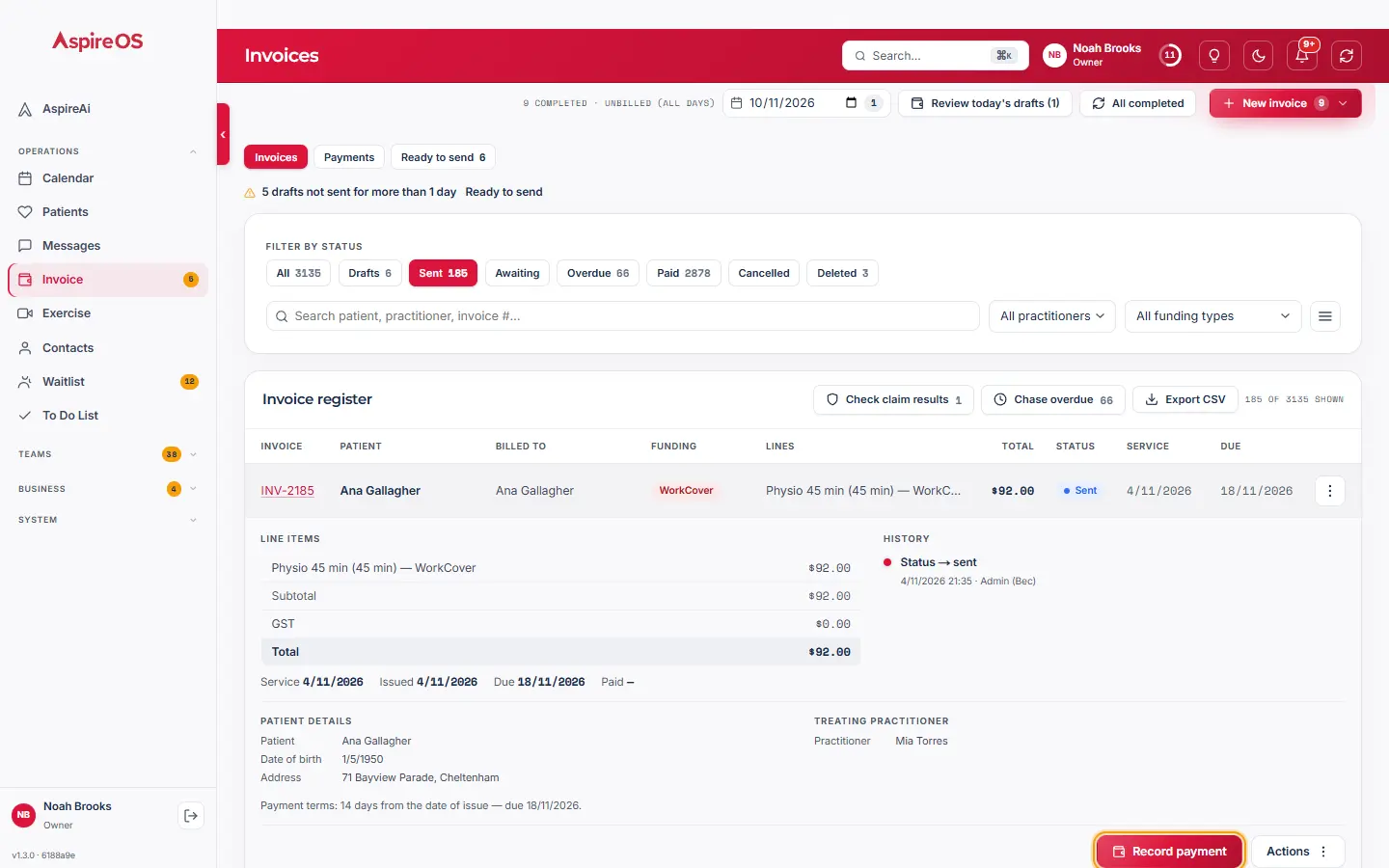
When the money arrives, go to Invoices, click the invoice row to open it, and click Record payment.
Paid before you sent it?
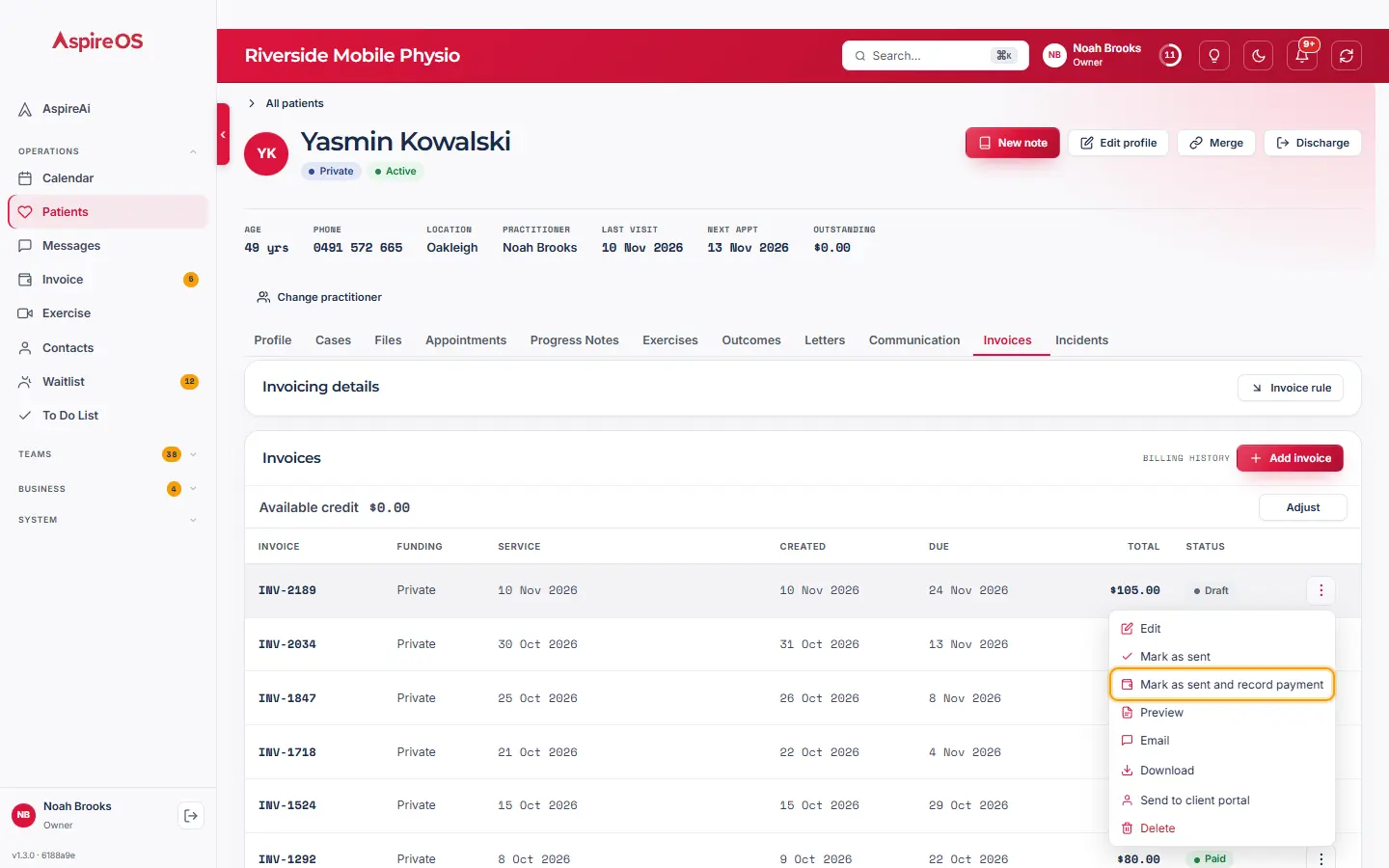
If you gave the patient the bill another way, open the patient's Invoices tab, click the ⋮ menu on the draft and choose Mark as sent and record payment.
Enter the payment
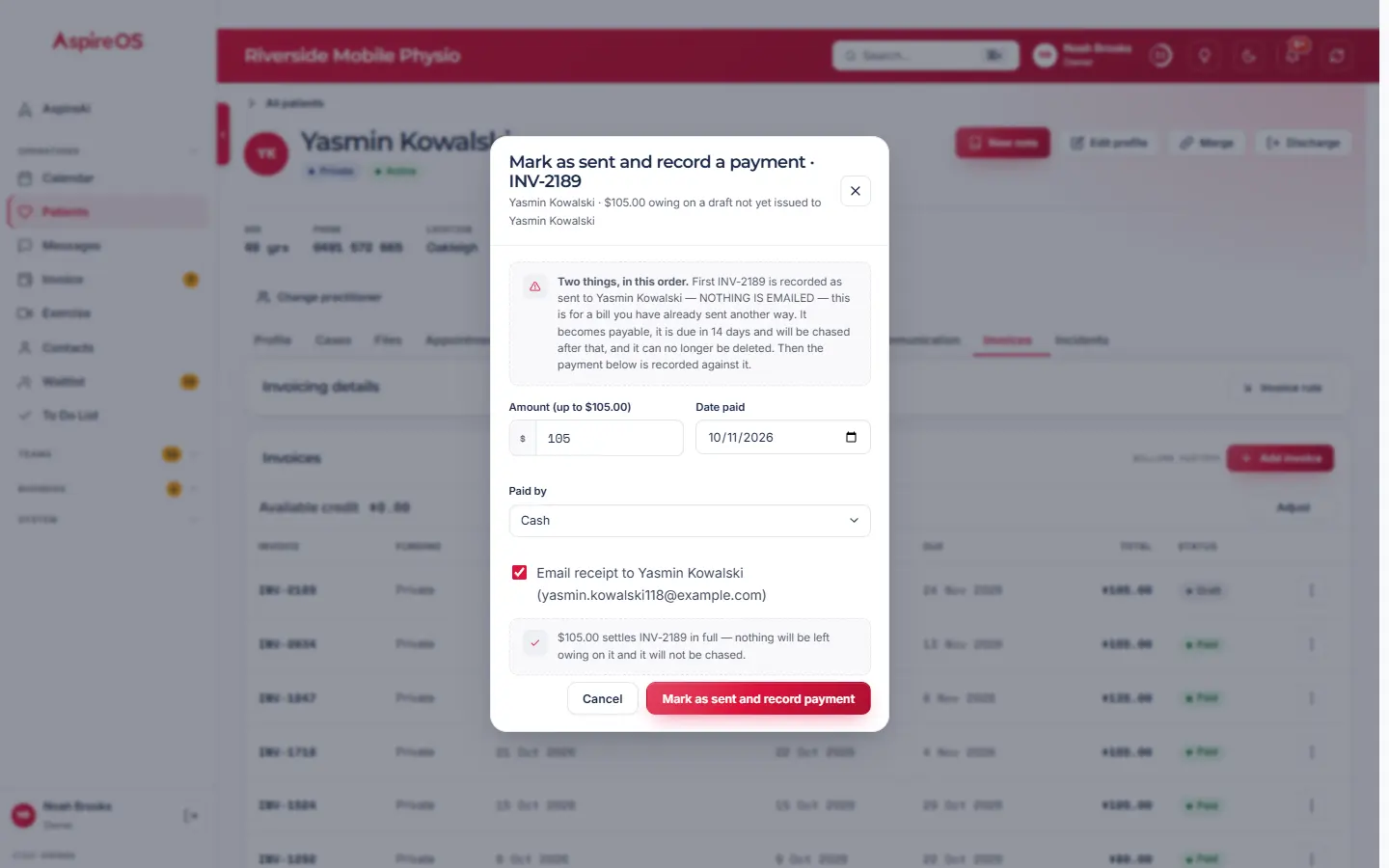
Check the amount, date paid and how it was paid (cash, EFTPOS, card, bank transfer and more). Tick Email receipt if the patient wants one, then confirm.
Screenshots taken 10 November 2026 on sample data. Your screens may differ slightly as AspireOS improves.
Still stuck?
Ask AspireAi inside AspireOS: it can walk you through any of these, or send a note to our support team for you.