Invoicing & claims
Track Medicare, DVA and NDIS claims
Record claims against Medicare and DVA invoices, check their results, and download the NDIS bulk payment file.
Find the invoices to claim
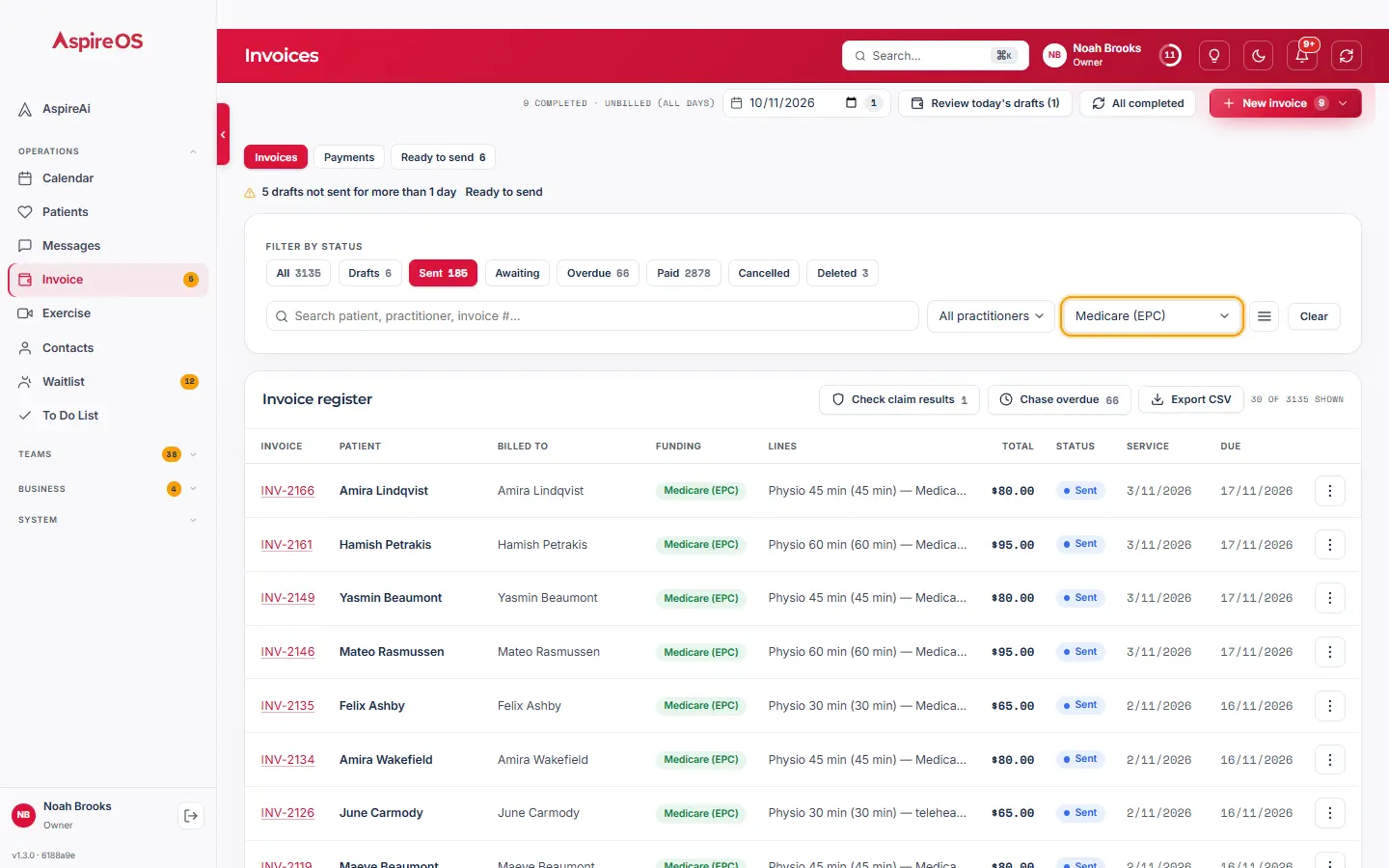
Go to Invoices. Filter by status Sent and pick a funding type, such as Medicare (EPC) or DVA.
Submit the claim
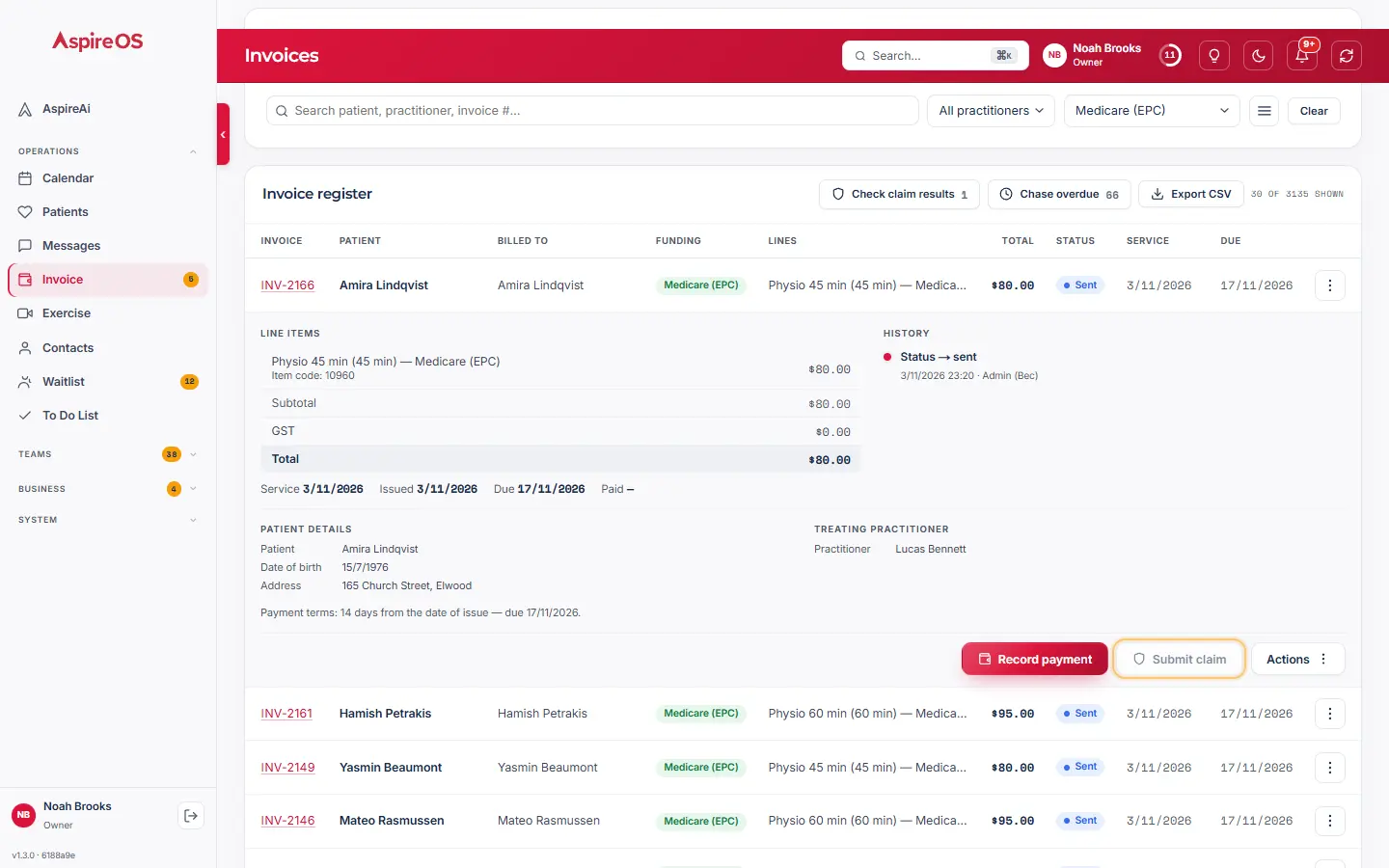
Click an invoice row to open it and click Submit claim. If the button is greyed out, hover over it to see why, for example the practitioner has no Medicare provider number on file yet.
Check claim results
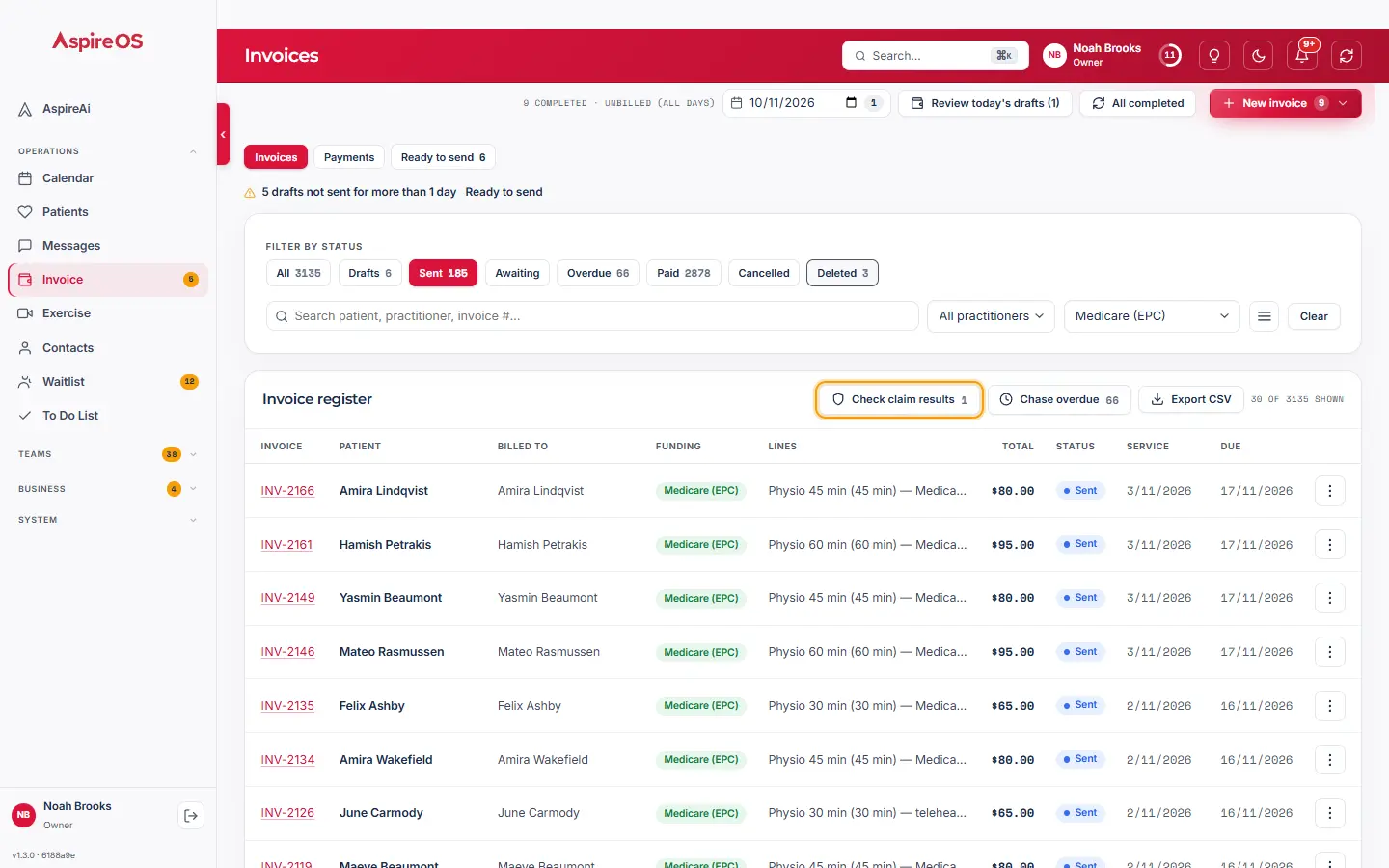
Once you have lodged and checked the claims with Medicare, DVA or HICAPS, click Check claim results to mark submitted claims as accepted. This button does not contact the funder itself.
See where your claims are up to
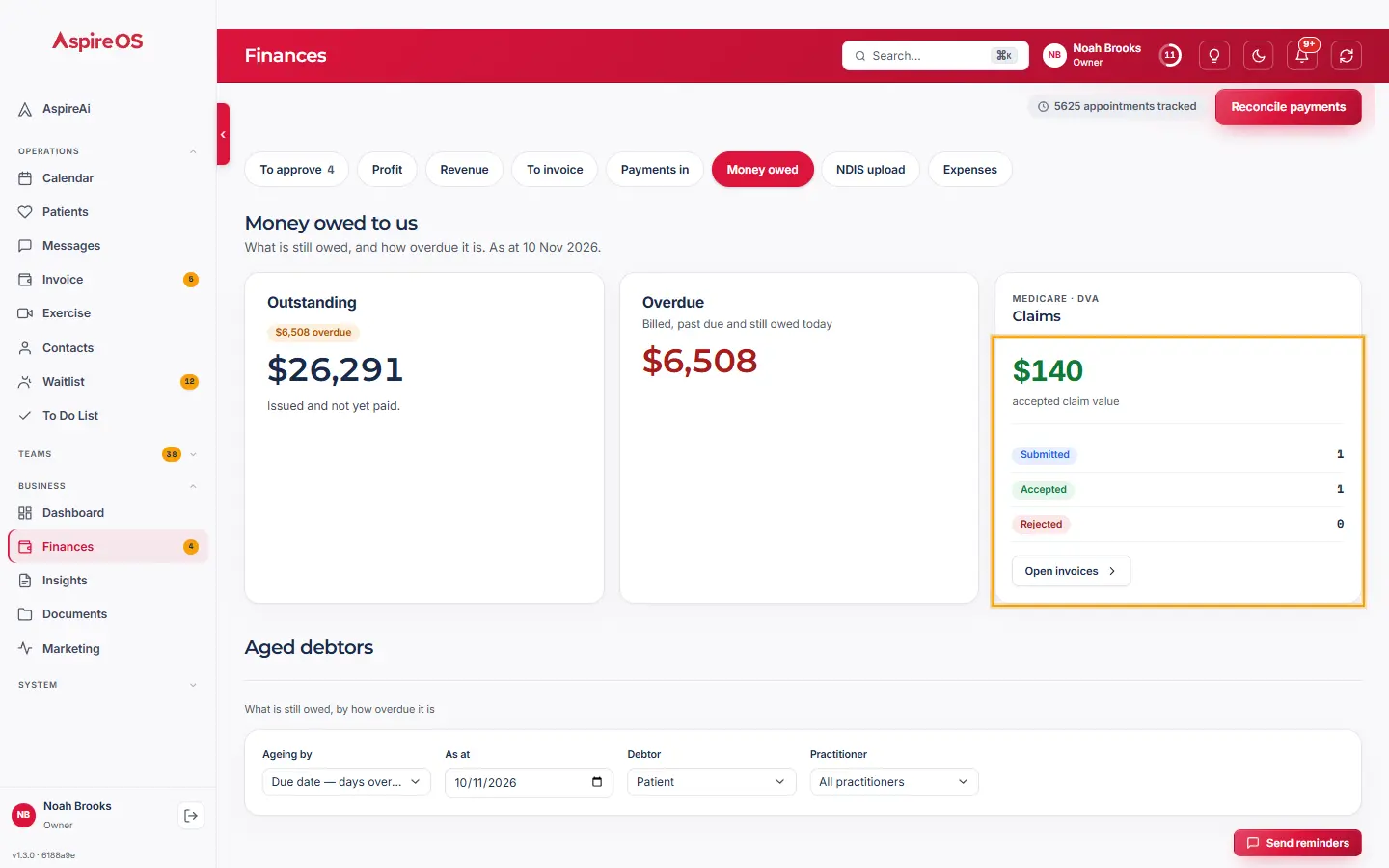
Open Finances, then Money owed. The Claims card shows the accepted claim value and how many claims are submitted, accepted or rejected. Open invoices takes you to them.
NDIS: download the bulk upload file
Open Finances, then NDIS upload. Enter your NDIS registration number, tick the claims to include and click Download CSV. Upload the file as it is in the myplace provider portal under Payment Request, then Bulk Payment Request Upload.
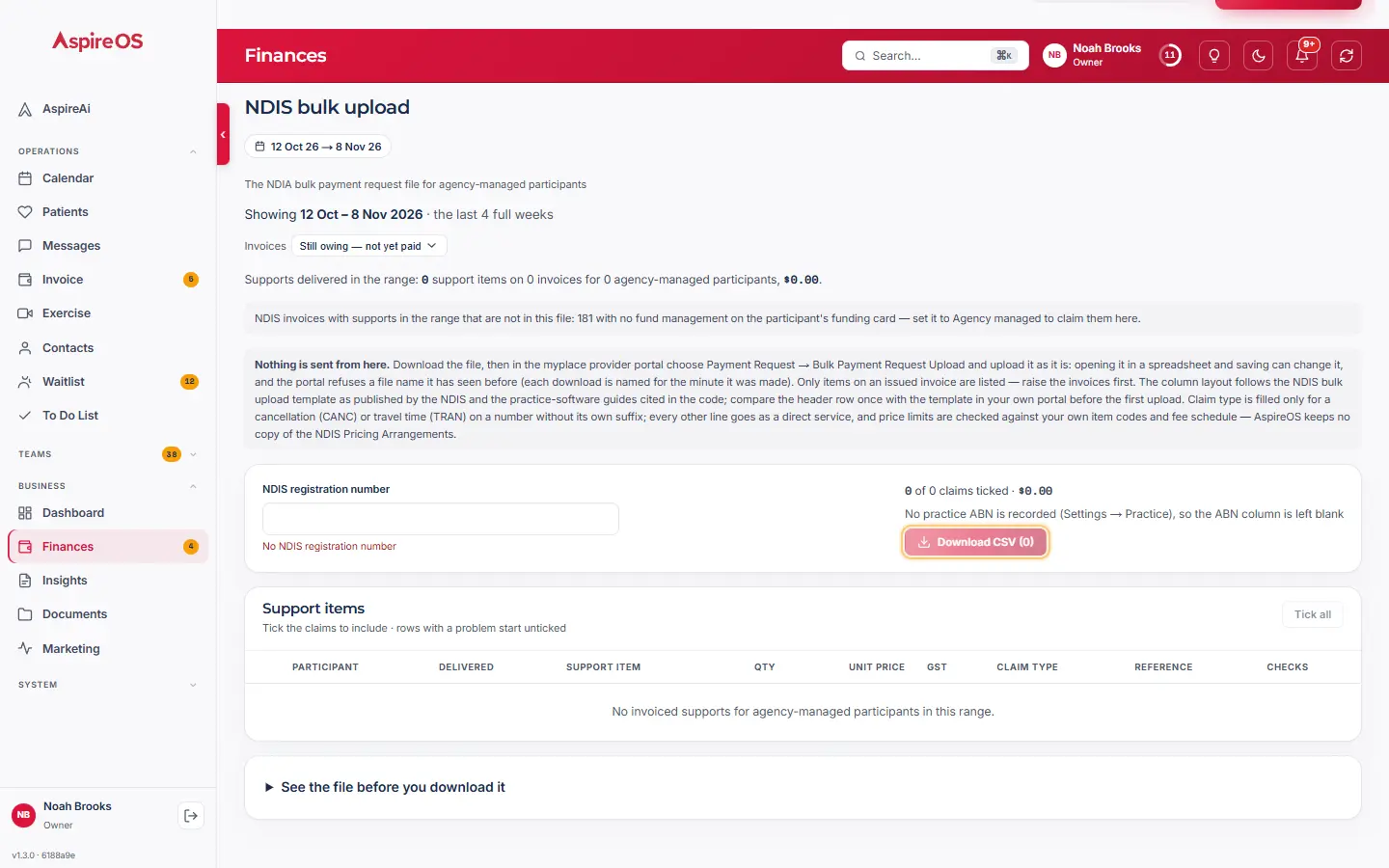
Screenshots taken 10 November 2026 on sample data. Your screens may differ slightly as AspireOS improves.
Still stuck?
Ask AspireAi inside AspireOS: it can walk you through any of these, or send a note to our support team for you.