Forms & certificates
Fill in a Victorian Certificate of Capacity
Start the official VIC Certificate of Capacity from the patient's file, fill it in on screen, check the PDF and finalise it.
Open the patient's Letters tab
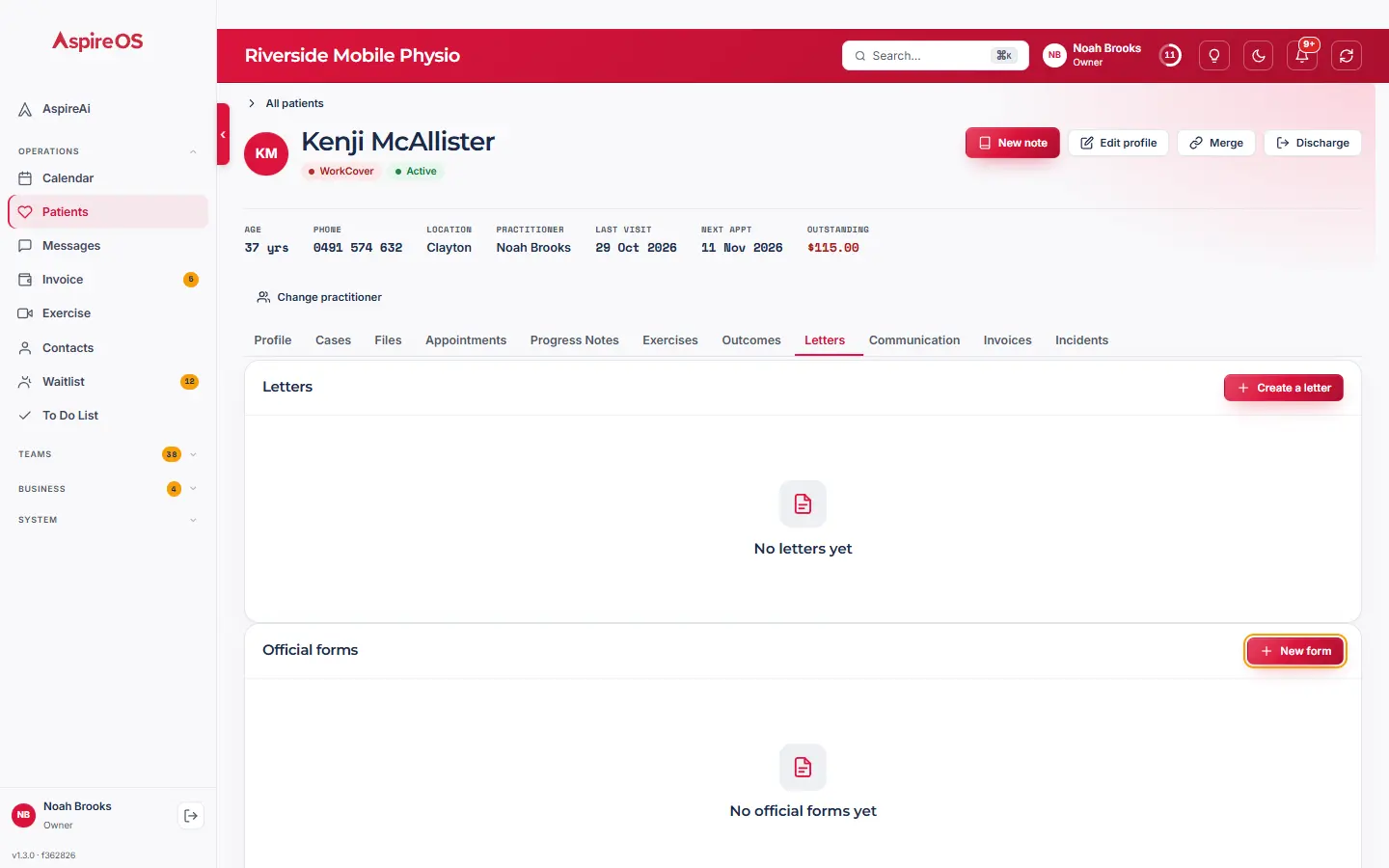
Open the patient's file and choose Letters. Under Official forms, click New form.
Start the certificate
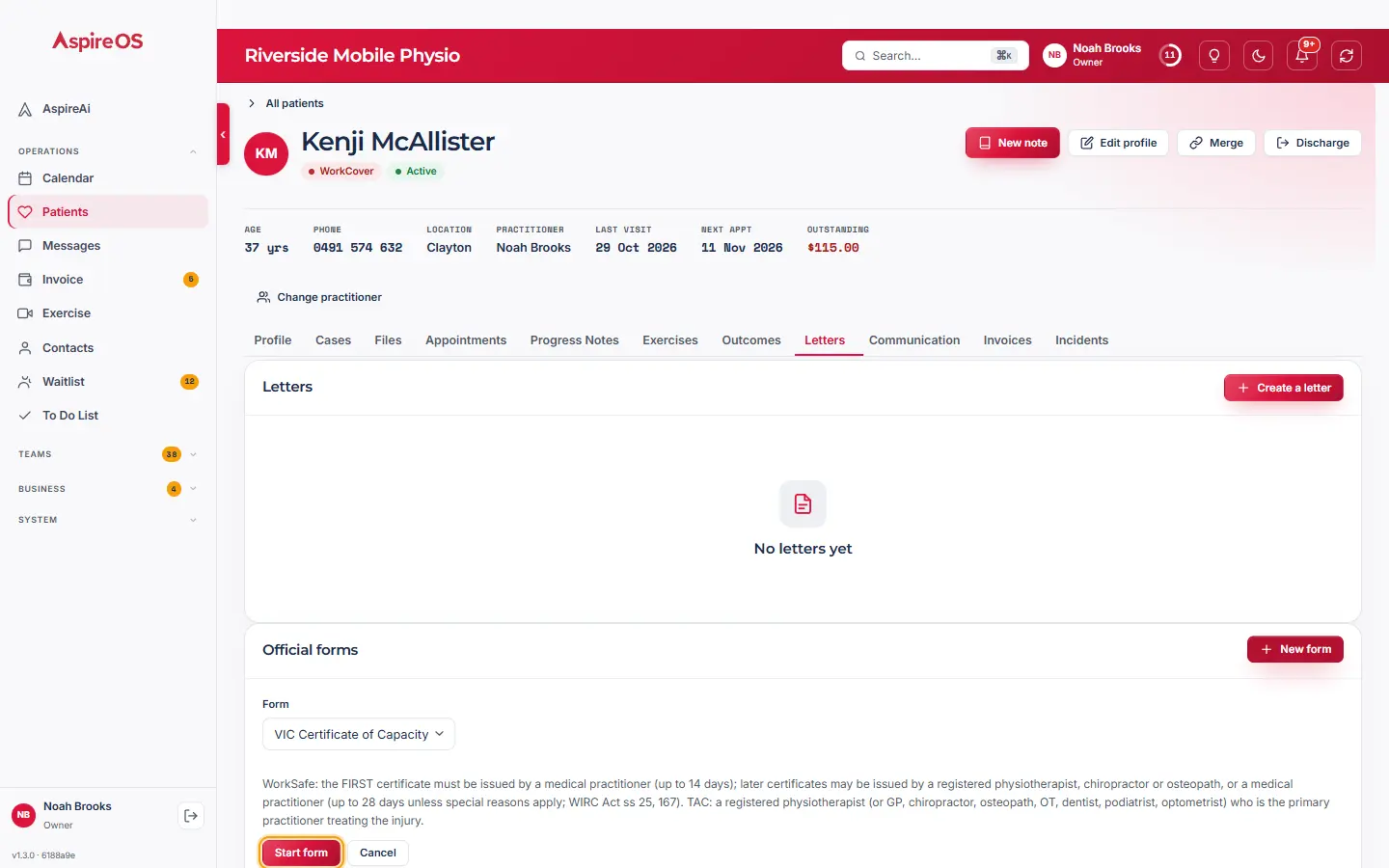
VIC Certificate of Capacity is selected. Read the note on who may issue which certificate, then click Start form.
Choose the claim type
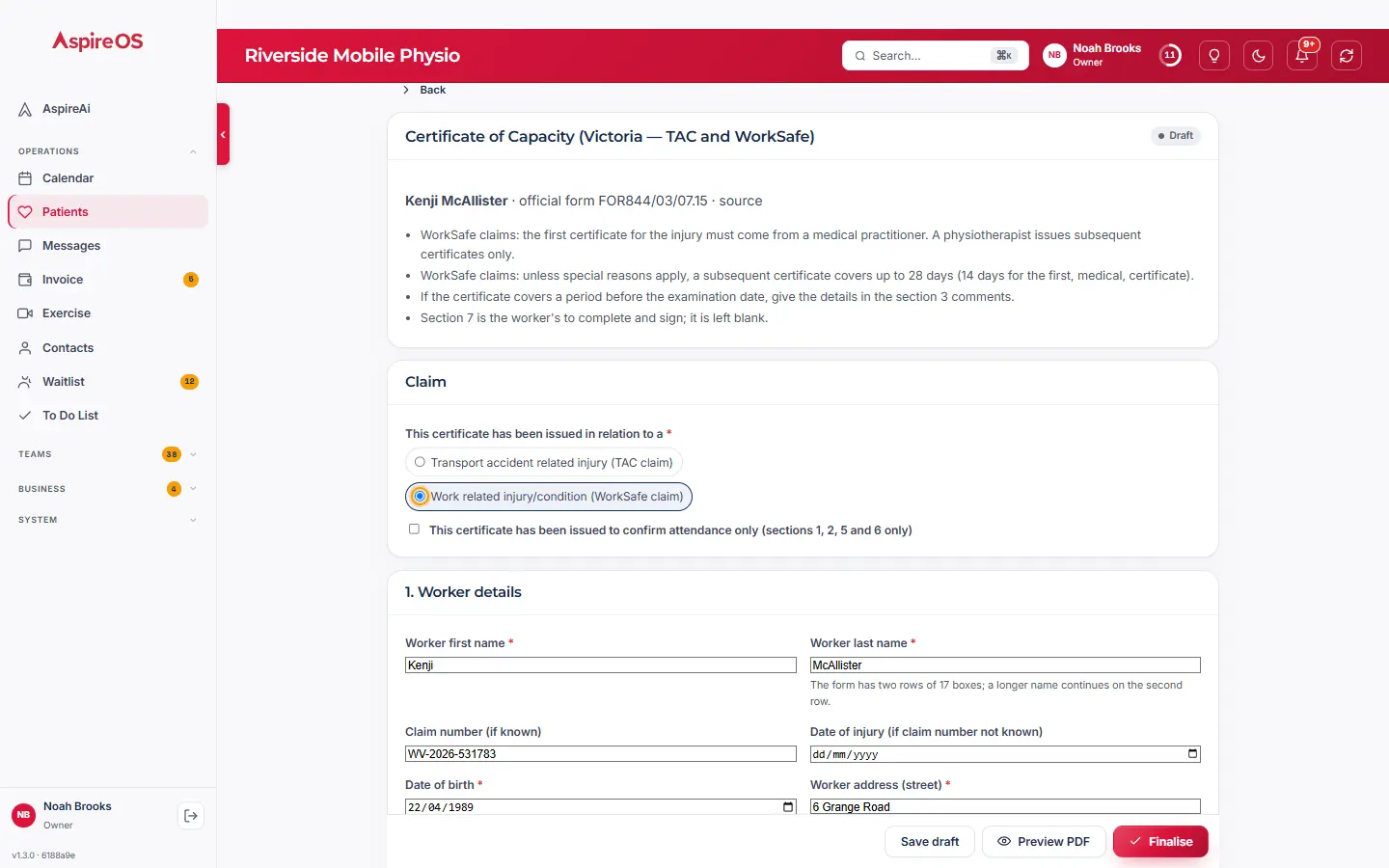
Pick TAC claim or WorkSafe claim. The worker's details come from the patient's file; check them and add anything missing, like the postcode.
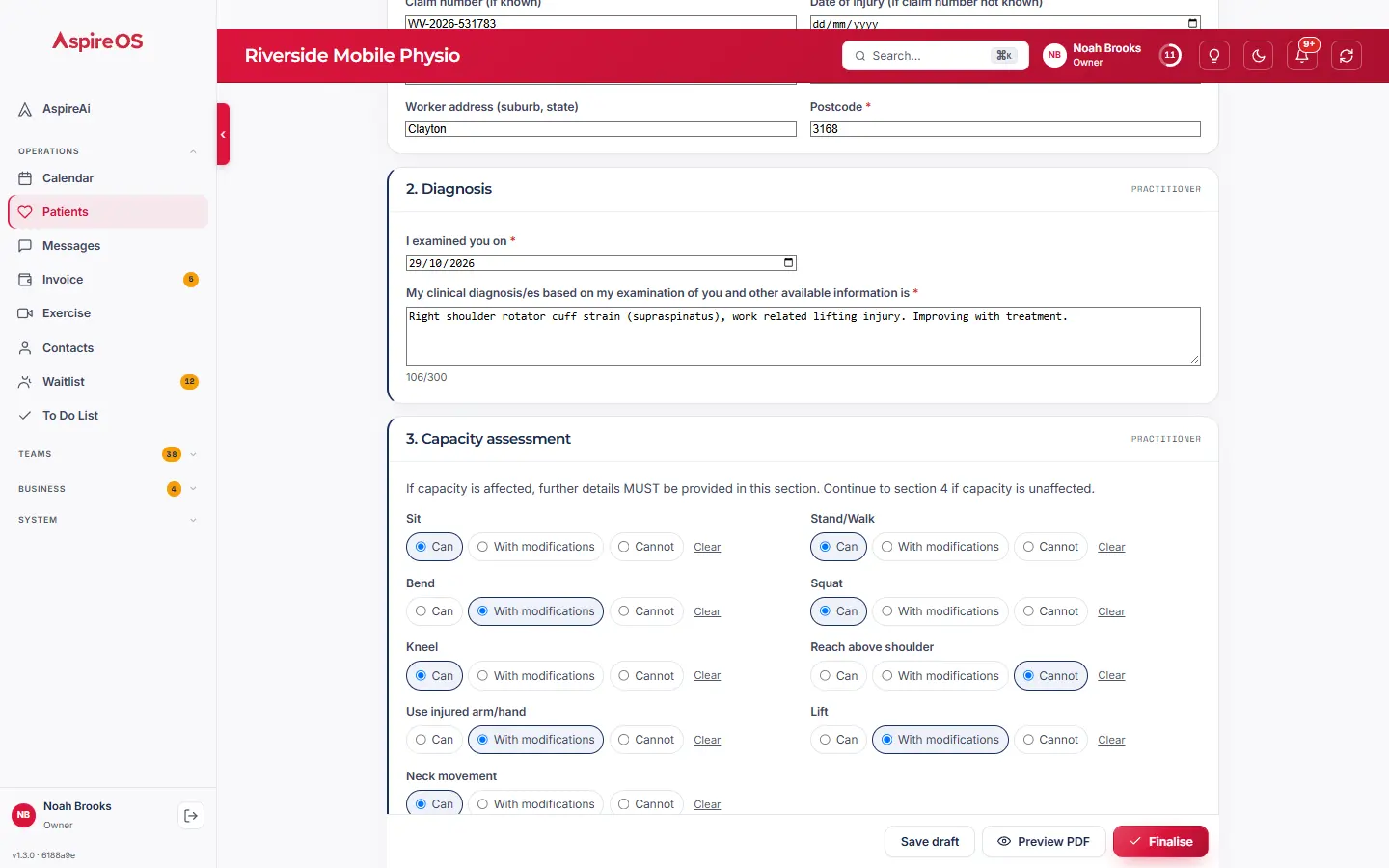
Add your diagnosis
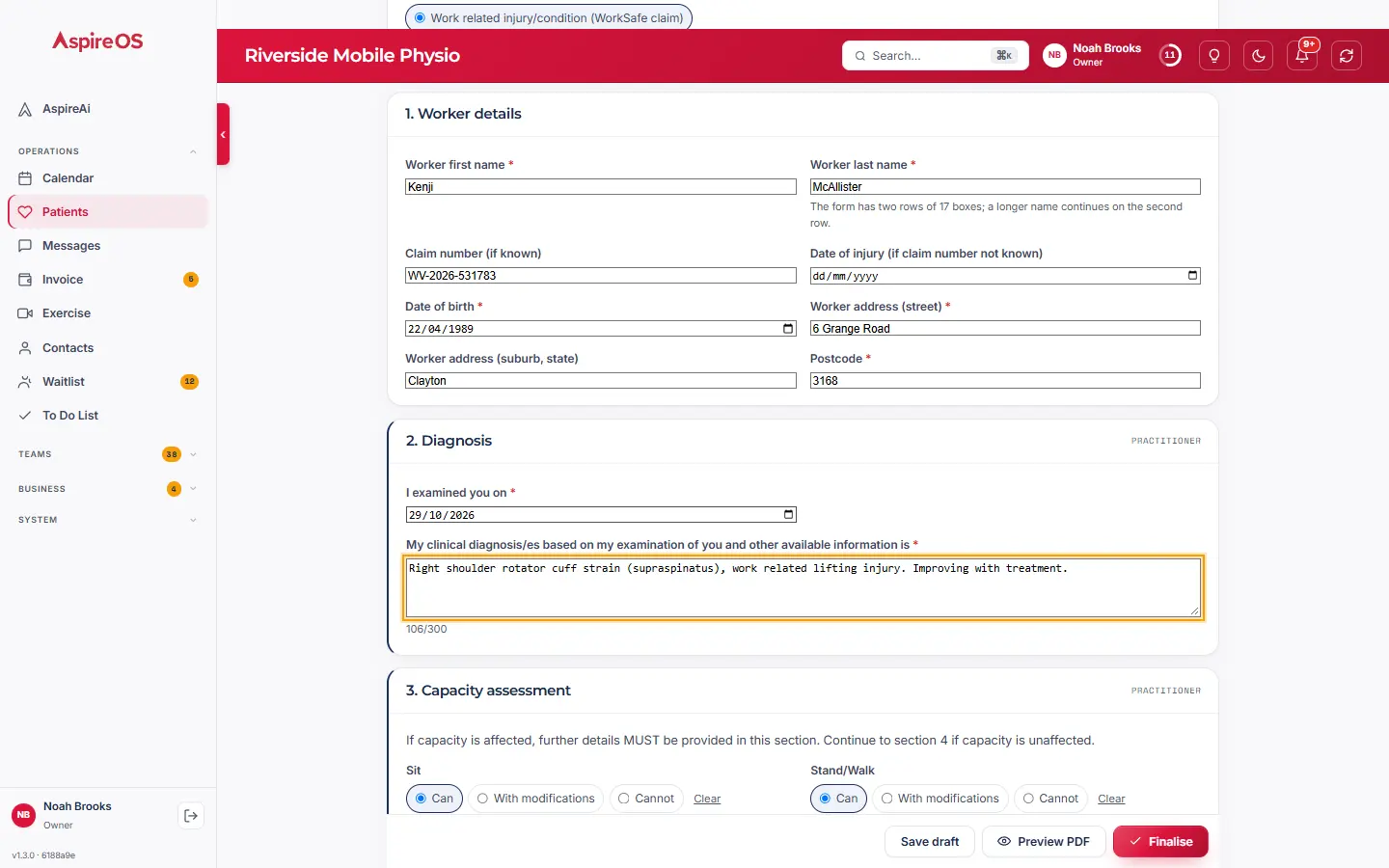
Enter the date you examined the patient and your clinical diagnosis.
Assess capacity
For each activity choose Can, With modifications or Cannot. Add details in the comments when capacity is affected.
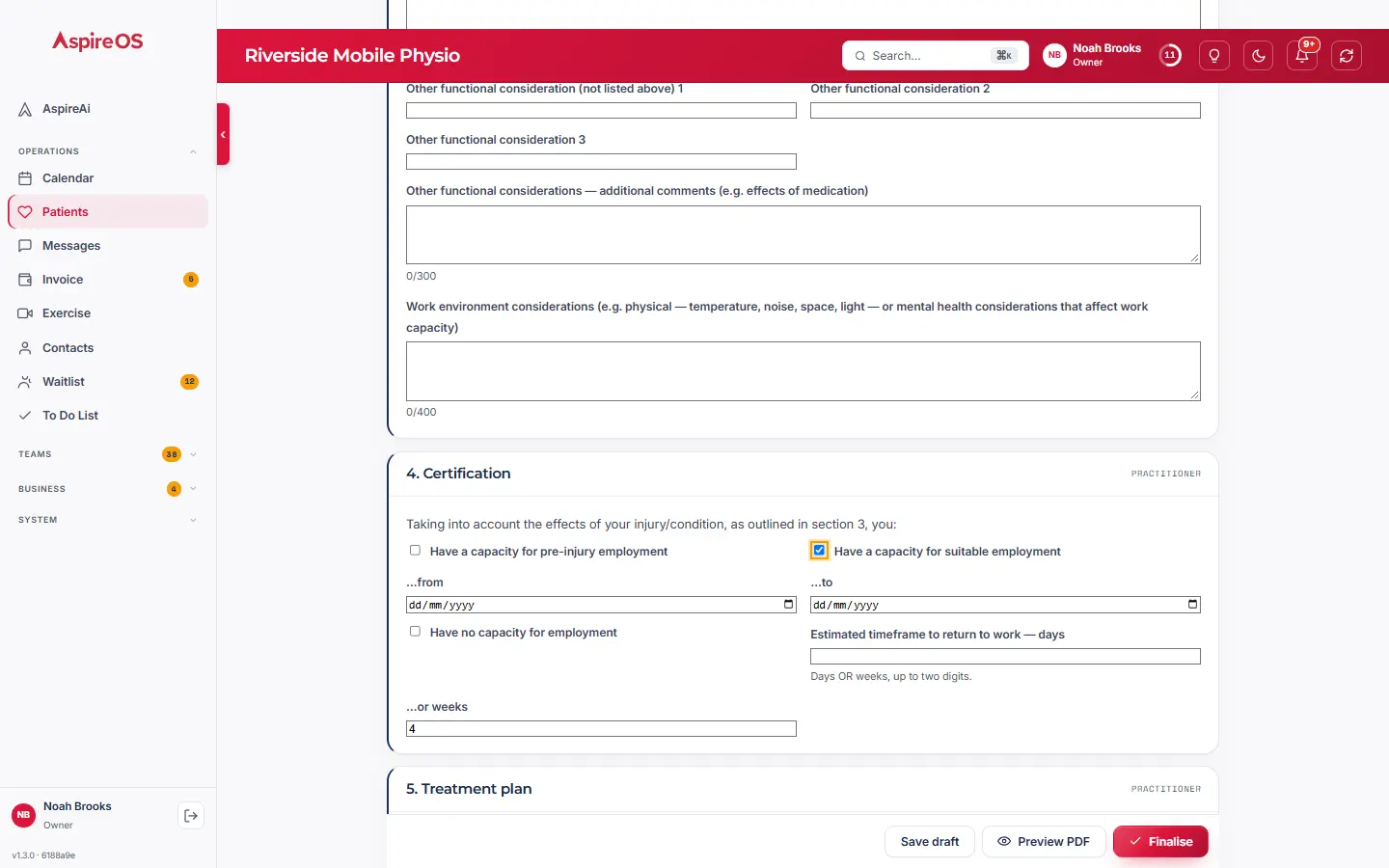
Certify capacity and the treatment plan
In section 4, tick the capacity that applies and the estimated time to return to work. Then write the treatment plan in section 5.
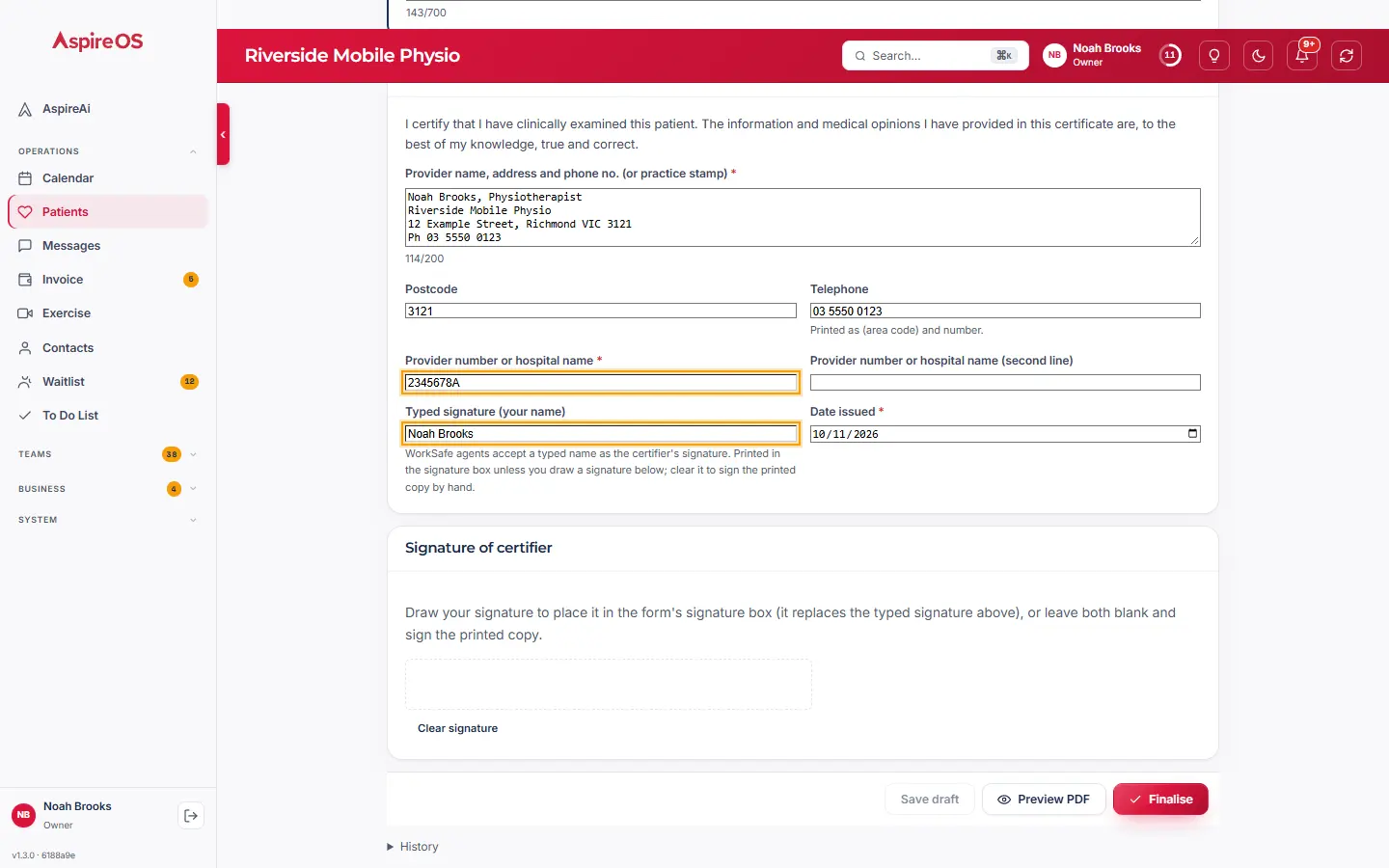
Sign the declaration
Your practice details are filled in. Add your provider number, check the typed signature and date, or draw your signature in the box.
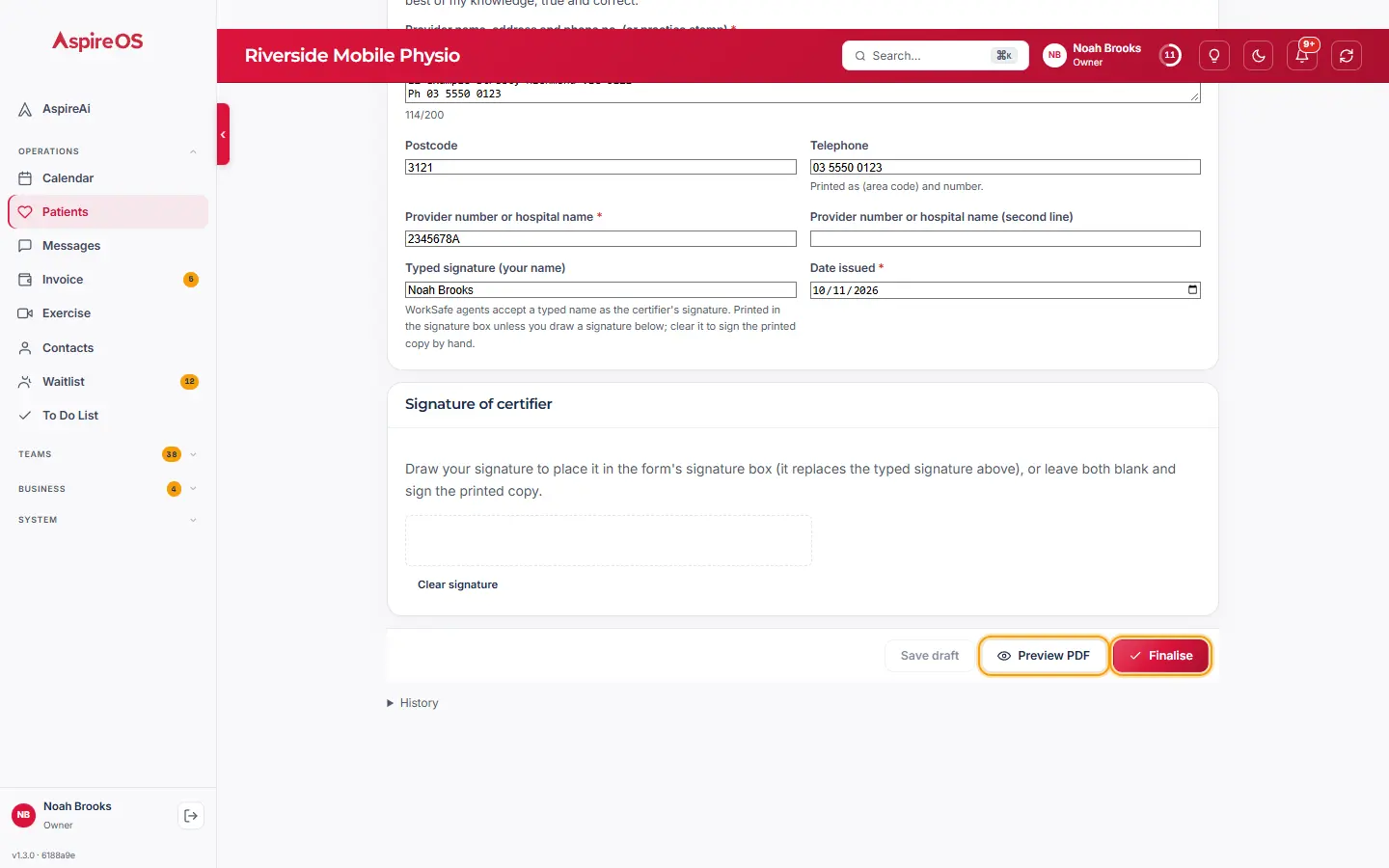
Preview, then finalise
Click Save draft to come back later, and Preview PDF to check the official form. When it's right, click Finalise. A finalised certificate is part of the clinical record and can't be deleted.
Screenshots taken 10 November 2026 on sample data. Your screens may differ slightly as AspireOS improves.
Still stuck?
Ask AspireAi inside AspireOS: it can walk you through any of these, or send a note to our support team for you.