Clinical notes
Write a progress note
Start a note from the patient's file, pick a template and the visit it's for, fill it in, then complete and lock it.
Open Progress Notes
Open the patient's file and choose the Progress Notes tab. Click New note. (New note at the top of the file does the same.)
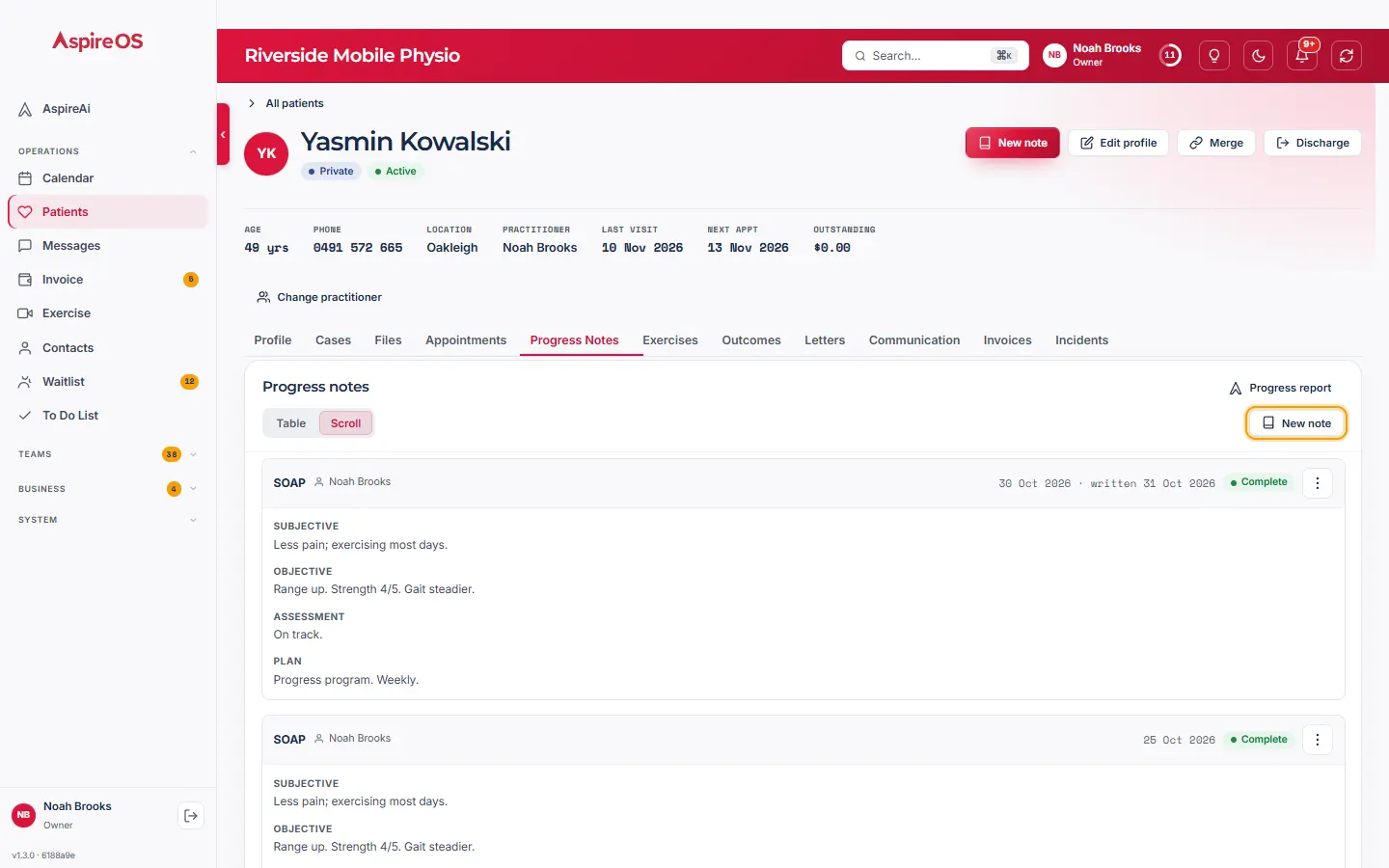
Pick a template and the visit
Choose a Template (SOAP, DAP, Initial, Review, Discharge or one of your own). Under What is this note about?, pick the appointment, or Not about a visit.
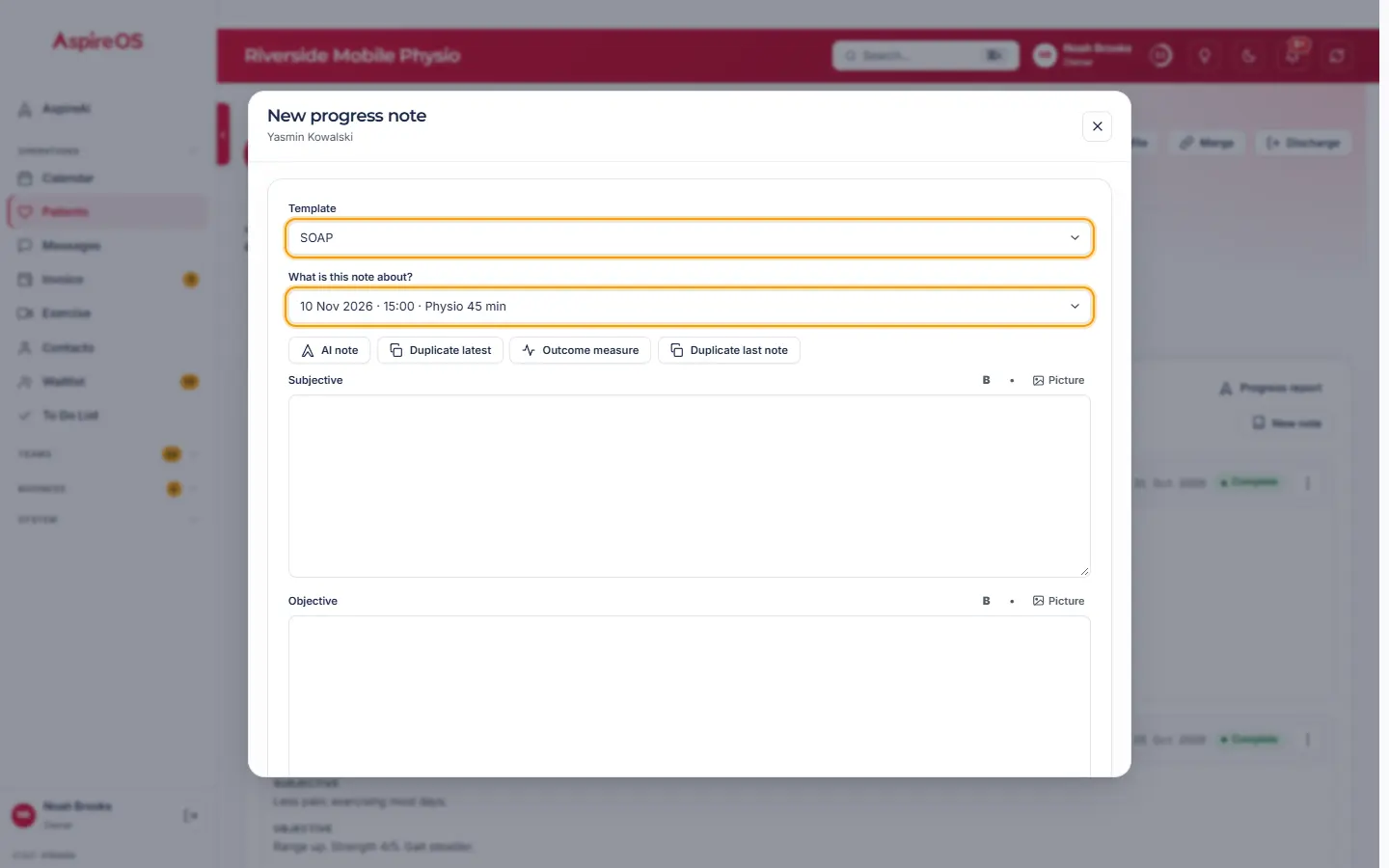
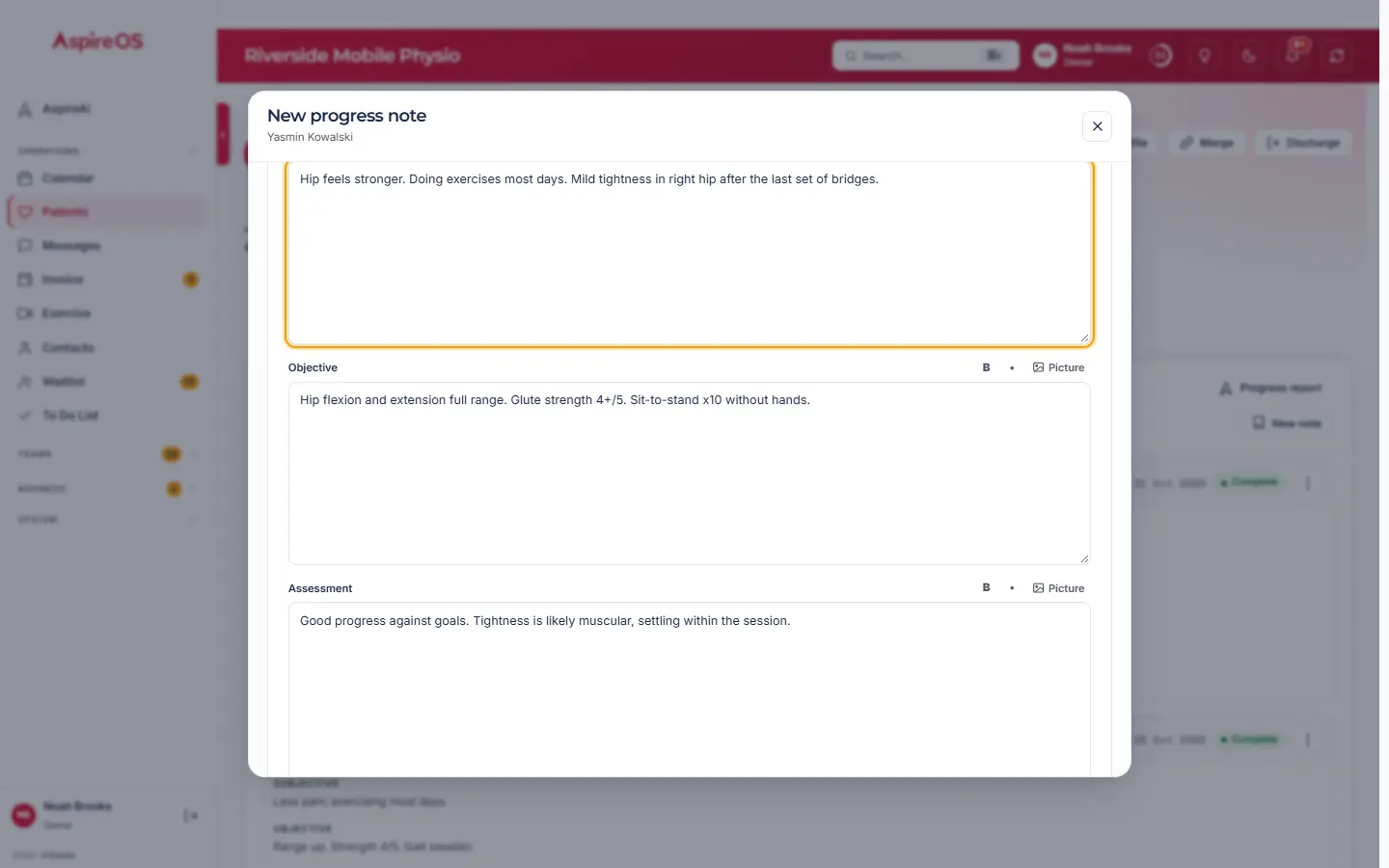
Fill in each section
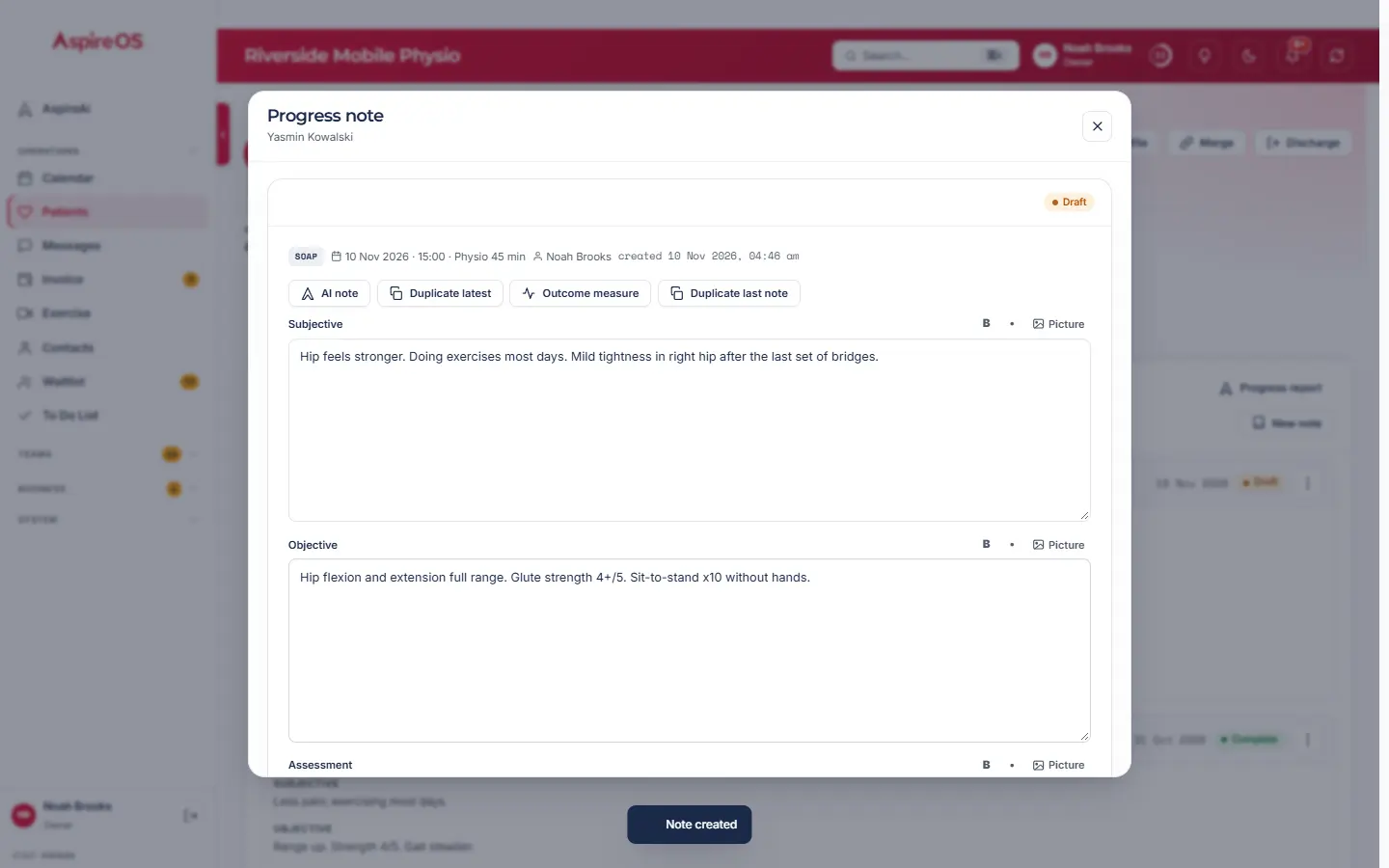
Type into each box. Use B for bold, • for a list and Picture to add an image. Duplicate last note copies your previous note as a starting point.
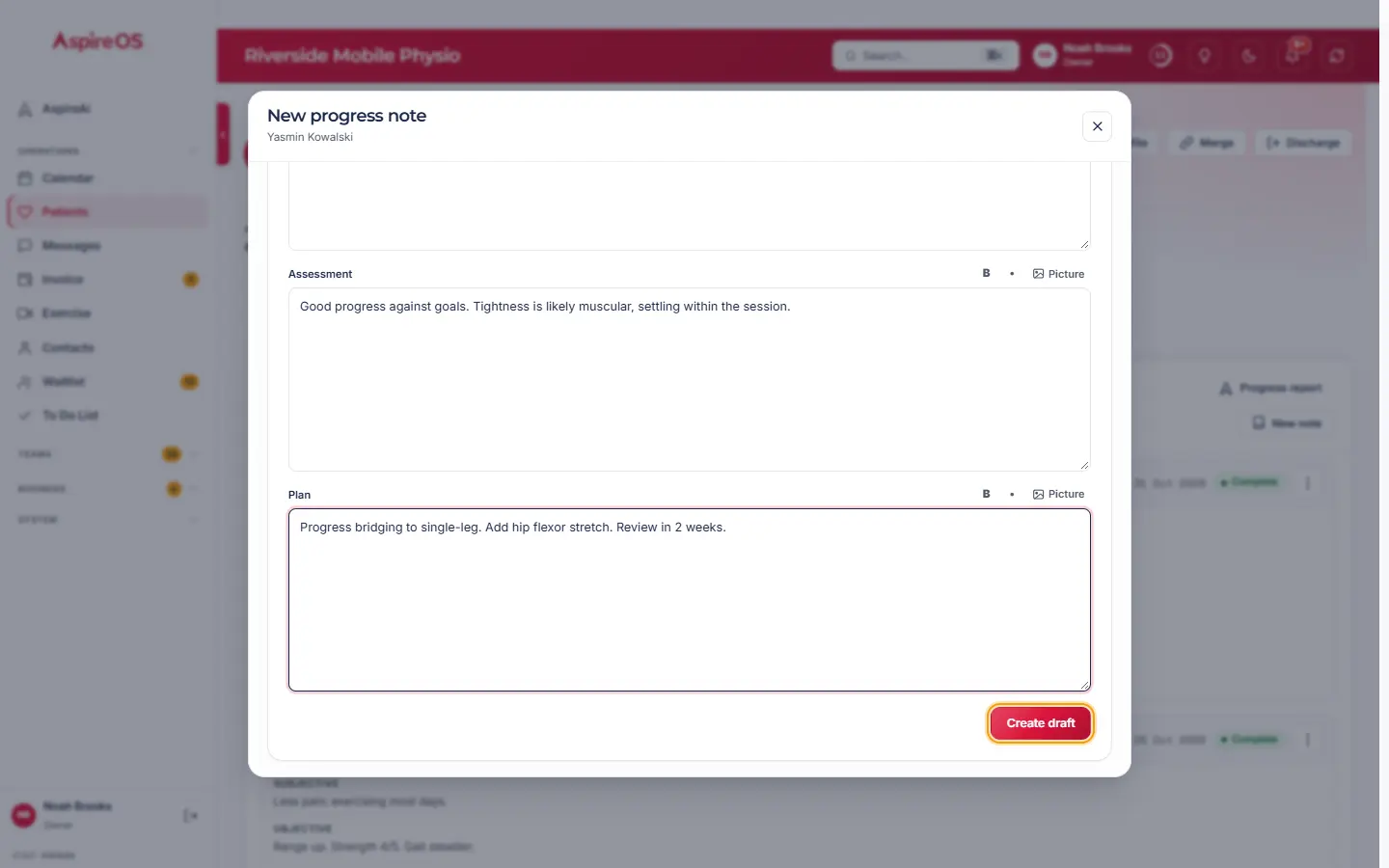
Create the draft
Click Create draft. The note is saved as a draft on the patient's file.
Keep editing
The draft opens with a Draft badge. Edit it now, click Save, or come back to it later from Progress Notes.
Complete and lock
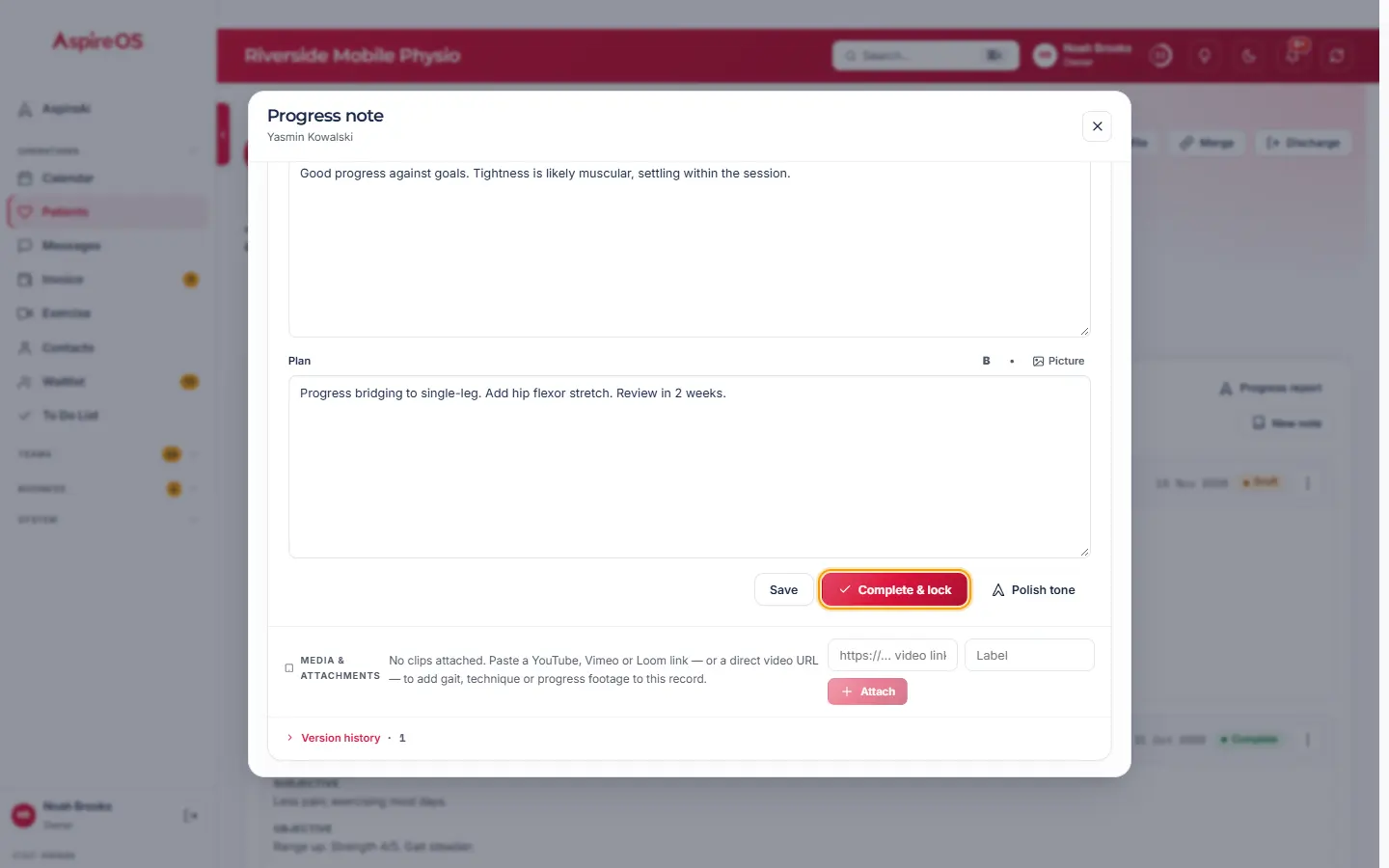
When it's final, click Complete & lock. A completed note can't be deleted; later edits are added as a new version under Version history.
Screenshots taken 10 November 2026 on sample data. Your screens may differ slightly as AspireOS improves.
Still stuck?
Ask AspireAi inside AspireOS: it can walk you through any of these, or send a note to our support team for you.