Calendar & bookings
Book an appointment
Book a visit from the Calendar: pick the practitioner, service, patient and time, then save it.
Open the Calendar
Go to Calendar in the sidebar. Pick Day, Week or Month, and tap a practitioner's name to see only their diary. Then click New appointment (or click an empty slot).
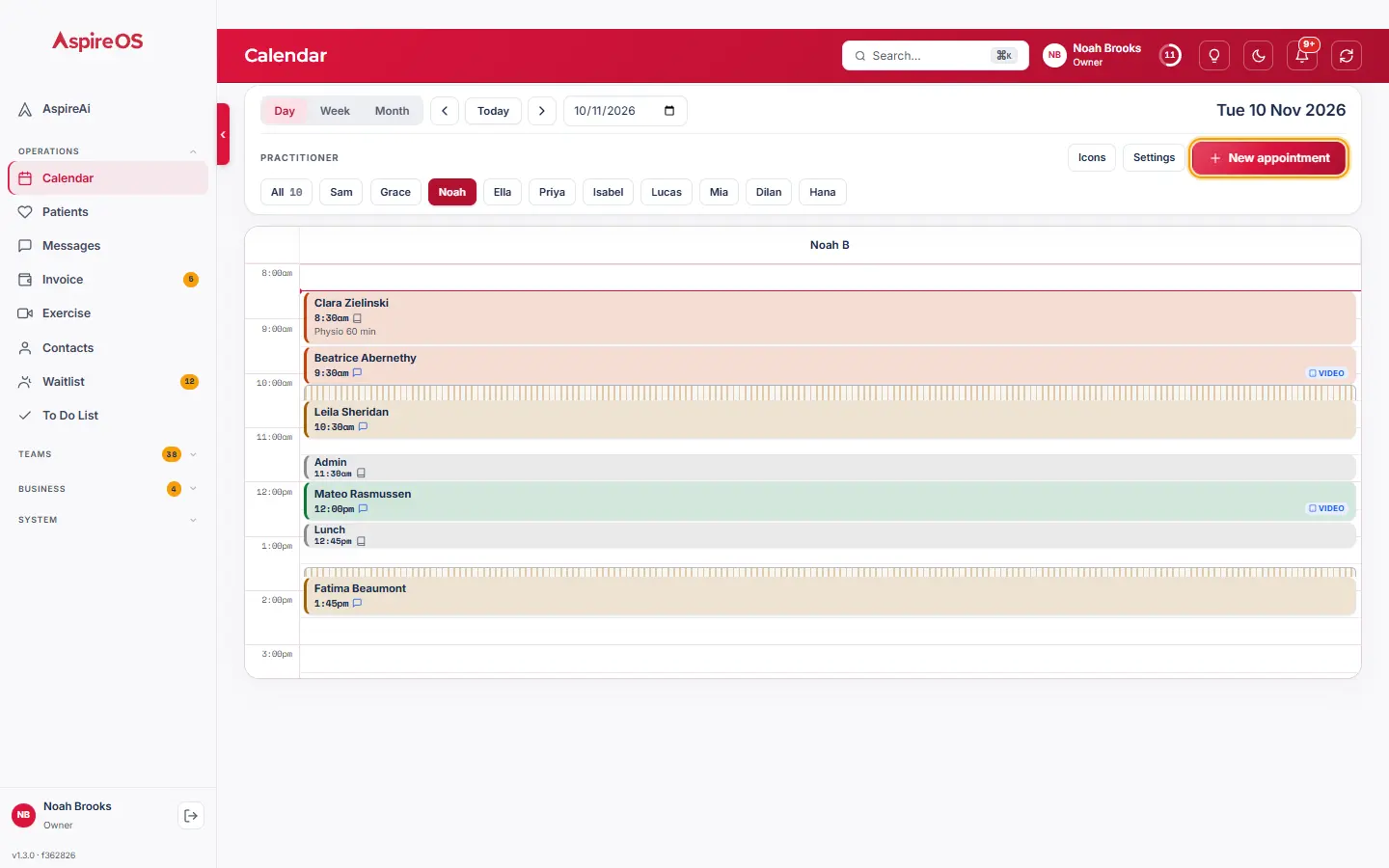
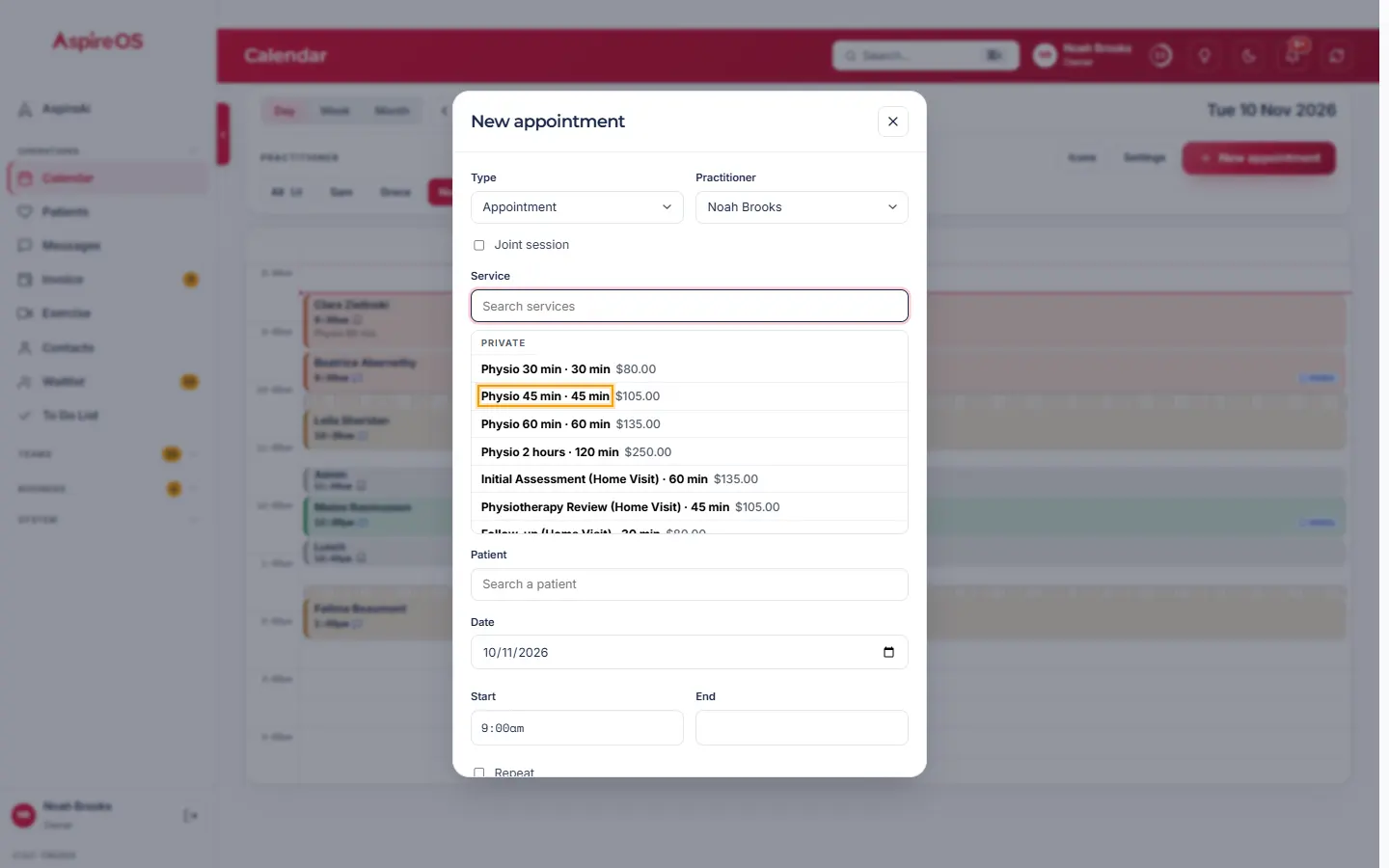
Choose the practitioner and service
Leave Type as Appointment and choose the Practitioner. Click Service and pick one from the list. Services are grouped by funding type and show their length and price.
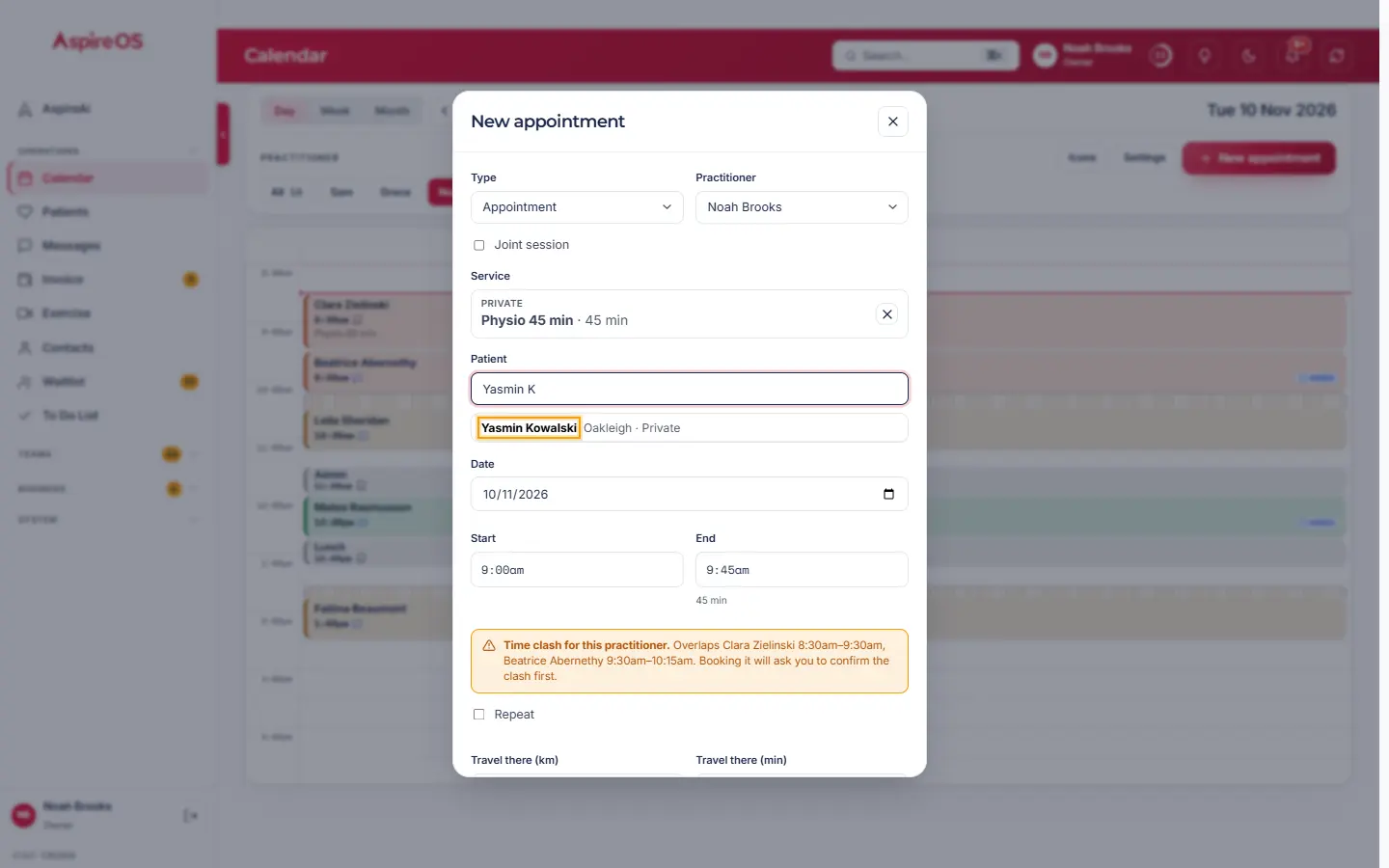
Find the patient
Start typing the patient's name in Patient and pick them from the list. Their suburb and funding type show beside the name so you pick the right person.
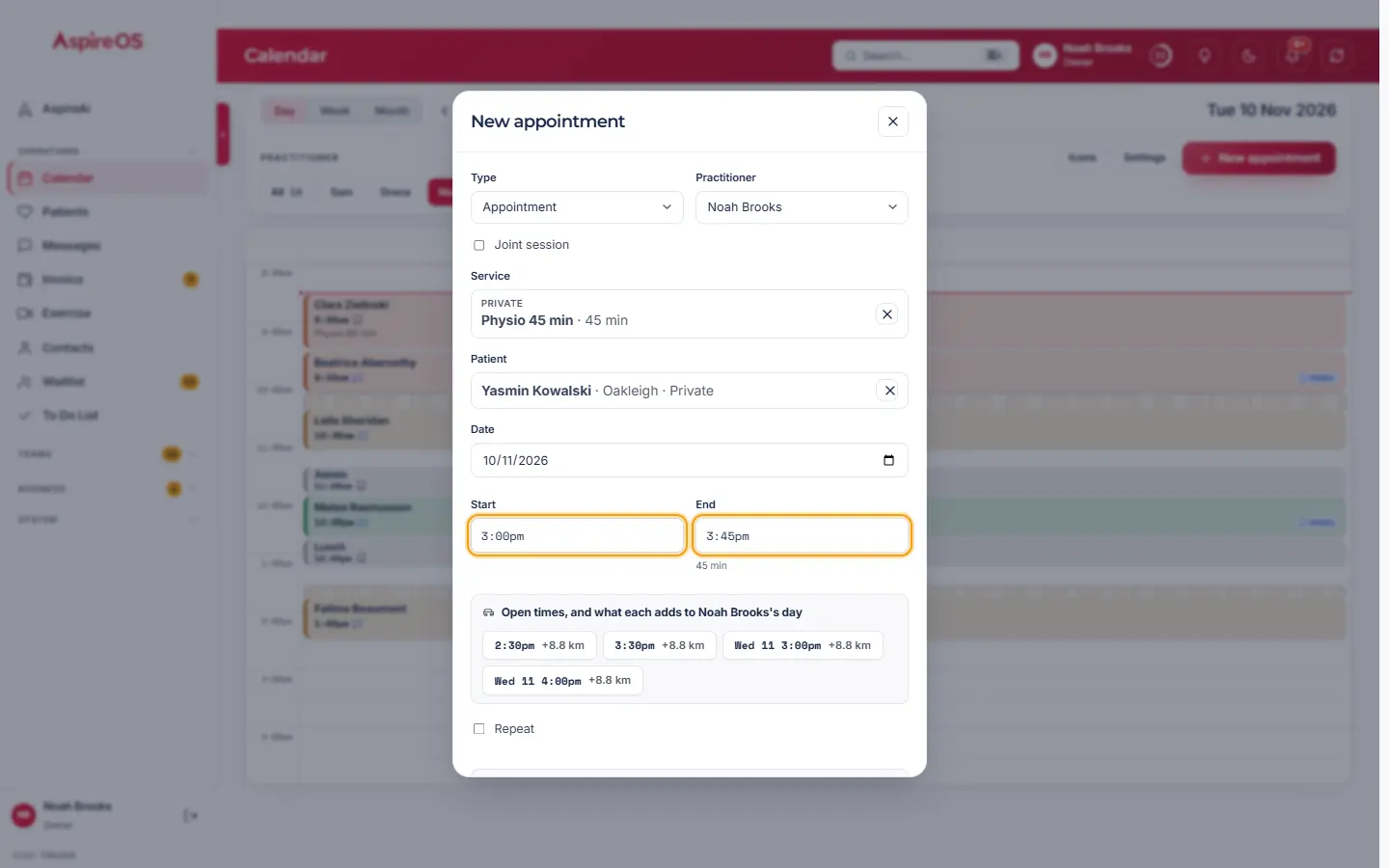
Set the date and time
Check the Date and type a Start time. The End time fills in from the service length. If the time clashes with another visit, AspireOS warns you before you book.
Book it
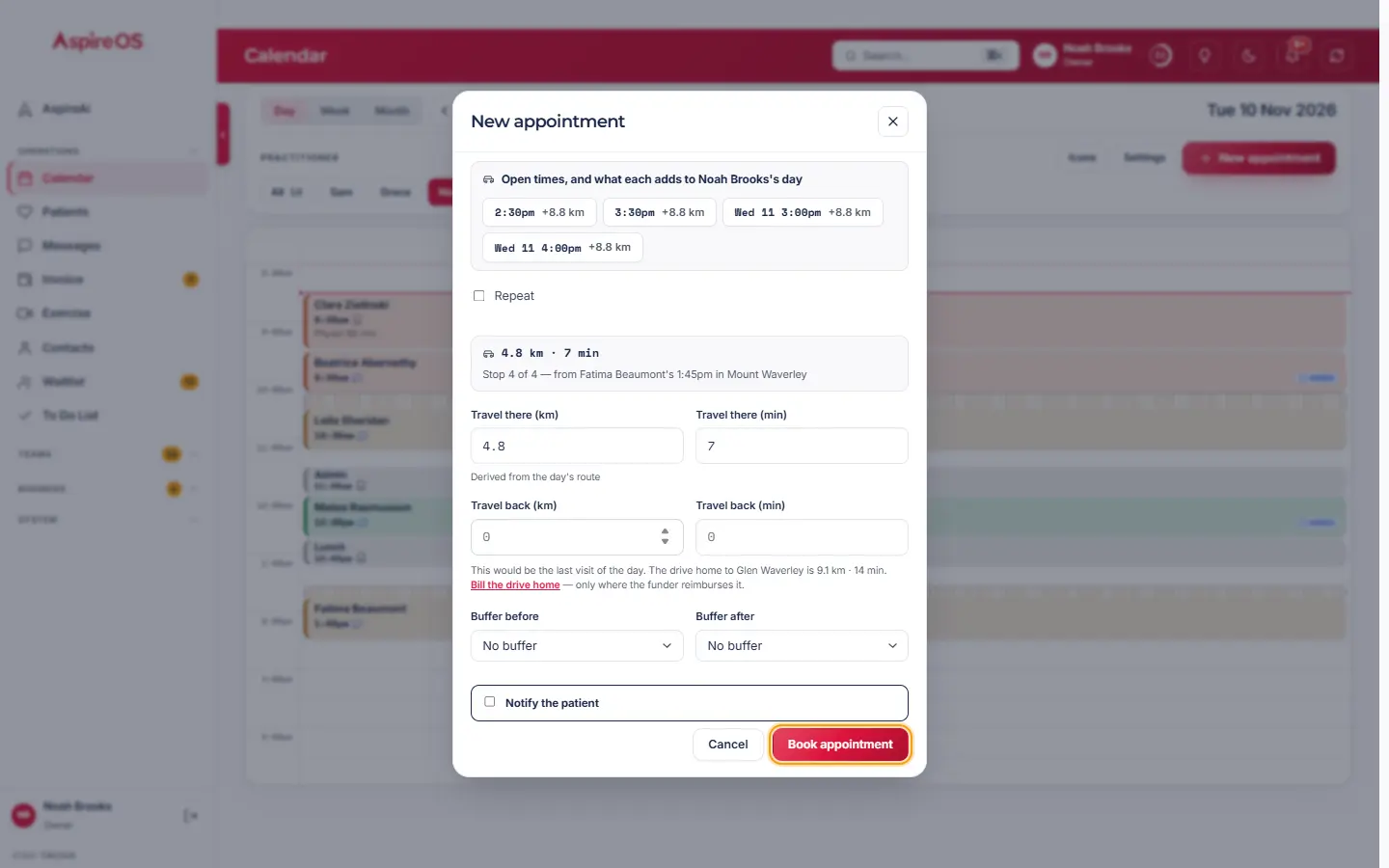
Check the travel and buffer times, tick Notify the patient if you want them told, then click Book appointment.
See it on the calendar
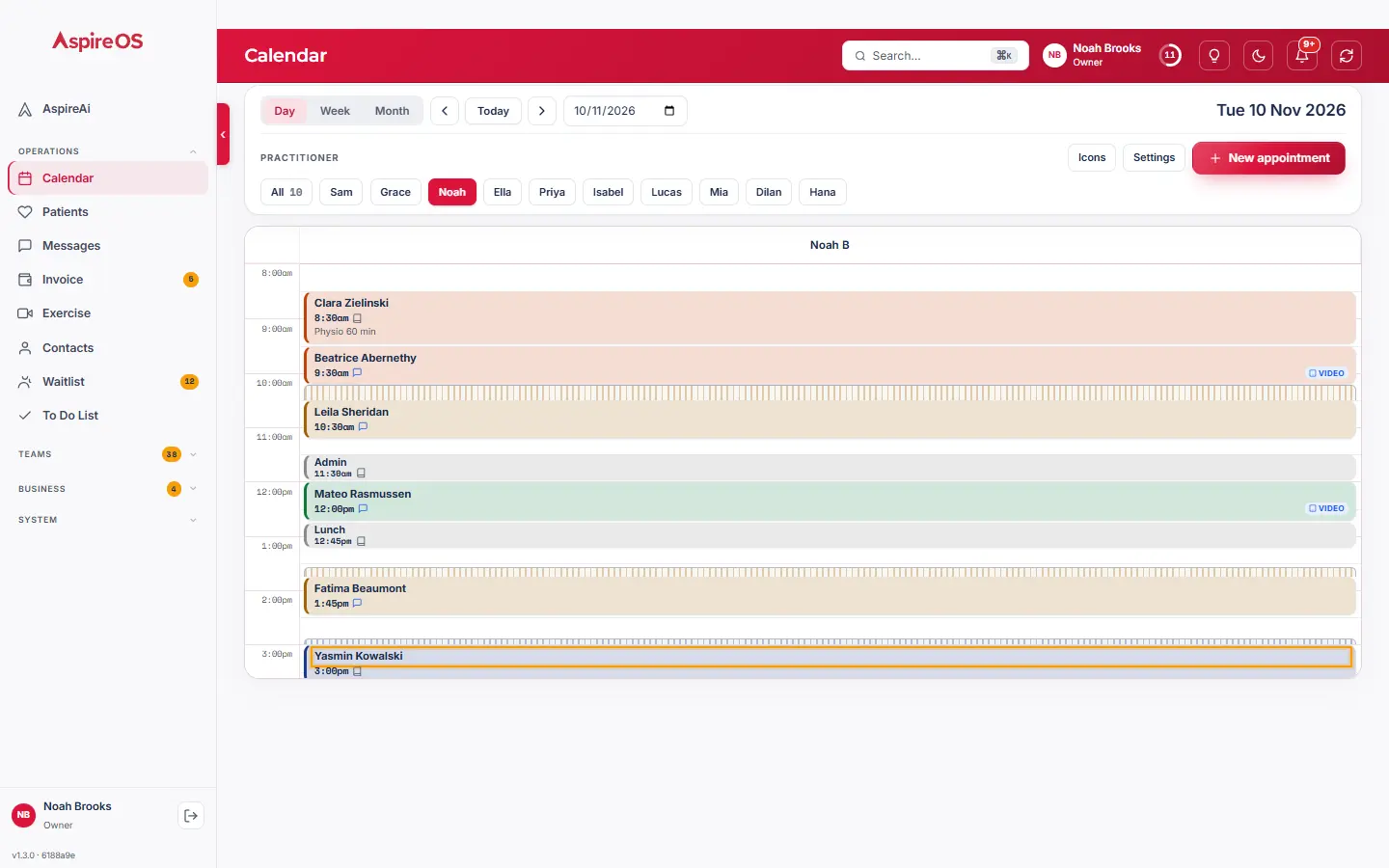
The visit appears in the practitioner's diary straight away and an Appointment booked message shows at the bottom of the screen.
Open the visit for more
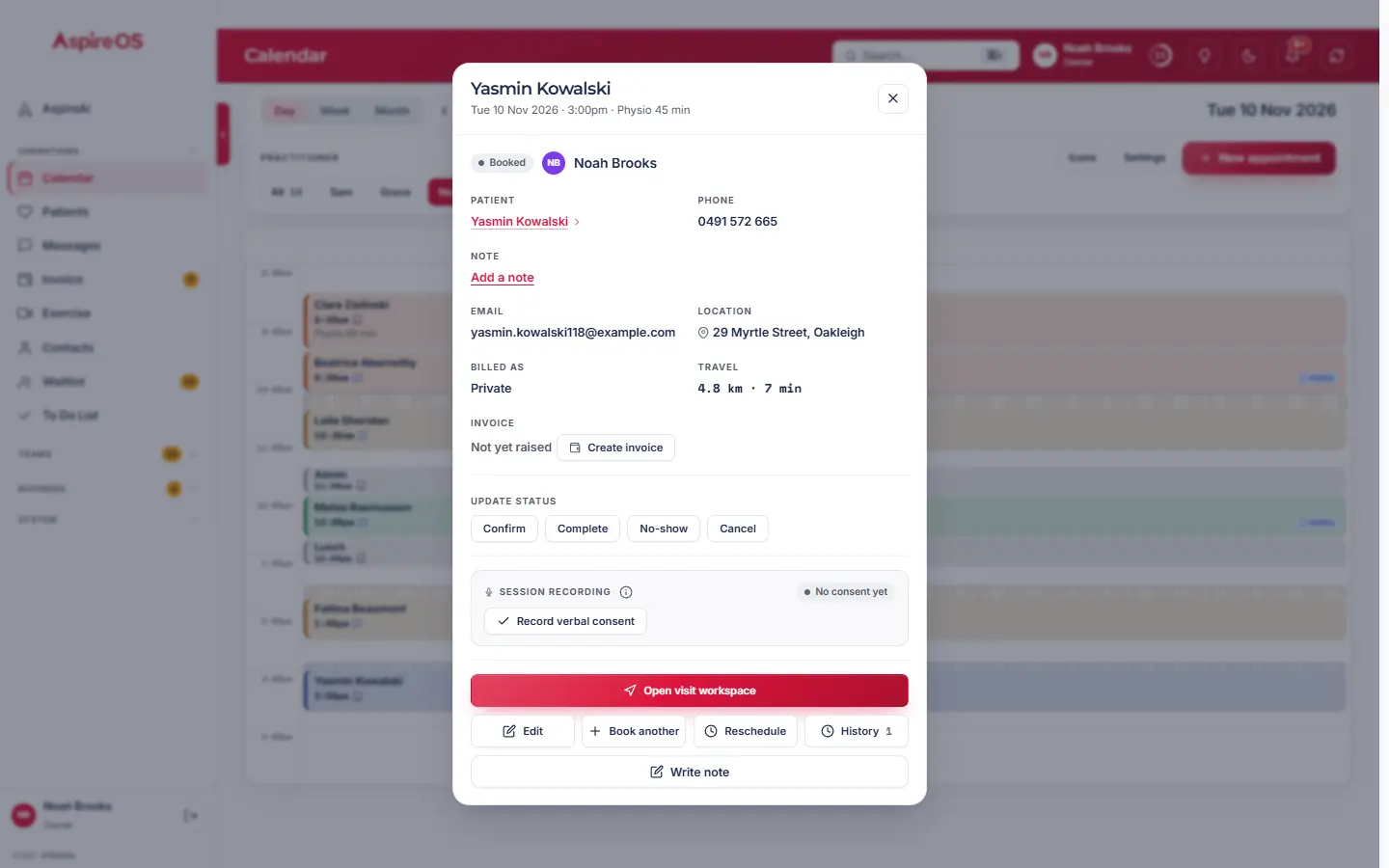
Click the visit to see its details. From here you can Confirm, Complete, Reschedule, Edit, write a note or create the invoice.
Screenshots taken 10 November 2026 on sample data. Your screens may differ slightly as AspireOS improves.
Still stuck?
Ask AspireAi inside AspireOS: it can walk you through any of these, or send a note to our support team for you.