Calendar & bookings
Book a home visit
Book a visit at the patient's home and let AspireOS work out the travel from the practitioner's day.
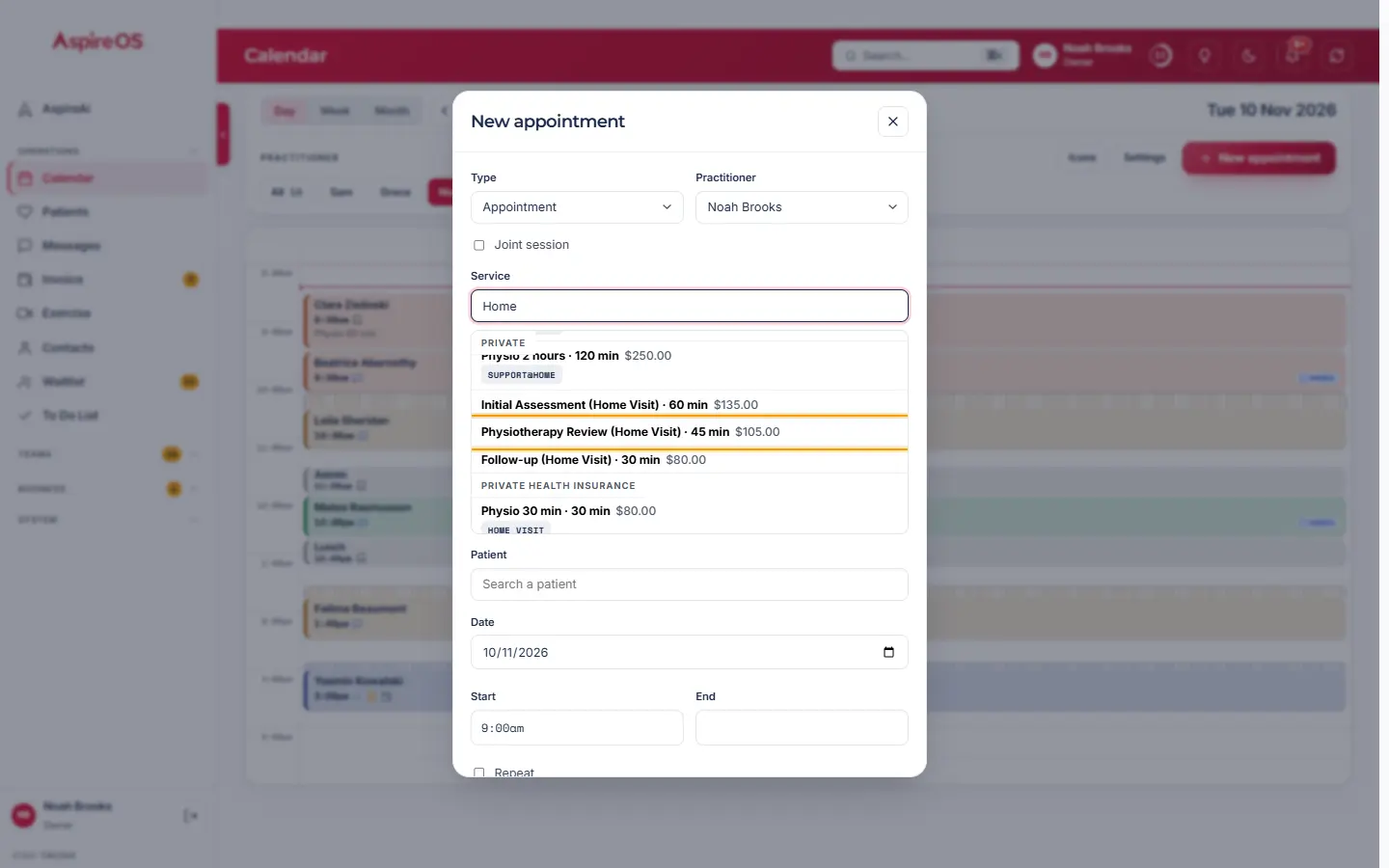
Pick a home visit service
In Calendar, click New appointment and choose the practitioner. In Service, type Home to find the home visit services, such as Physiotherapy Review (Home Visit).
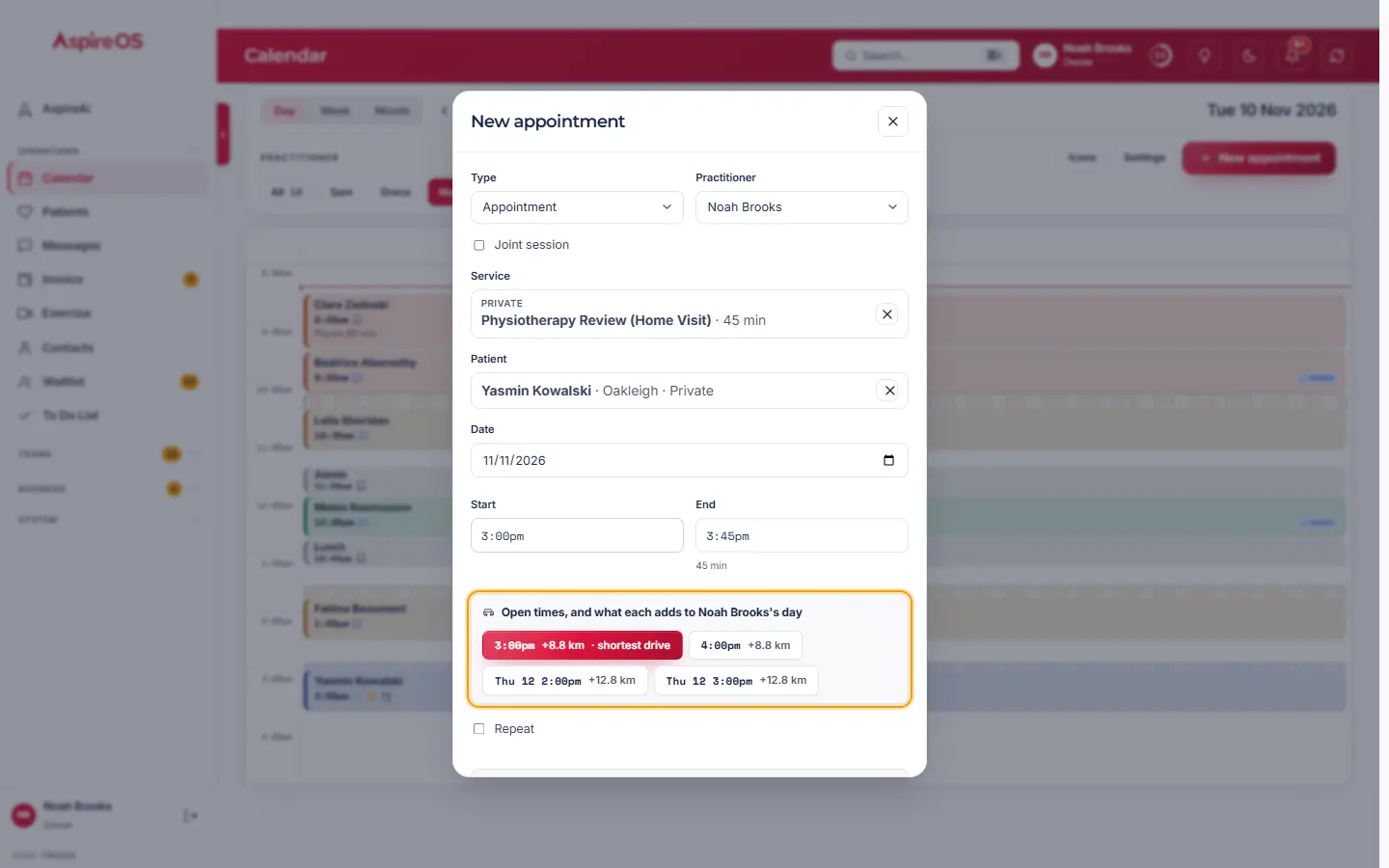
Choose the patient, date and time
Pick the patient and set the date and start time. Open times shows the gaps in that practitioner's day and how many extra kilometres each one adds. Tap one to use it; shortest drive marks the best fit.
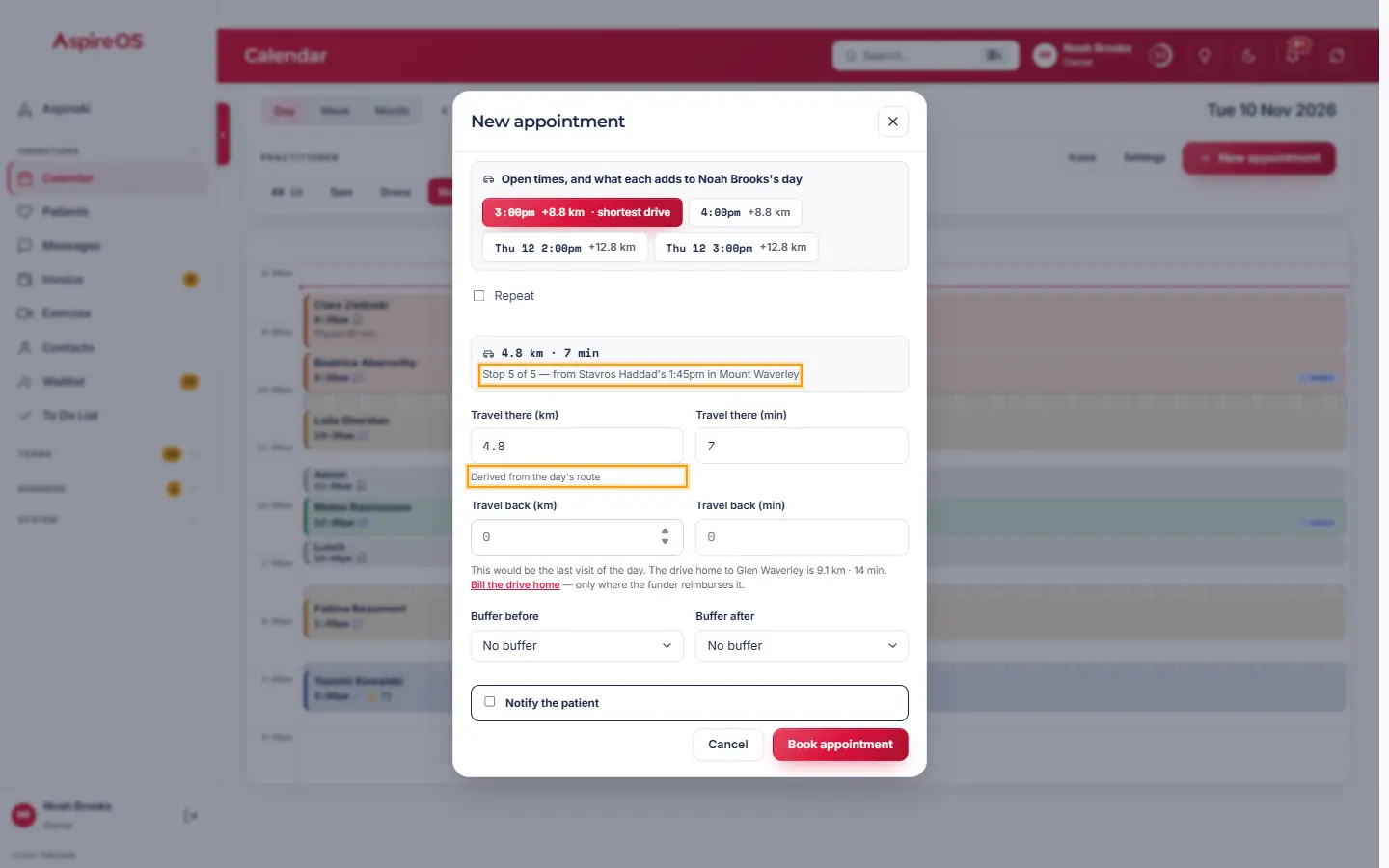
Check the travel
AspireOS places the visit on the practitioner's route, for example Stop 5 of 5 from the previous patient, and fills in Travel there from the day's route. You can change the numbers if you need to.
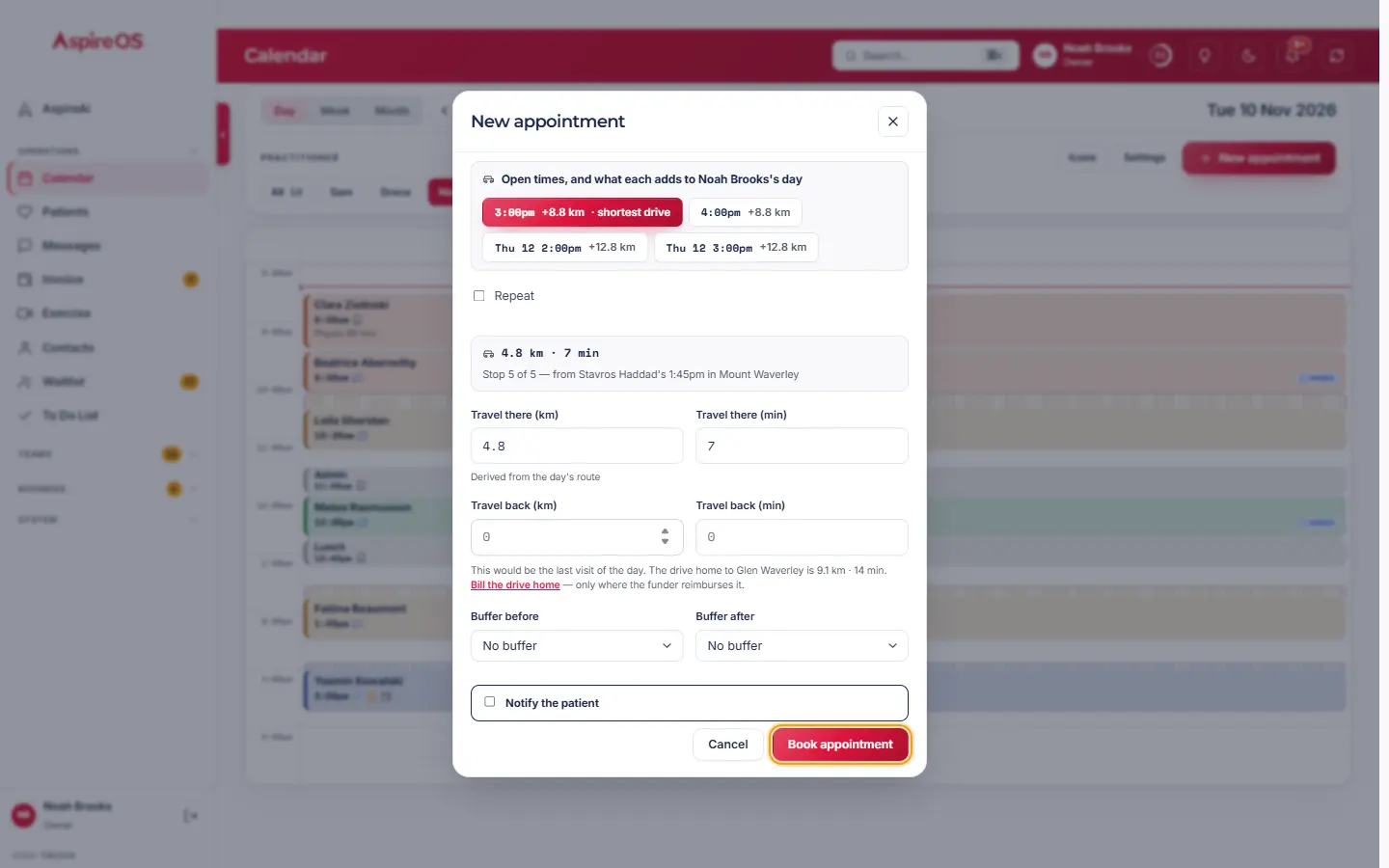
Book the visit
If it is the last visit of the day, AspireOS shows the drive home and whether the service bills it for this funder (set in Settings, Services). Then click Book appointment.
Check the address and travel
Open the visit on the calendar. Location shows the patient's address and Travel shows the distance and time. AspireOS updates the travel if the day's route changes.
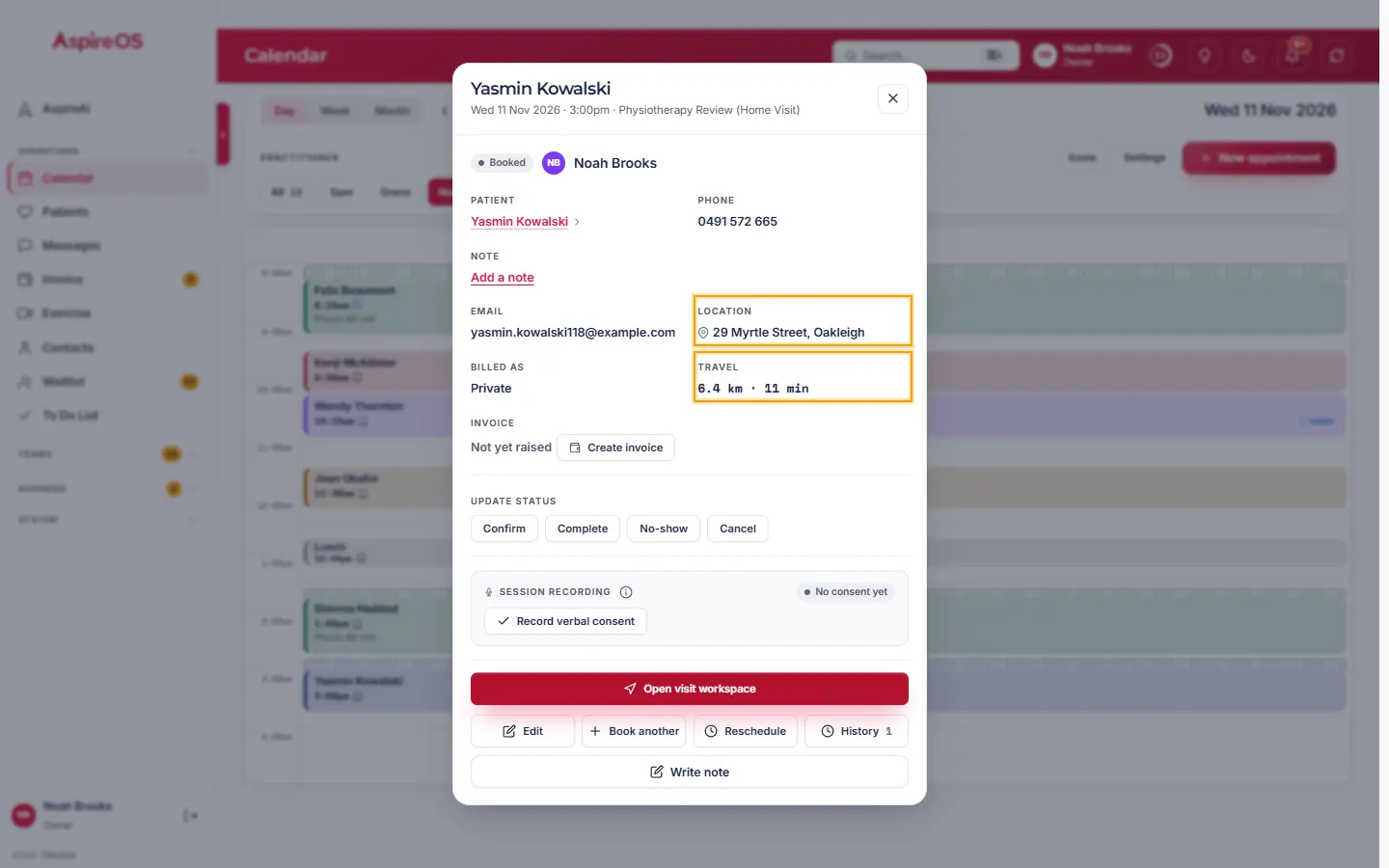
Screenshots taken 10 November 2026 on sample data. Your screens may differ slightly as AspireOS improves.
Still stuck?
Ask AspireAi inside AspireOS: it can walk you through any of these, or send a note to our support team for you.