Outcome measures
Add an outcome measure to a clinical note
Drop a patient's latest score into the note you're writing, or do a measure on the spot and insert the result.
Start a note
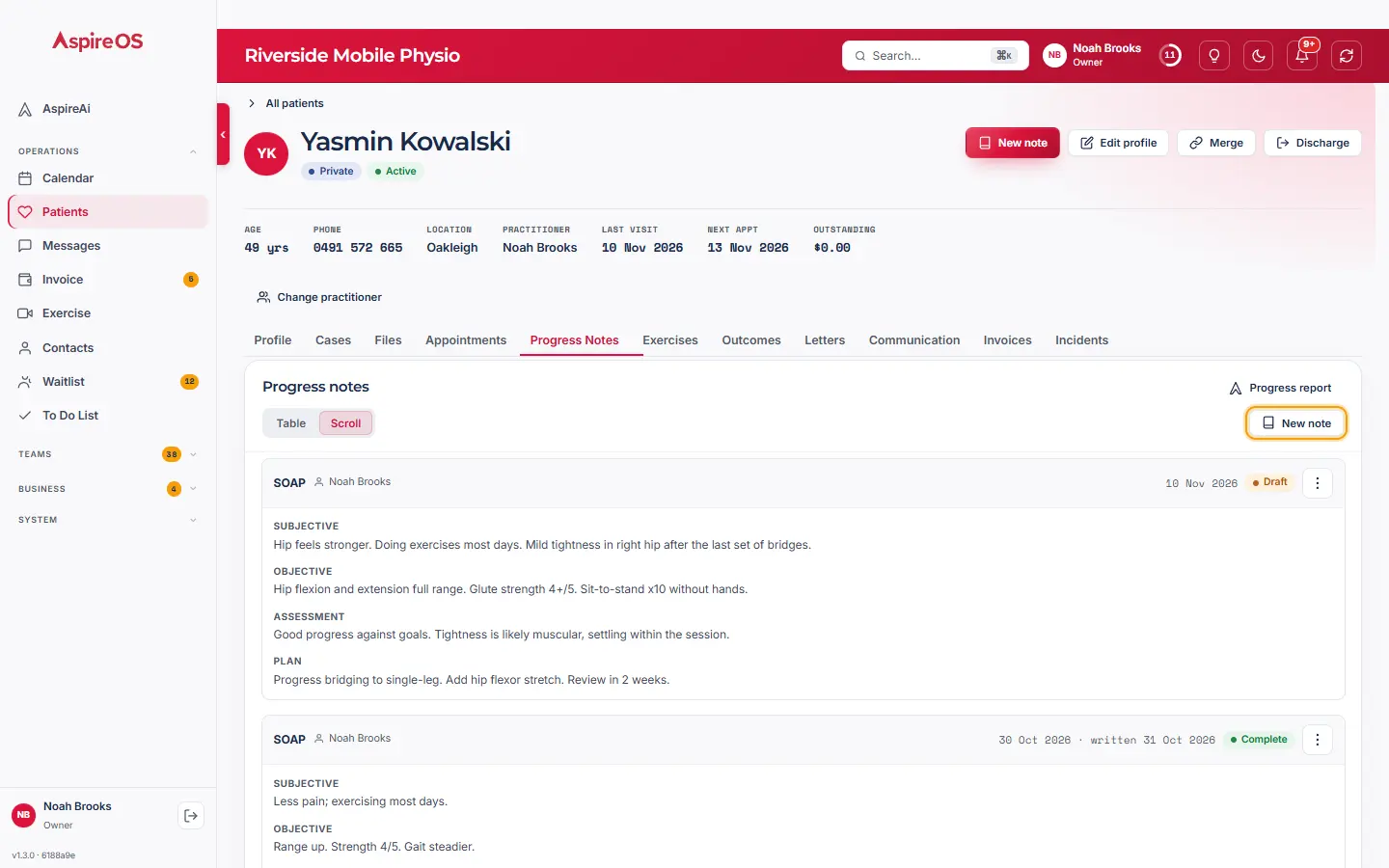
On the patient's file, open Progress Notes and click New note.
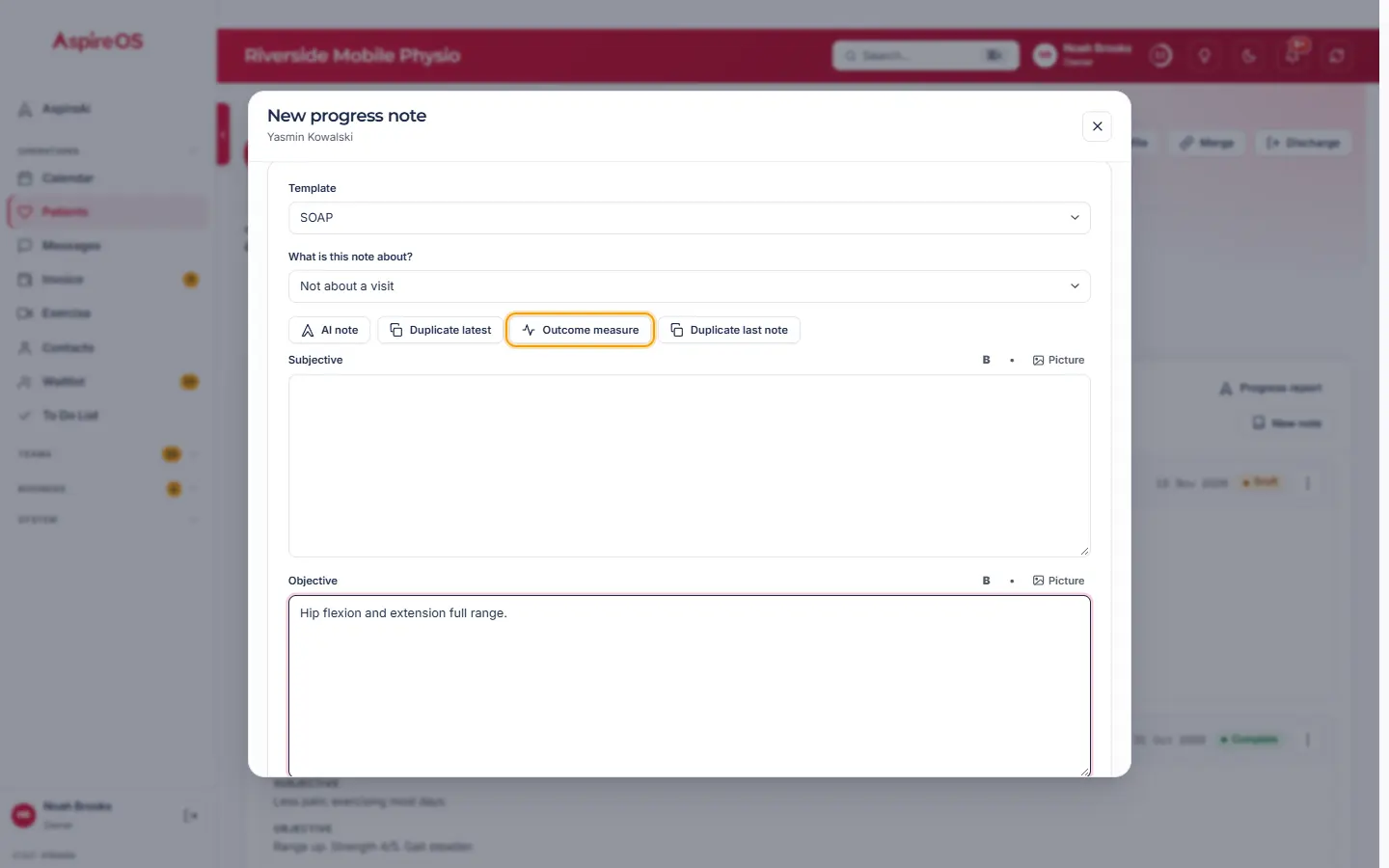
Click Outcome measure
Pick your template, click in the box where the score should go, then click Outcome measure.
Insert a completed measure
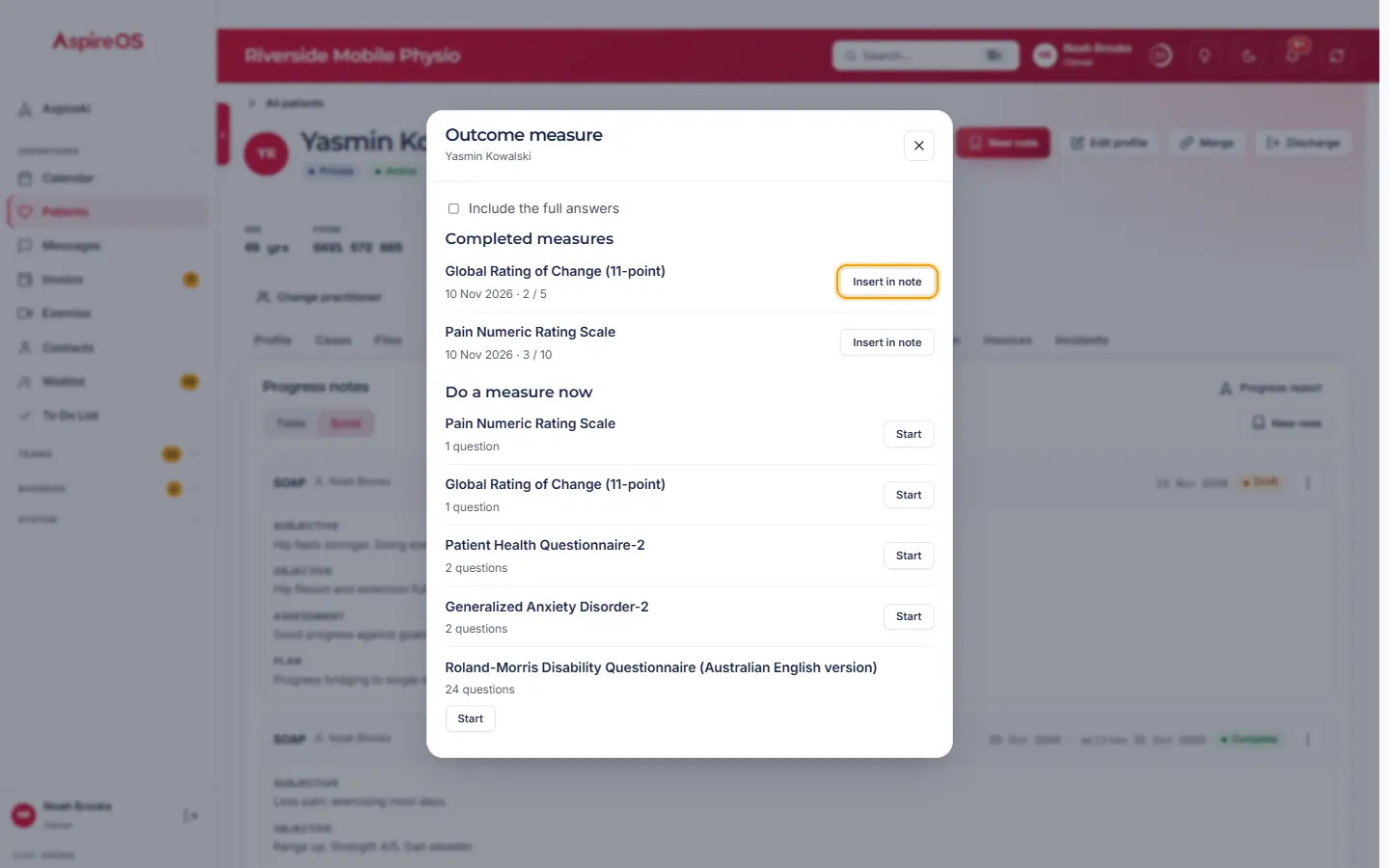
Under Completed measures, click Insert in note beside the score you want. Tick Include the full answers first if you want every answer too.
Check the note
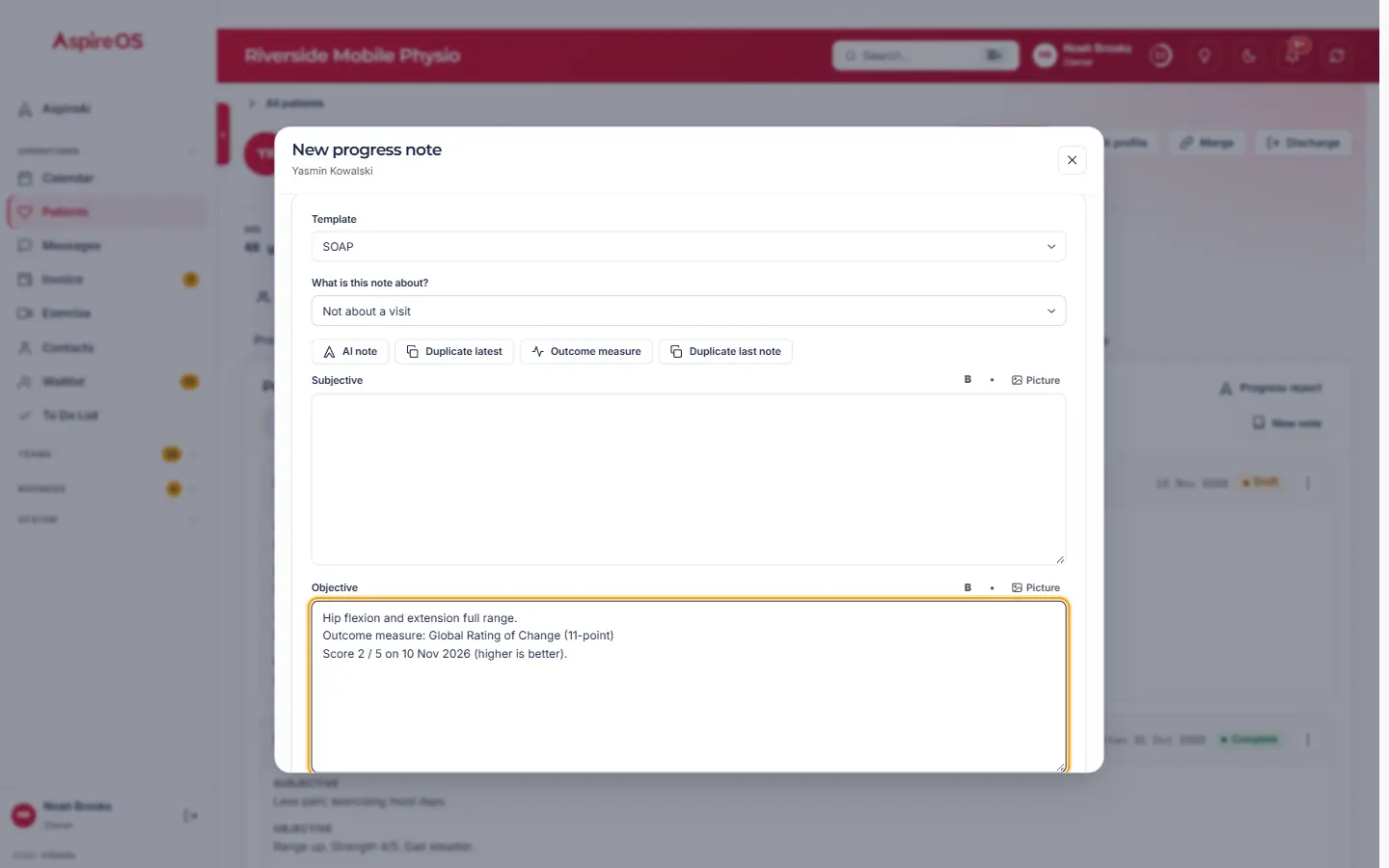
The measure name, score, date and which way is better are added where your cursor was.
Save the note
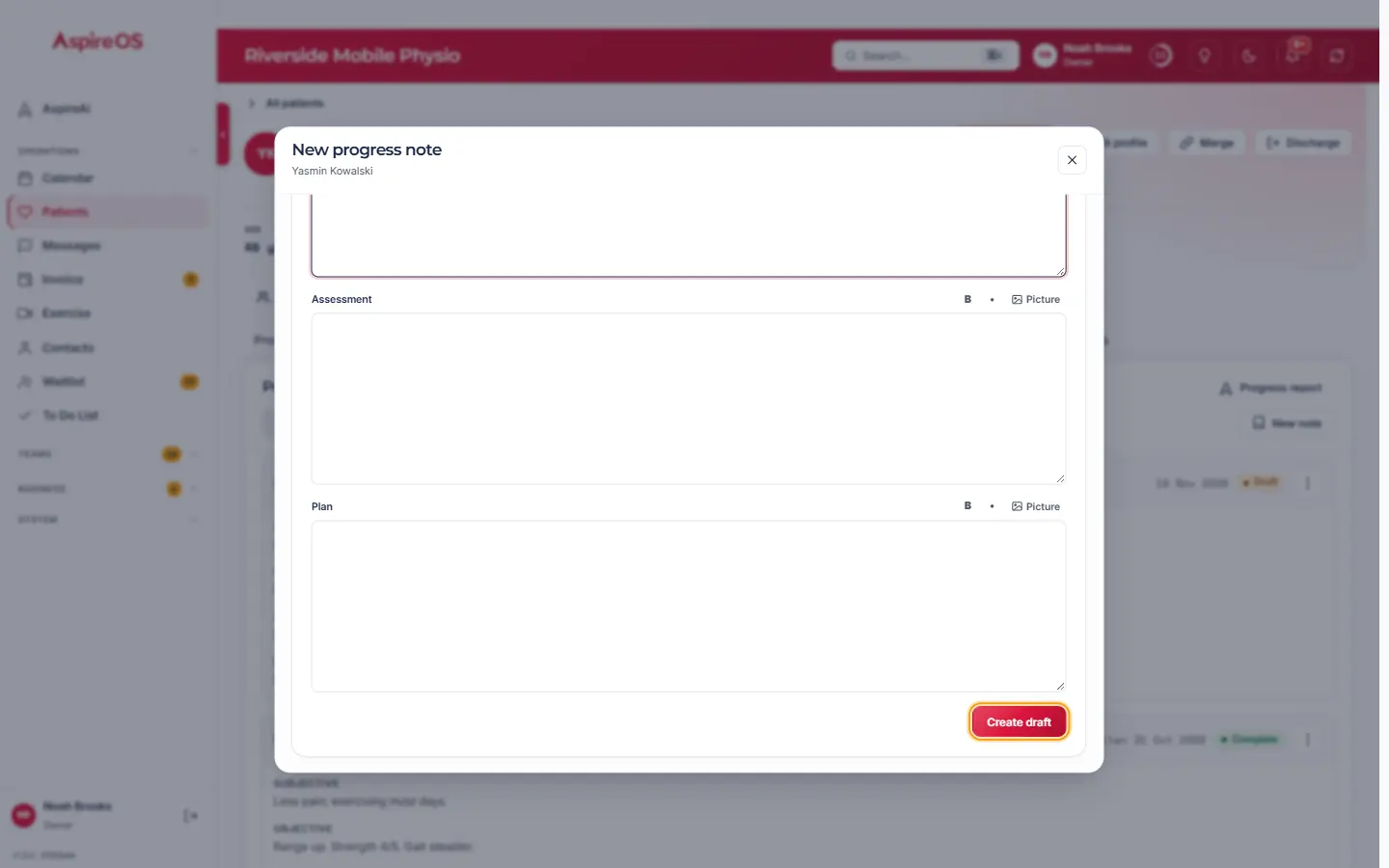
Finish the note and click Create draft, then complete it as usual.
Screenshots taken 10 November 2026 on sample data. Your screens may differ slightly as AspireOS improves.
Still stuck?
Ask AspireAi inside AspireOS: it can walk you through any of these, or send a note to our support team for you.