Outcome measures
Send an outcome measure to a patient
Assign a questionnaire from the patient's file, let the patient fill it in on their phone, and see the score land back on their file.
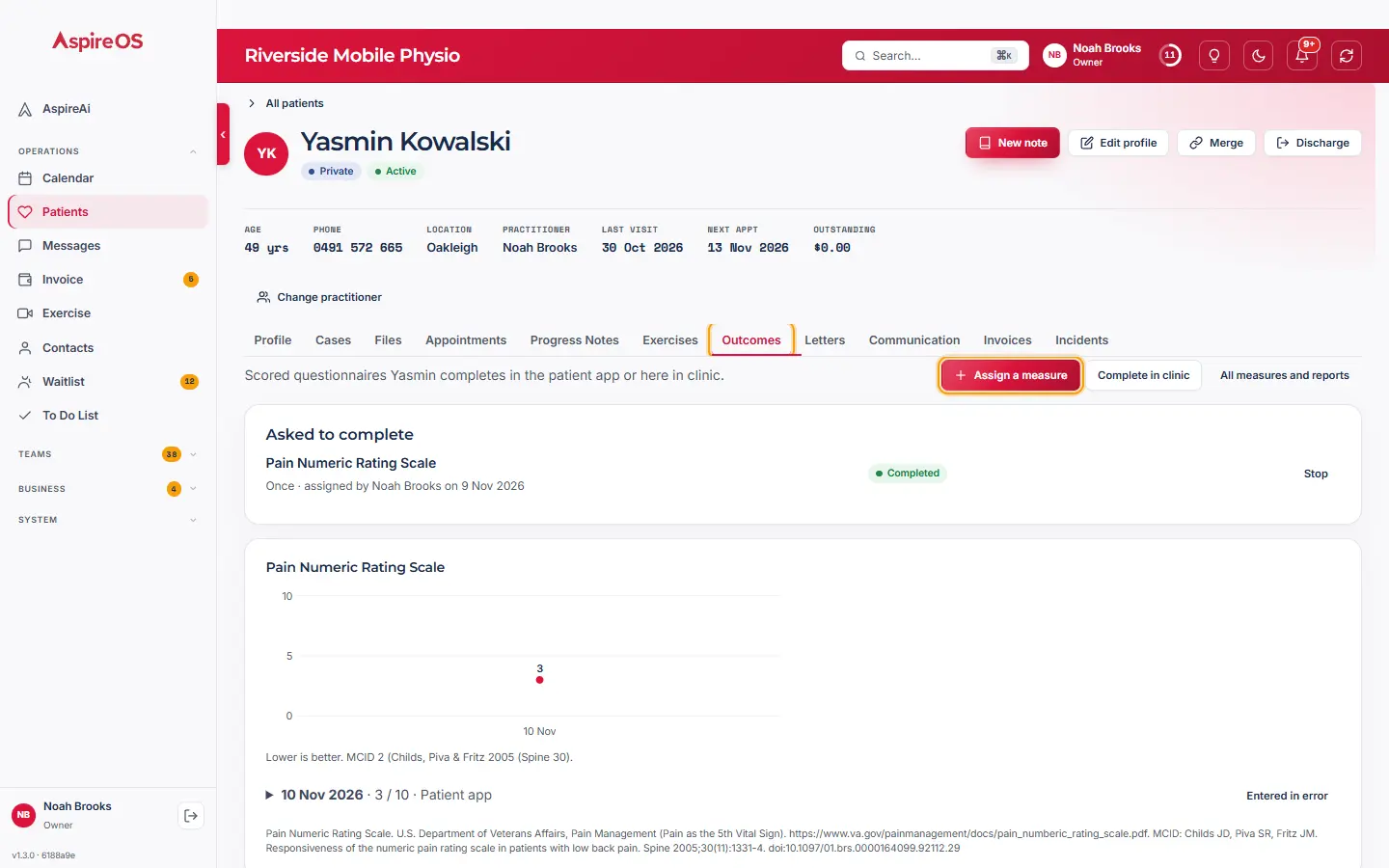
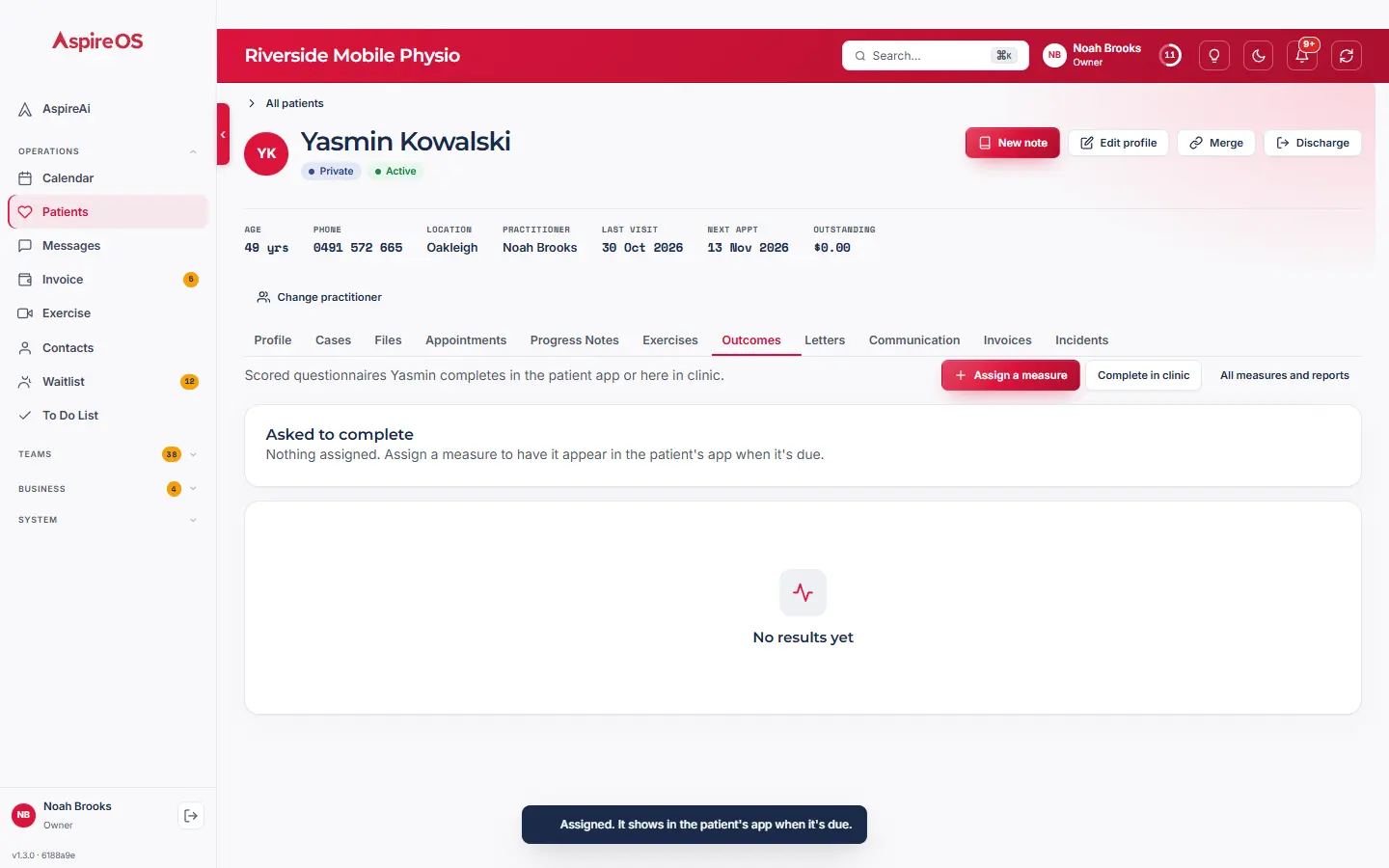
Open the patient's Outcomes tab
Open the patient's file and choose the Outcomes tab. Then click Assign a measure.
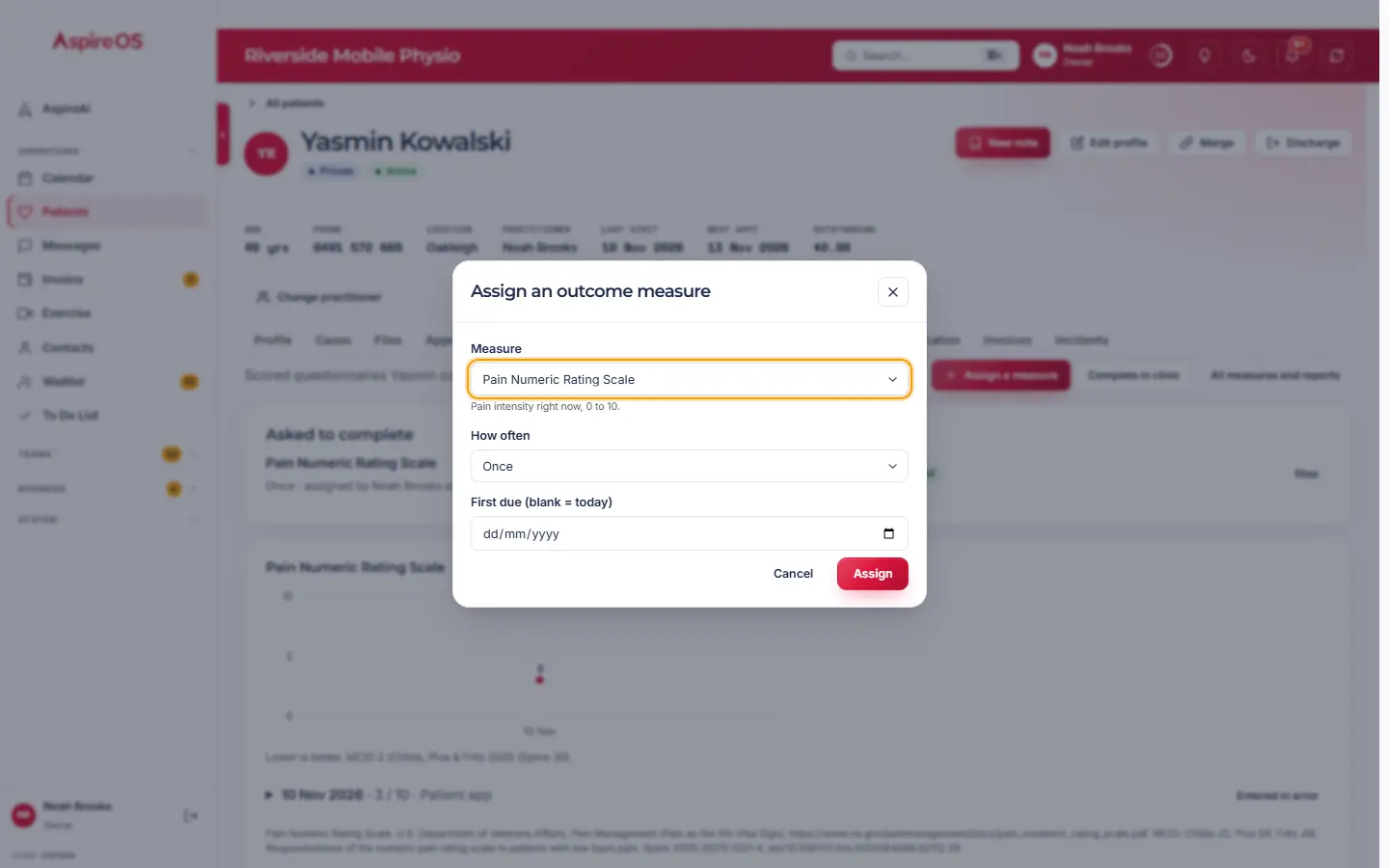
Pick the measure
Choose the questionnaire from the Measure list. A short line under it says what it measures.
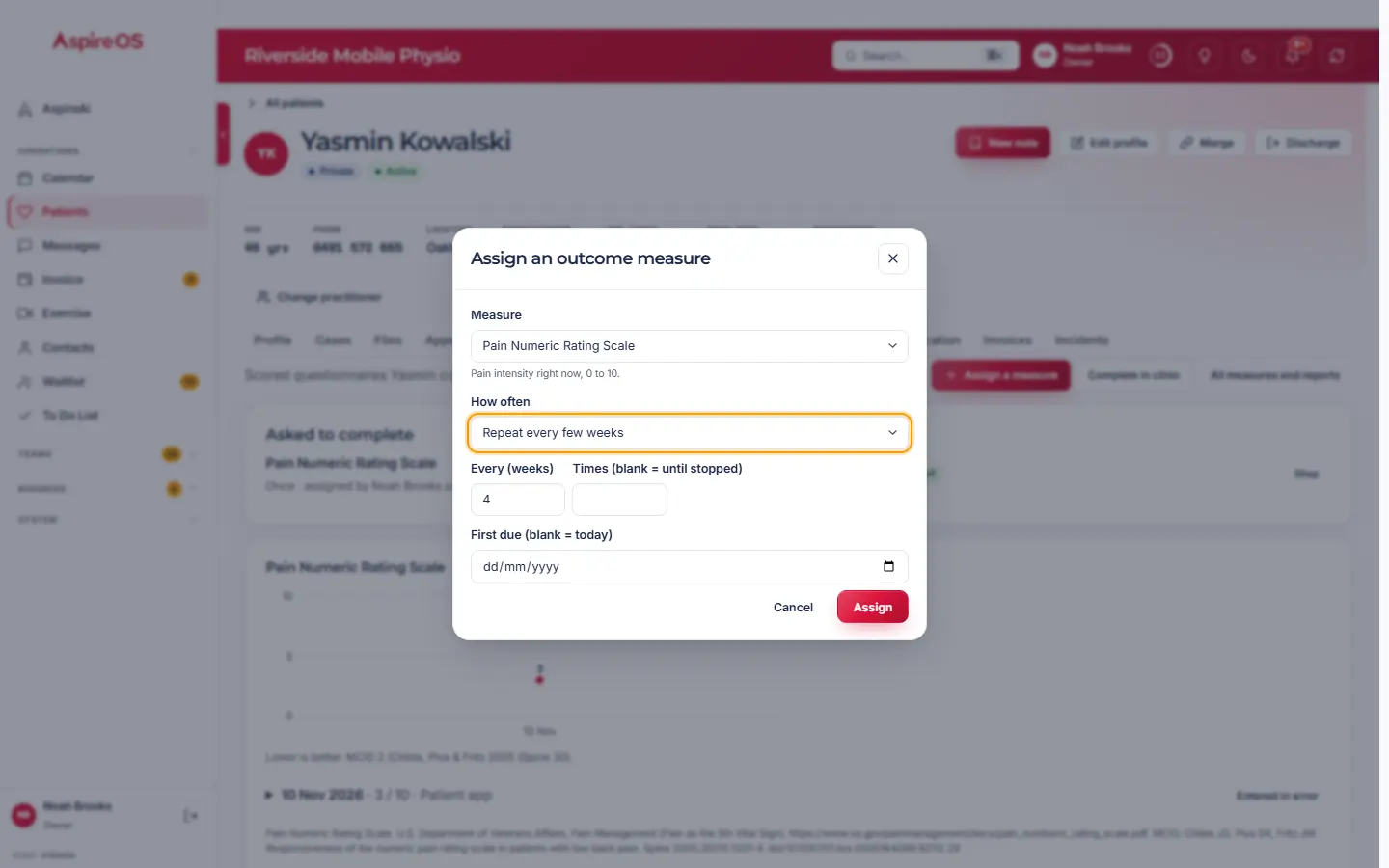
Choose how often
Leave How often on Once, or pick Repeat every few weeks or At set visits. For repeats, set the weeks between and how many times (leave Times blank to keep going until you stop it).
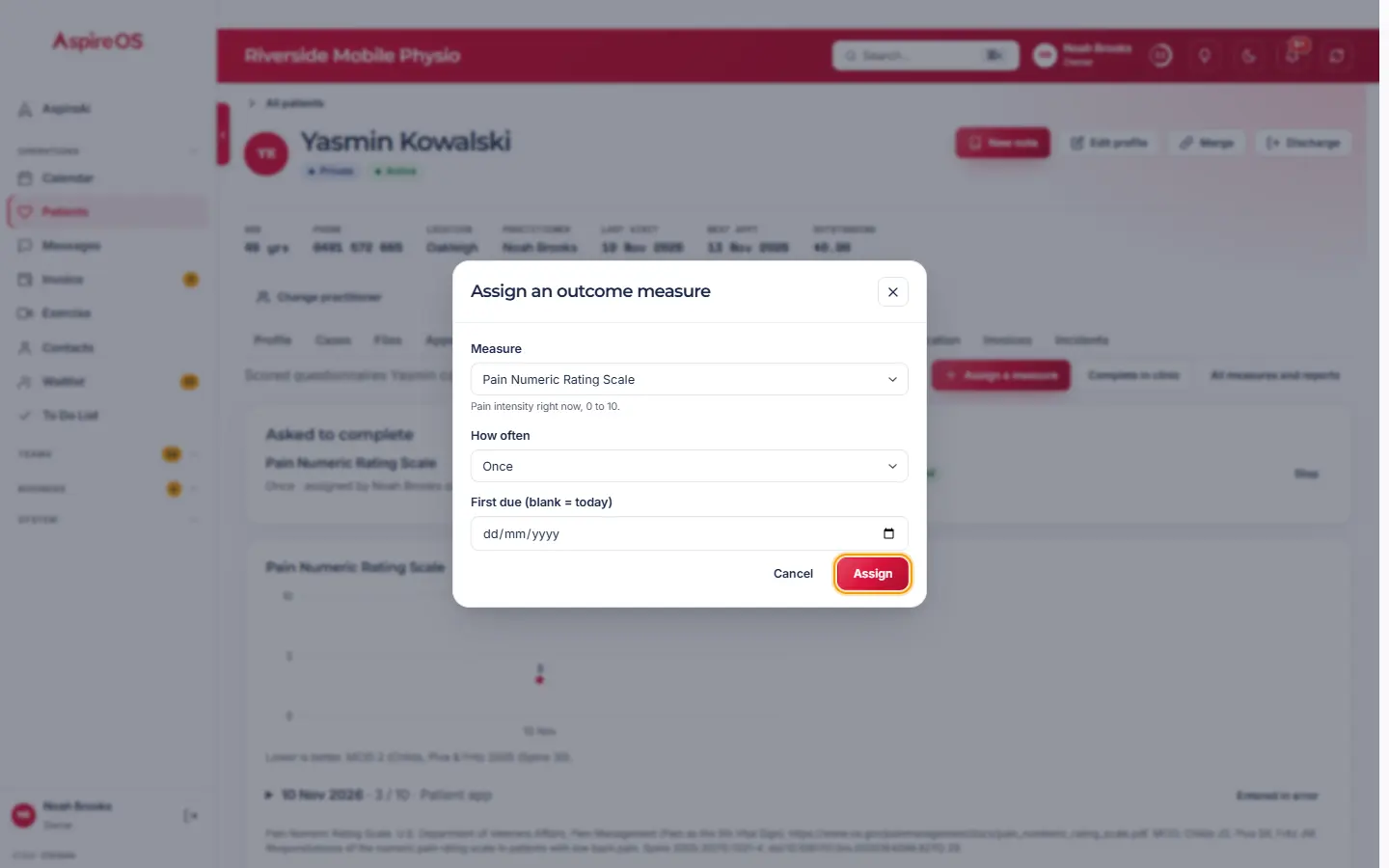
Assign it
Set First due if it shouldn't start today, then click Assign.
It's on its way
You'll see "Assigned. It shows in the patient's app when it's due." There's nothing else to send.
Patient’s view
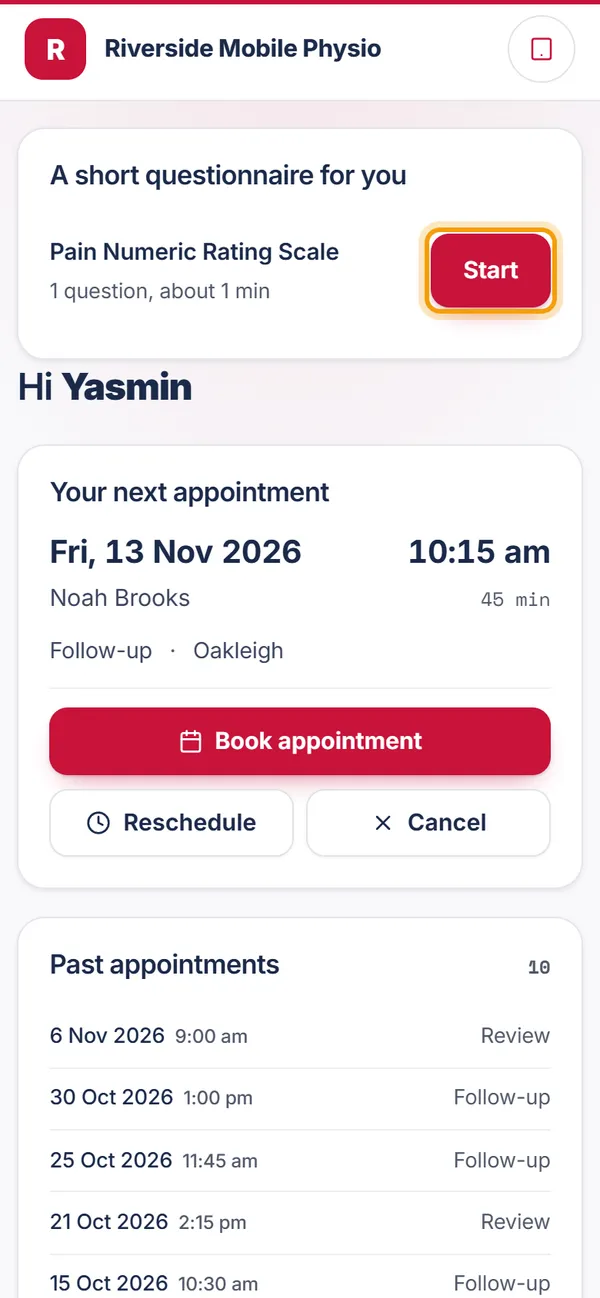
The patient taps Start
When it's due, the patient sees "A short questionnaire for you" at the top of their patient app and taps Start.
Patient’s view
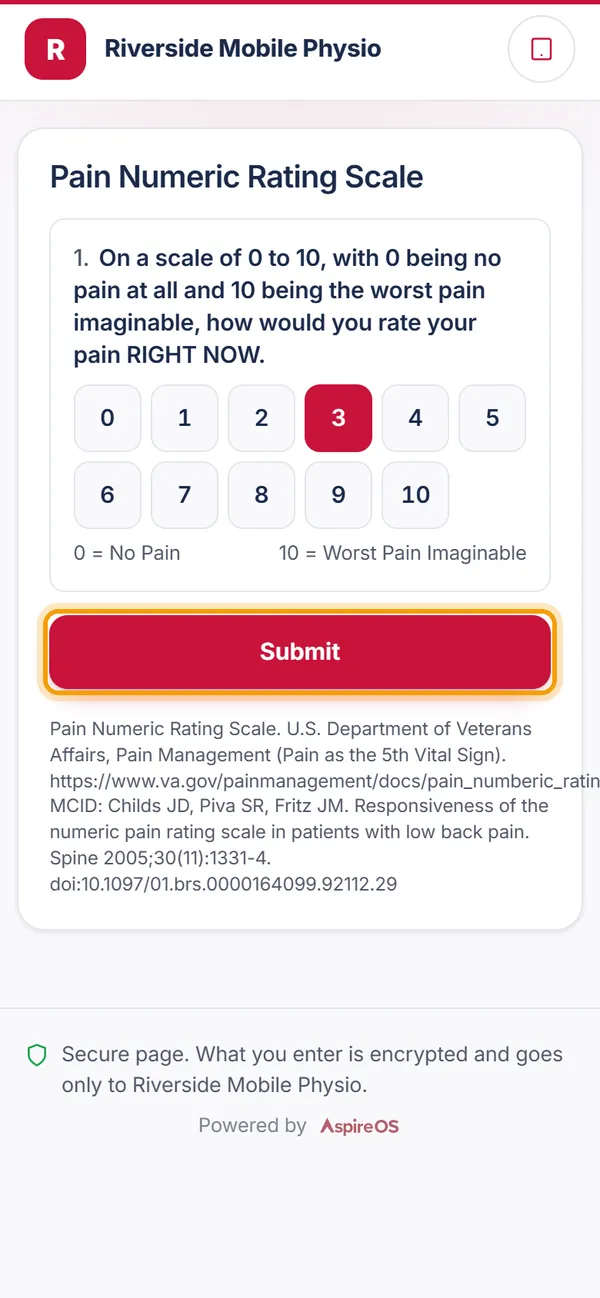
The patient answers and submits
They answer each question and tap Submit. The score isn't shown to them.
Patient’s view
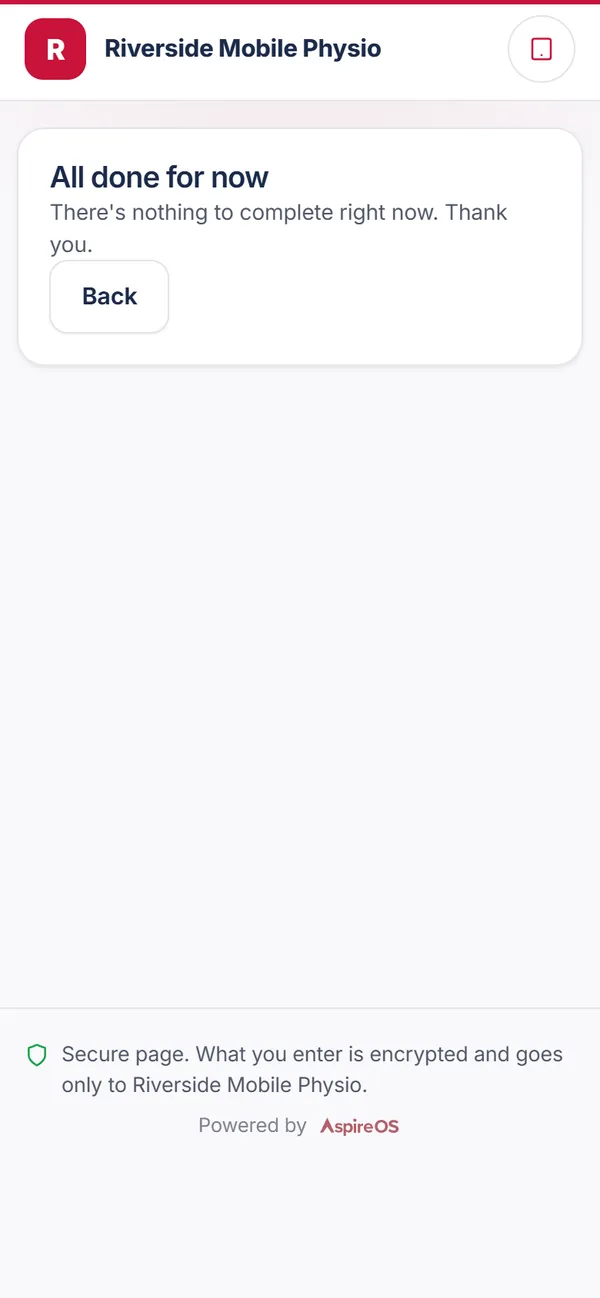
All done for the patient
The patient sees "All done for now" and can go back to their app.
See the score on the file
Back on the Outcomes tab the measure shows Completed, and the score is charted with the date and "Patient app".
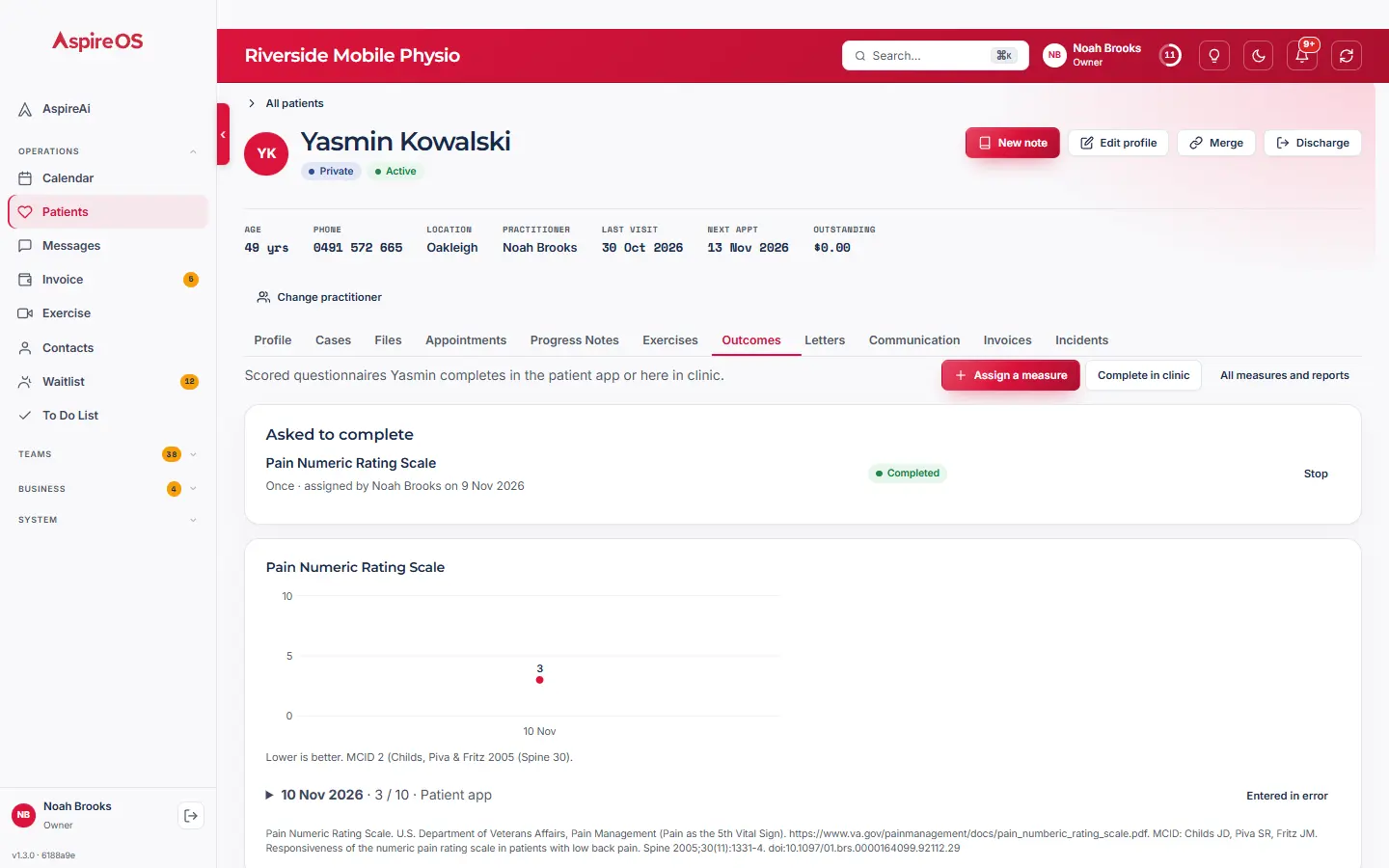
Screenshots taken 10 November 2026 on sample data. Your screens may differ slightly as AspireOS improves.
Still stuck?
Ask AspireAi inside AspireOS: it can walk you through any of these, or send a note to our support team for you.