Outcome measures
Create your own outcome questionnaire
Build a practice questionnaire with scales, choices, tick boxes or free text, then assign it like any built-in measure.
Open Your measures
On any patient's Outcomes tab click All measures and reports, then open Your measures and click New measure.
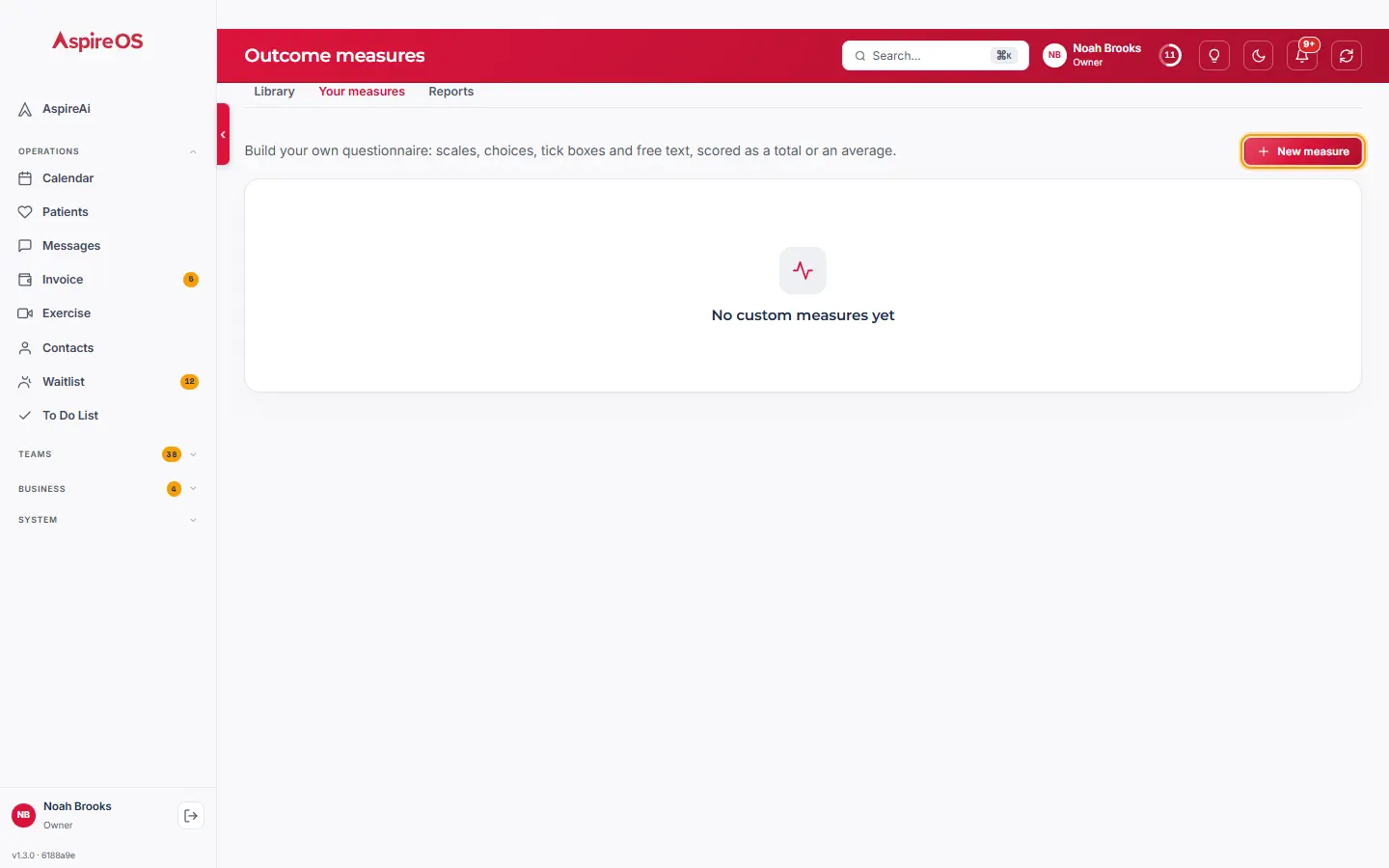
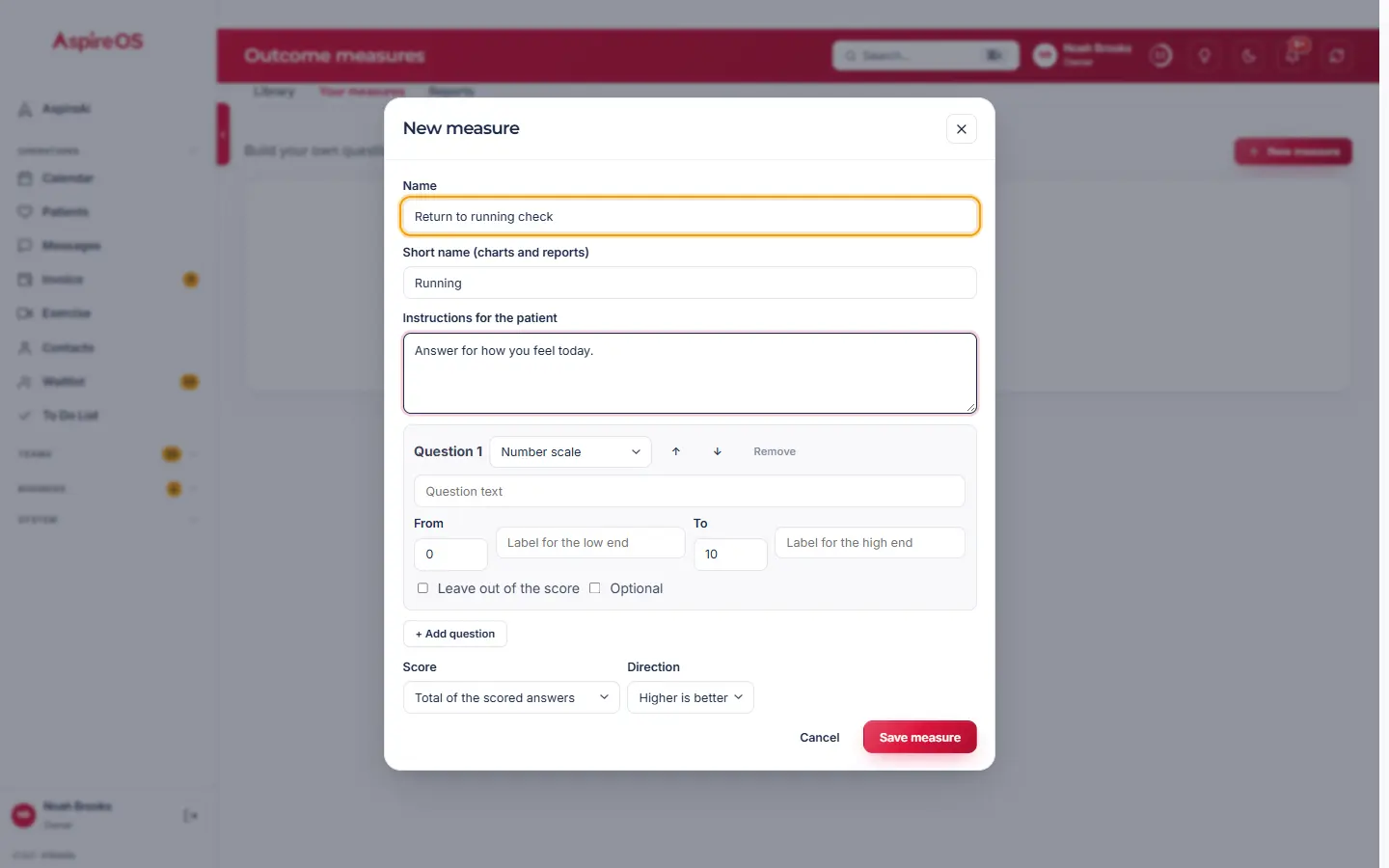
Name it
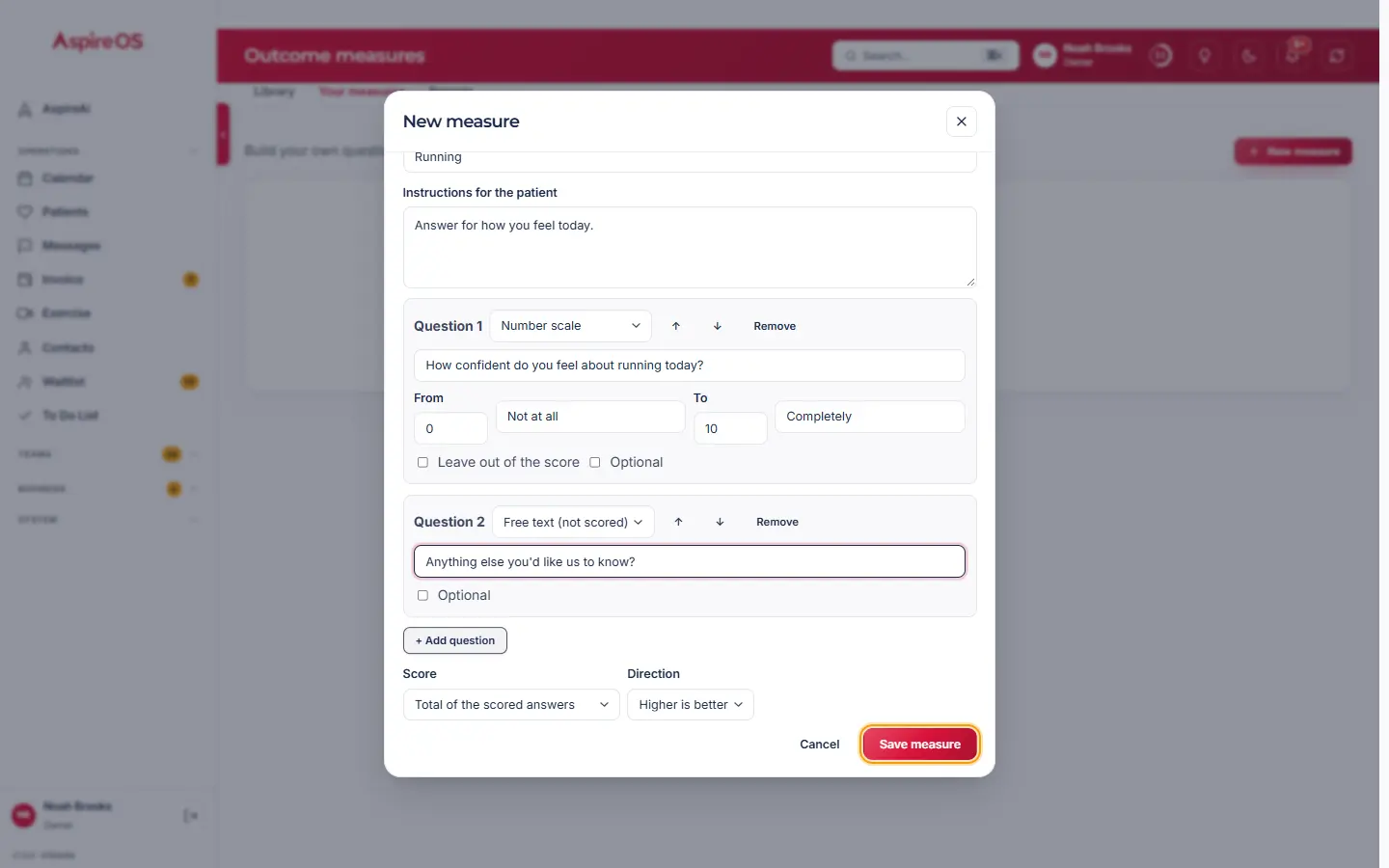
Enter a Name, a Short name for charts and reports, and any Instructions for the patient.
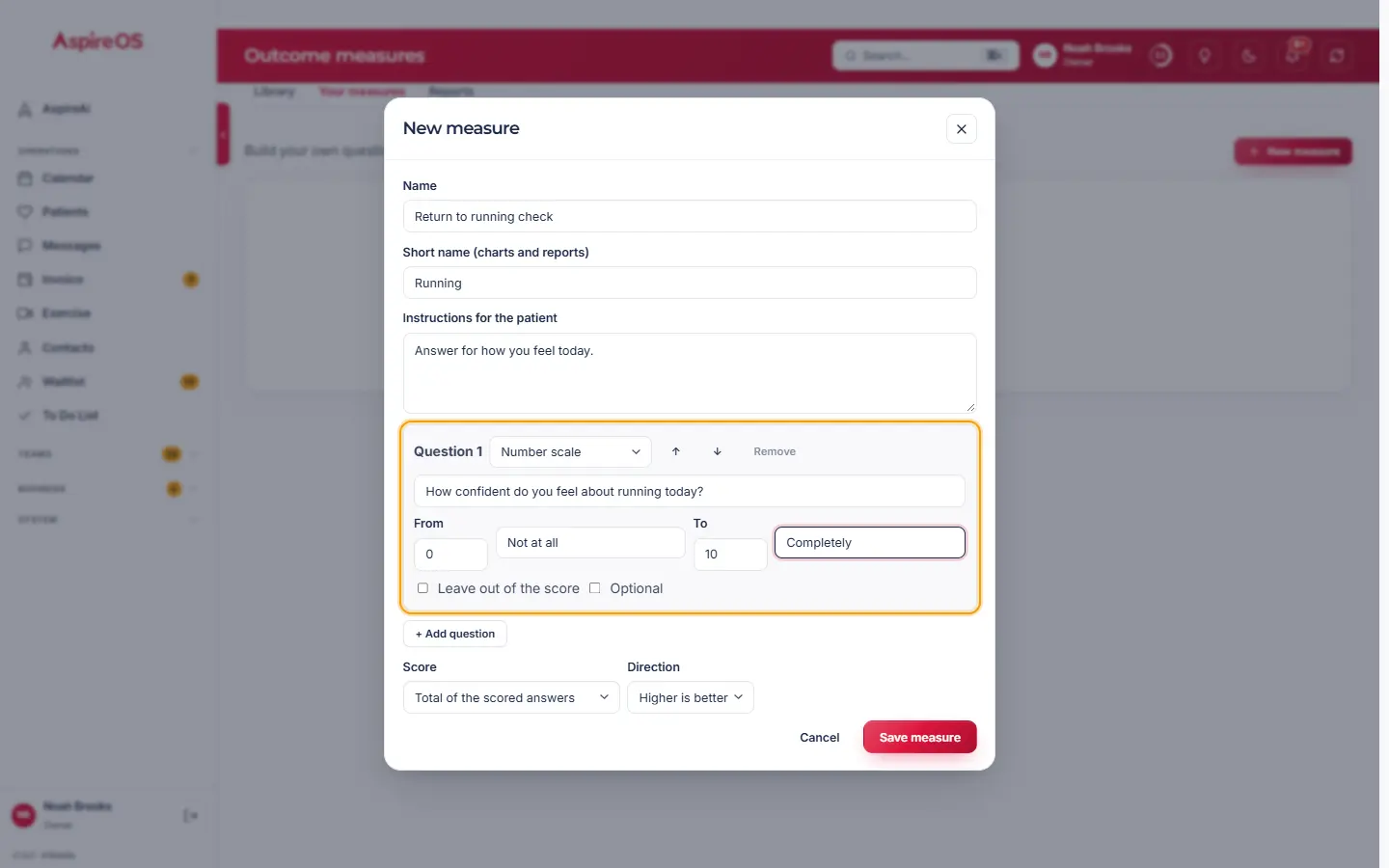
Write the first question
Choose the type (Number scale, Choice, Tick box or Free text), type the question, and set the range and end labels.
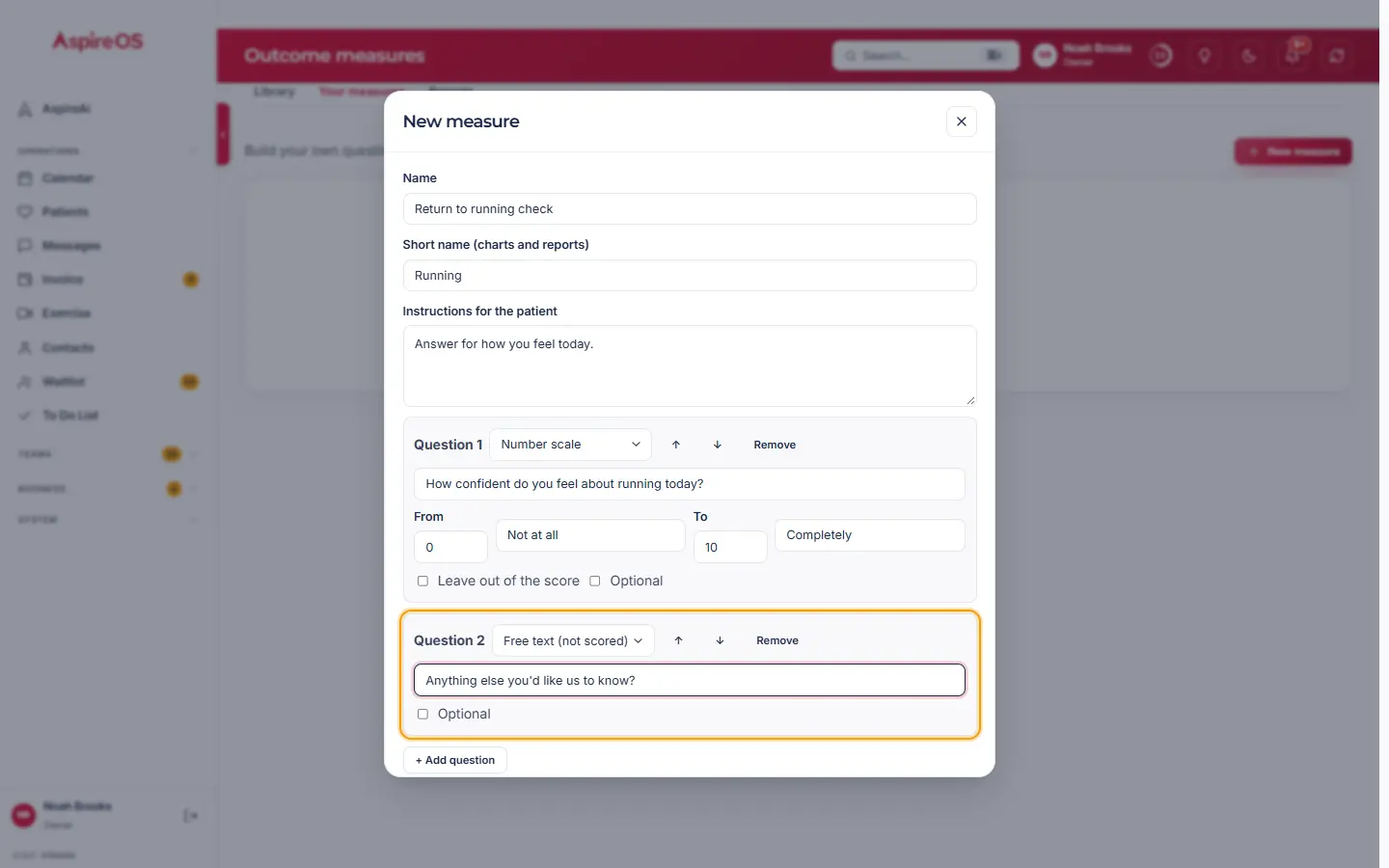
Add more questions
Click + Add question for each extra question. Use the arrows to reorder and Remove to delete one.
Set the scoring and save
Under Score pick a total or an average (or Not scored), set the Direction, then click Save measure.
Edit it any time
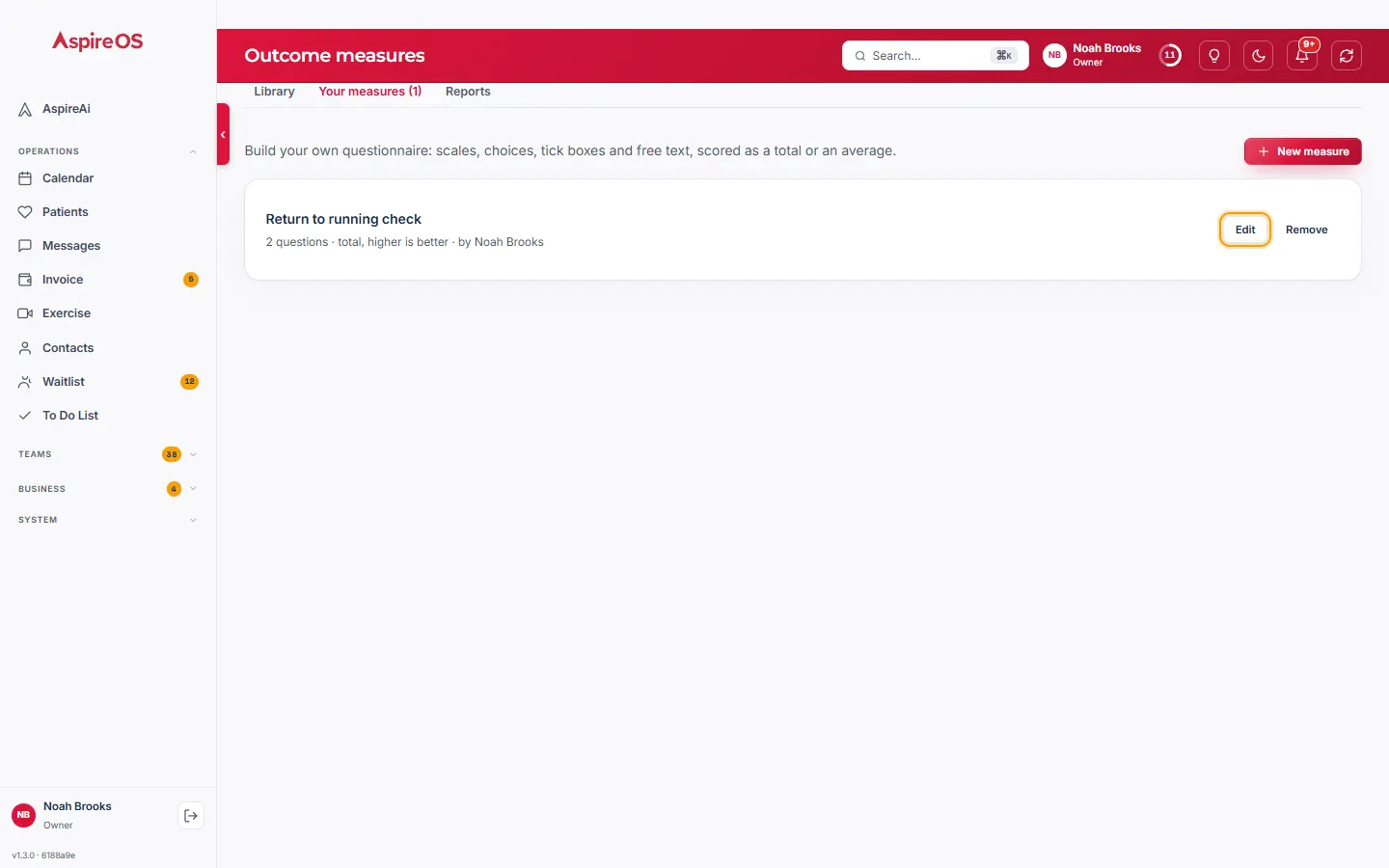
Your questionnaire is listed under Your measures. Click Edit to change it, or Remove to take it away.
Assign it to patients
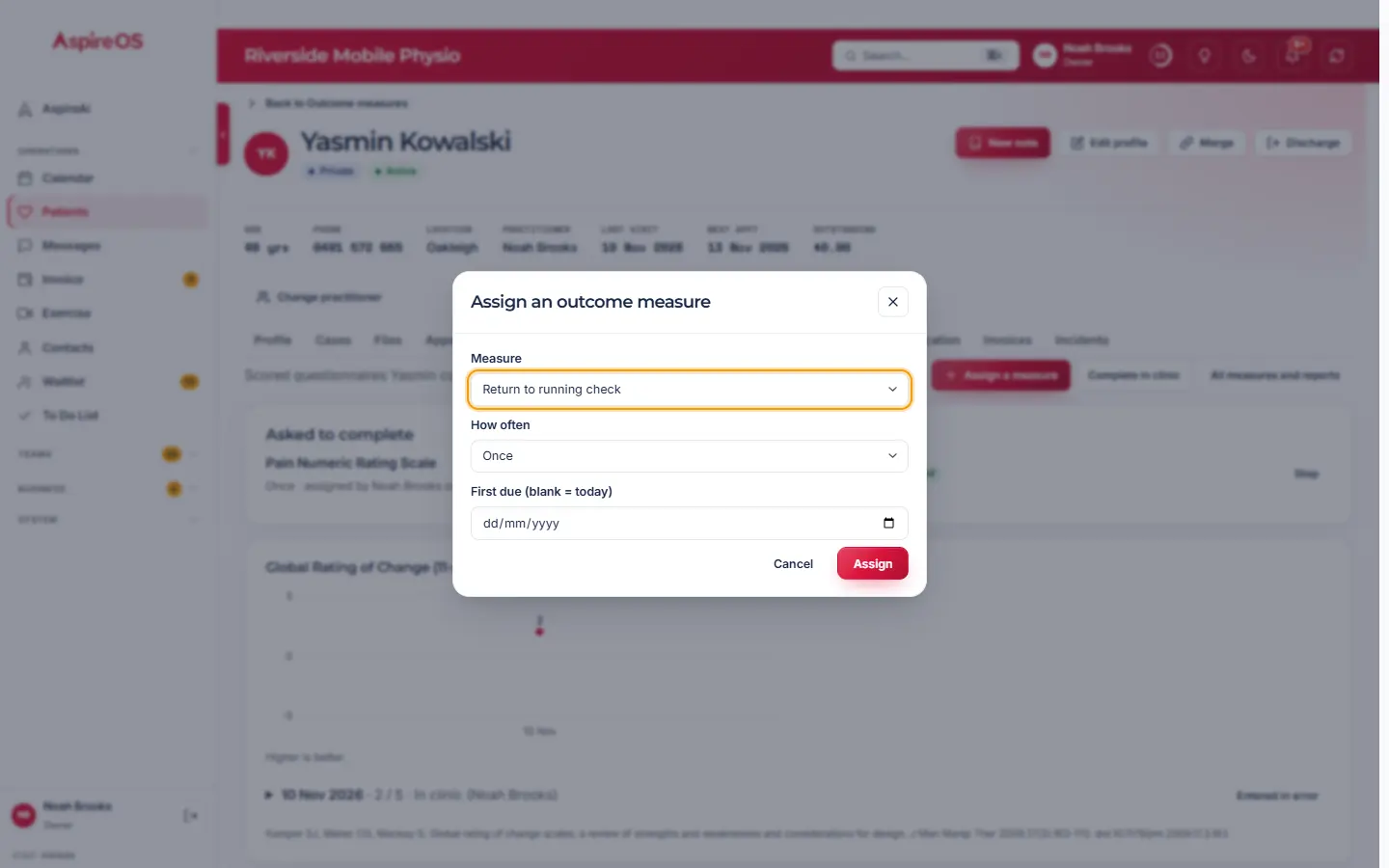
It now appears in the Measure list when you assign a measure or complete one in clinic.
Screenshots taken 10 November 2026 on sample data. Your screens may differ slightly as AspireOS improves.
Still stuck?
Ask AspireAi inside AspireOS: it can walk you through any of these, or send a note to our support team for you.