Clinical notes
Create and edit note templates
Build your own note template with the sections, field types and starting text your practice uses, and change it any time.
Go to Settings › Clinical
Open Settings and choose the Clinical tab. Under Note templates, click New template.
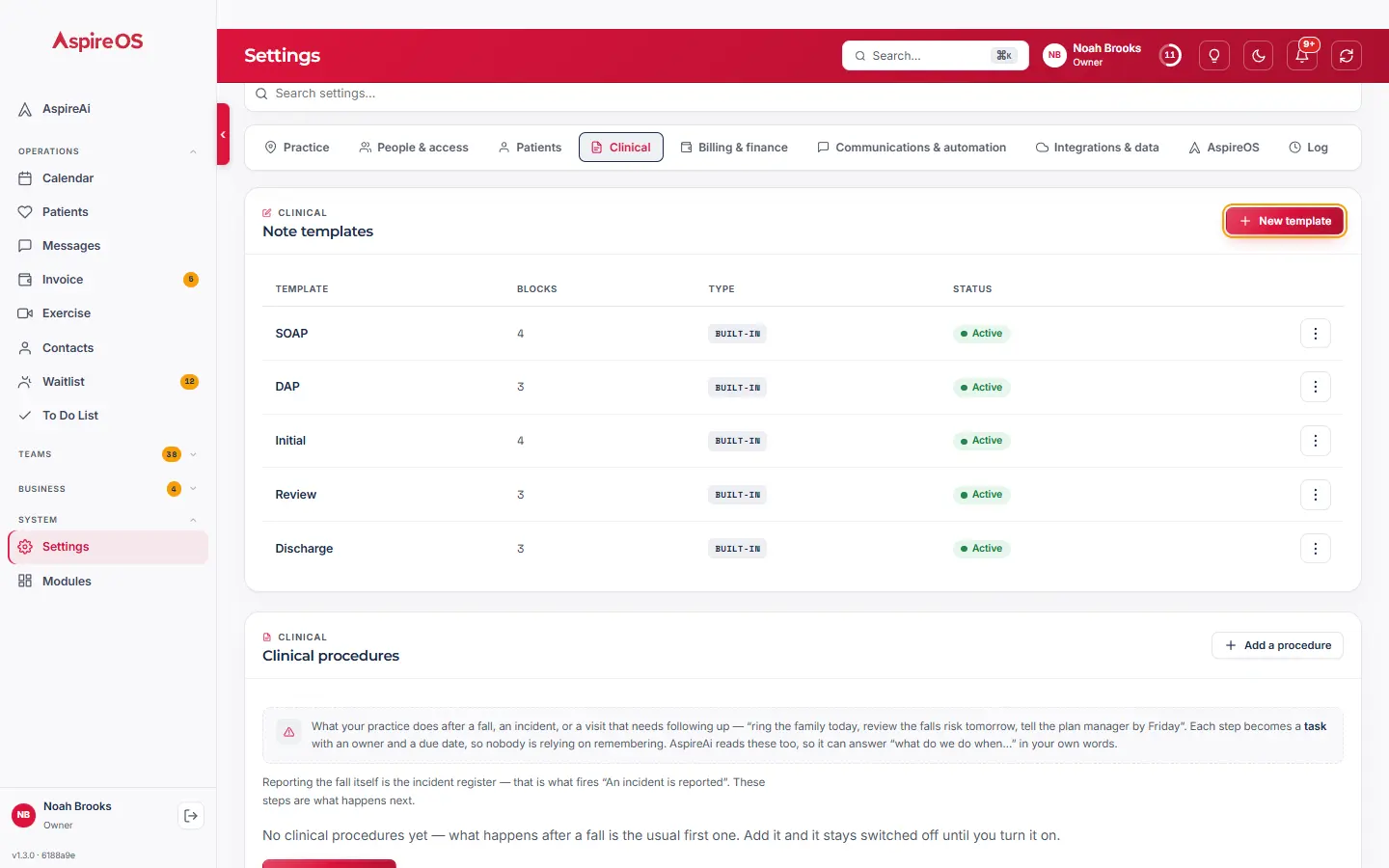
Name the template
Type a Template name. This is what practitioners pick when they start a note.
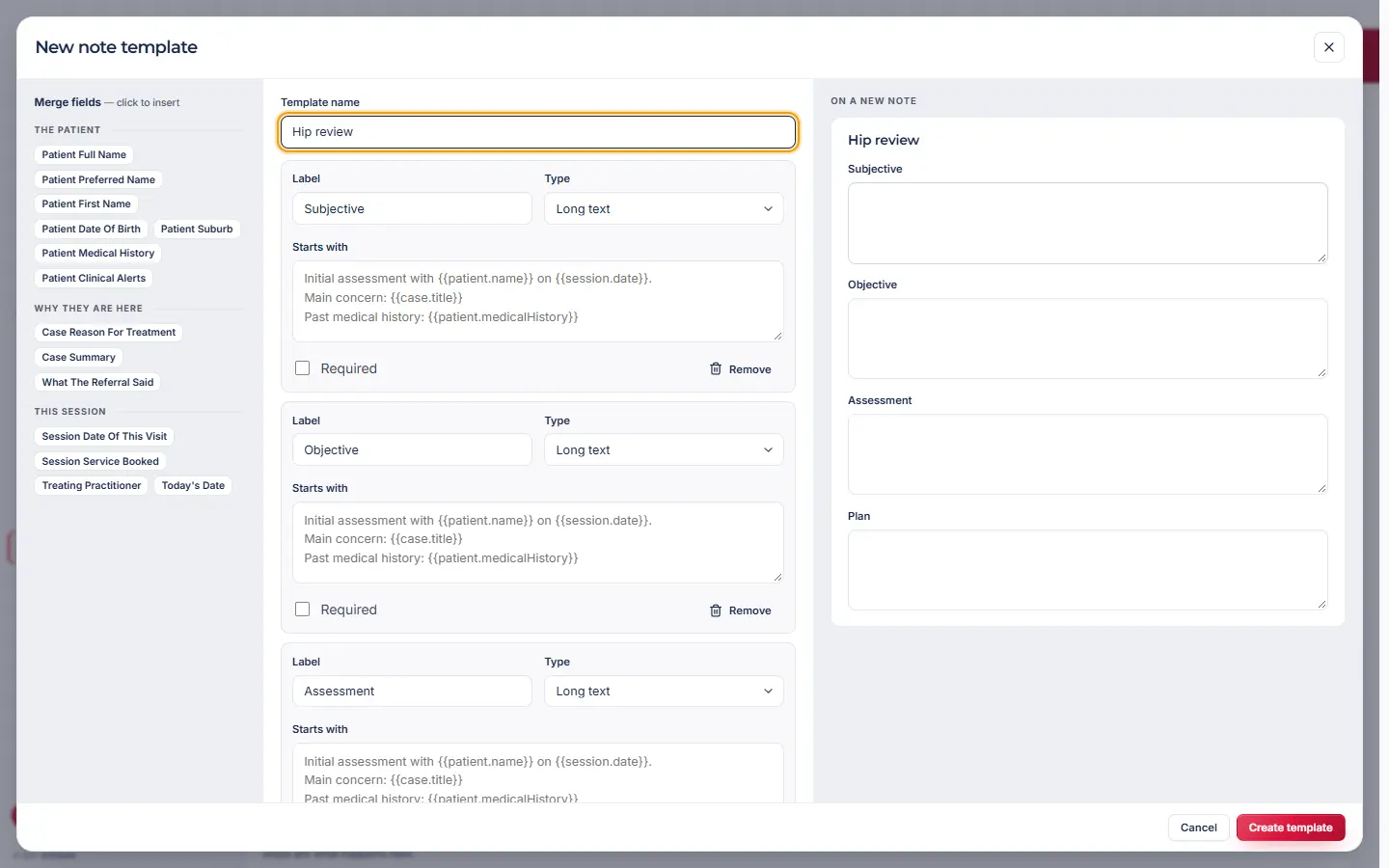
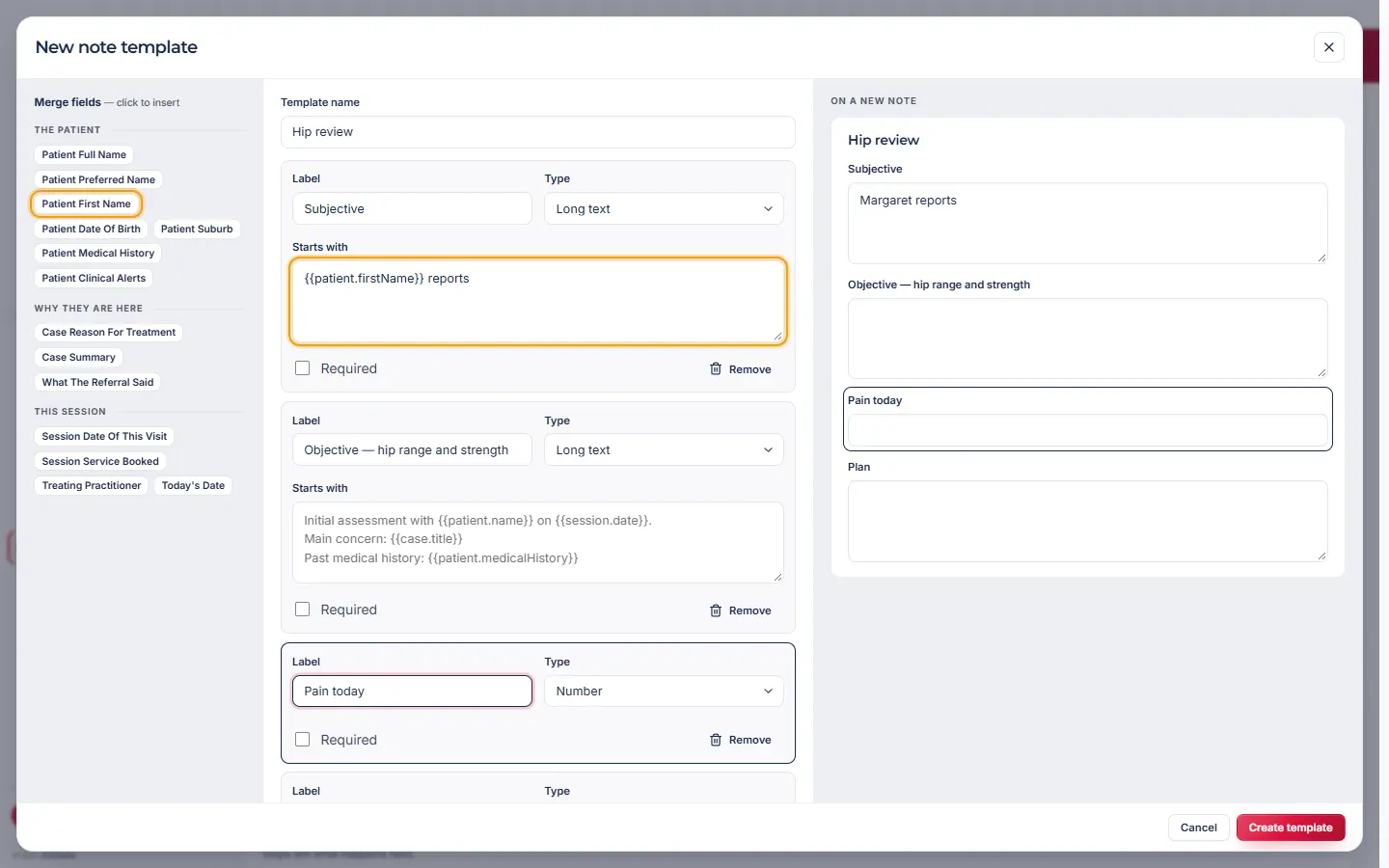
Set each block's label and starting text
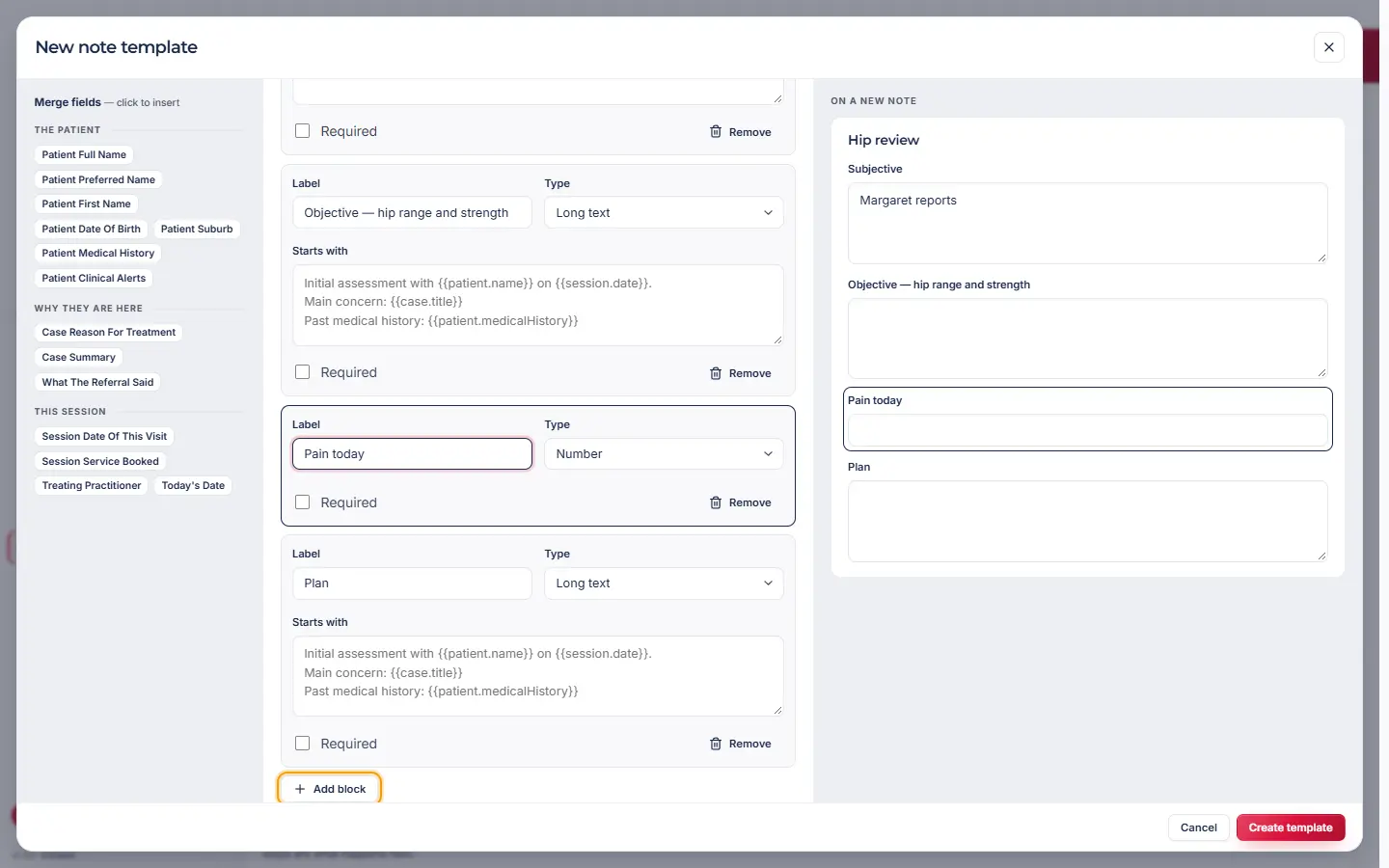
Each block is one section of the note. Change its Label and put text in Starts with. Click a merge field on the left, like Patient First Name, to fill in the patient's details automatically.
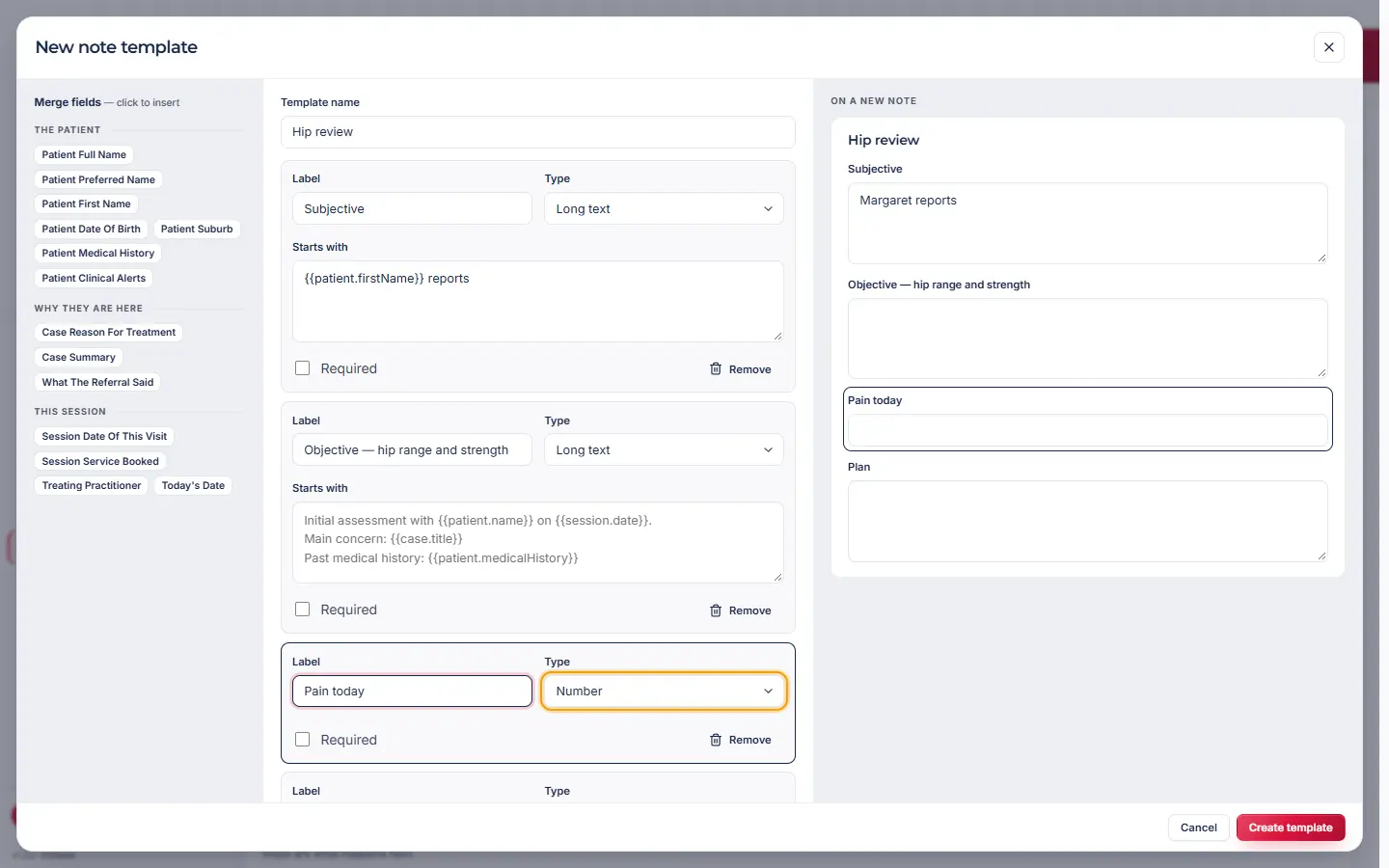
Choose the field type
Pick a Type for each block: Long text, Short text, Number, Dropdown or Checkbox. Tick Required if it must be filled in.
Add or remove blocks
Click Add block for another section, or Remove to drop one. The panel on the right shows how a new note will look.
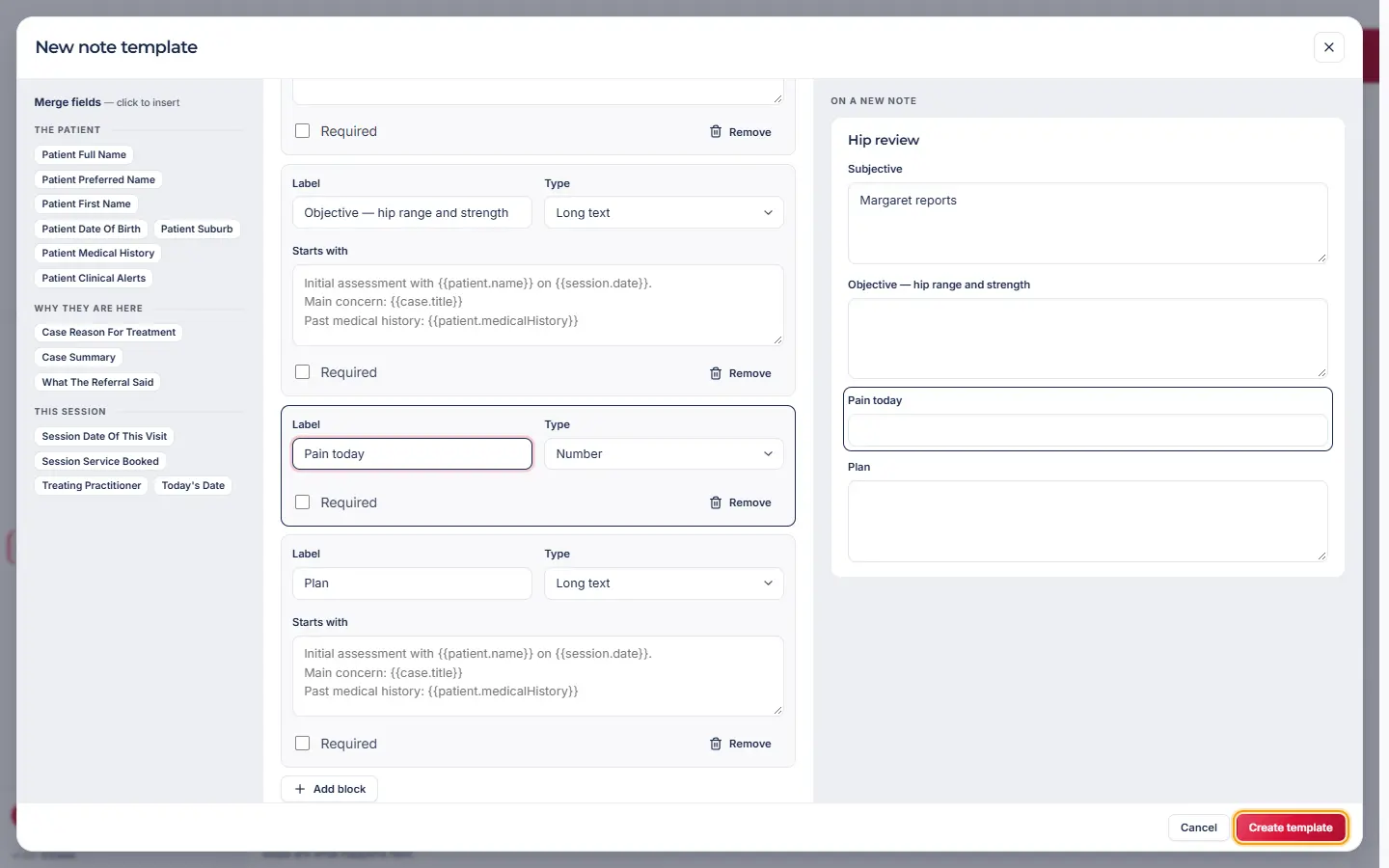
Save it
Click Create template. It appears in the list marked Custom, ready to use in new notes.
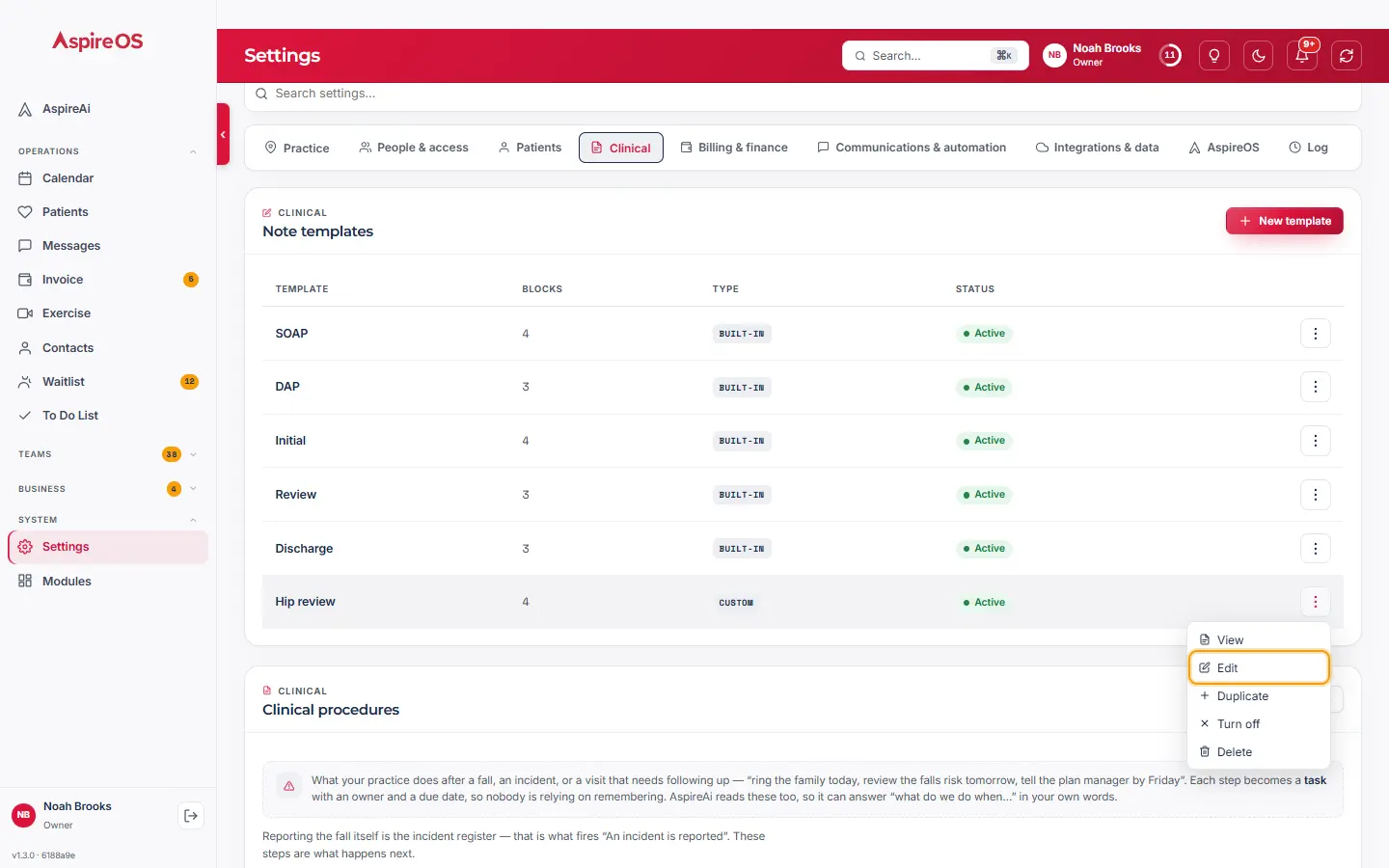
Edit, copy or turn off a template
Click the ⋮ menu on any template for View, Edit, Duplicate, Turn off or Delete. Duplicate is a quick way to start from a built-in template.
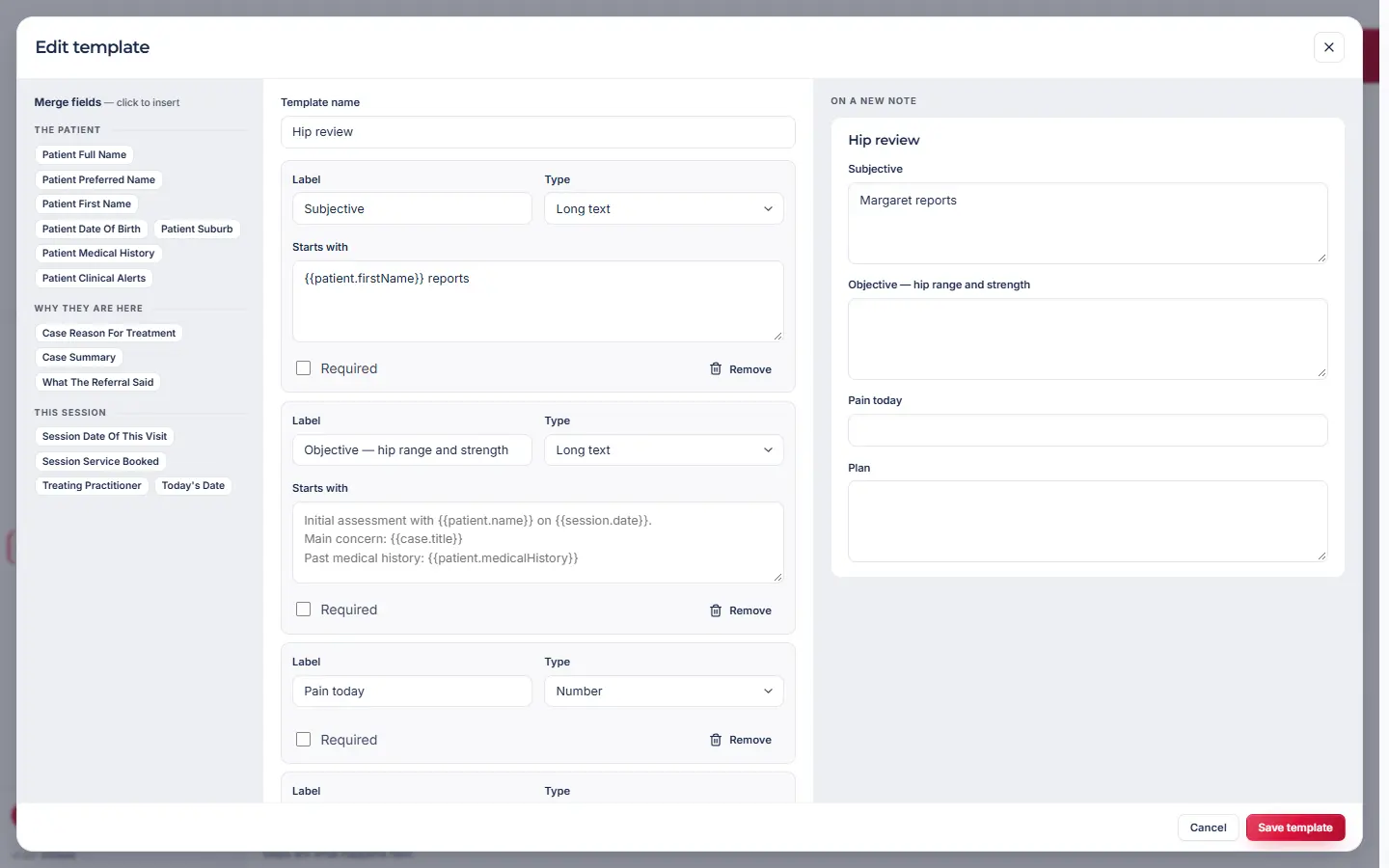
Make your changes
Edit opens the same editor. Change what you need and save.
Screenshots taken 10 November 2026 on sample data. Your screens may differ slightly as AspireOS improves.
Still stuck?
Ask AspireAi inside AspireOS: it can walk you through any of these, or send a note to our support team for you.