Exercise programs
Build an exercise program for a patient
Pick exercises from your library, tailor the sets, reps and notes for one patient, and put the program in their patient app.
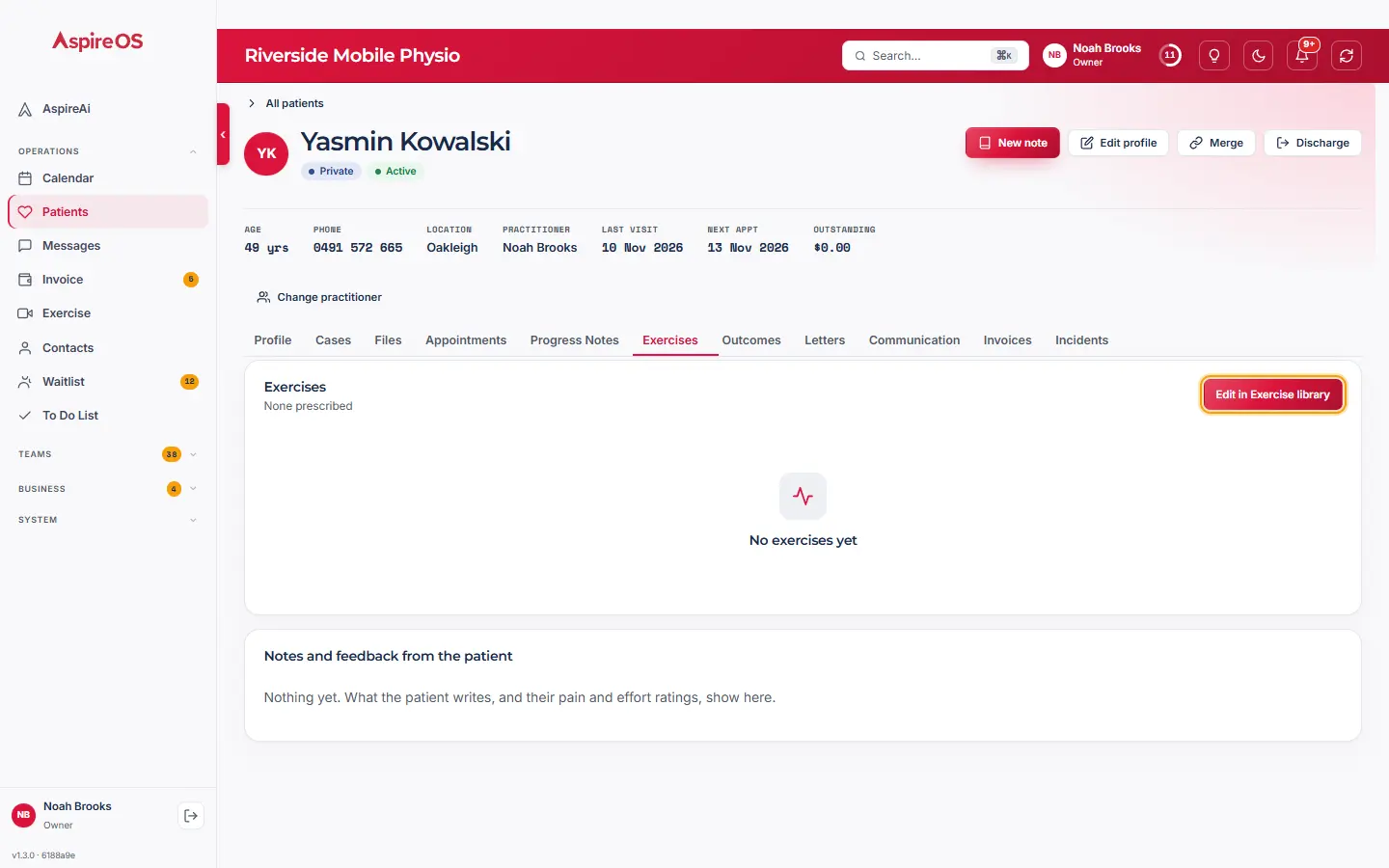
Open the patient's Exercises tab
Open the patient's file and choose the Exercises tab. Click Edit in Exercise library.
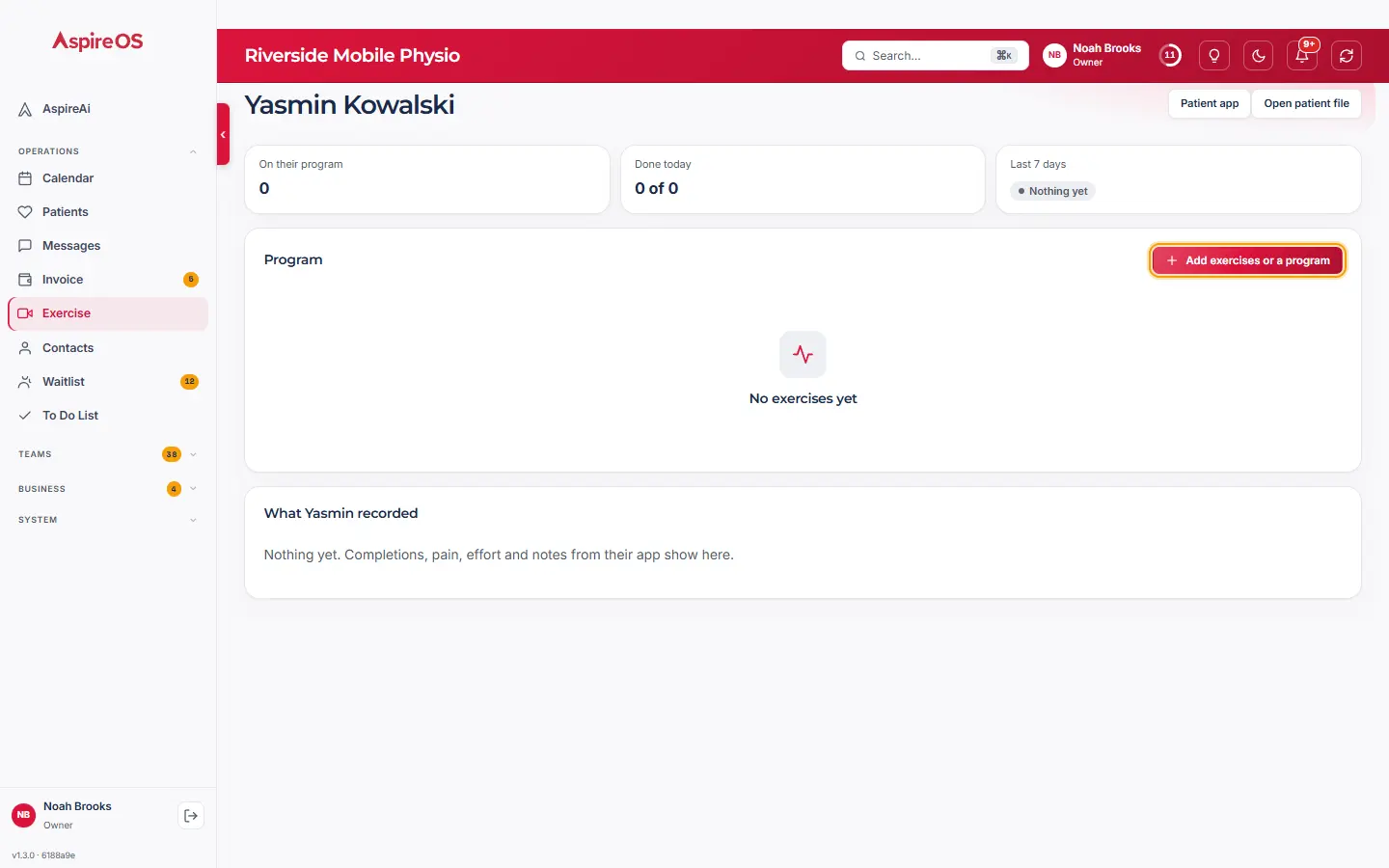
Add exercises
On the patient's exercise page, click Add exercises or a program.
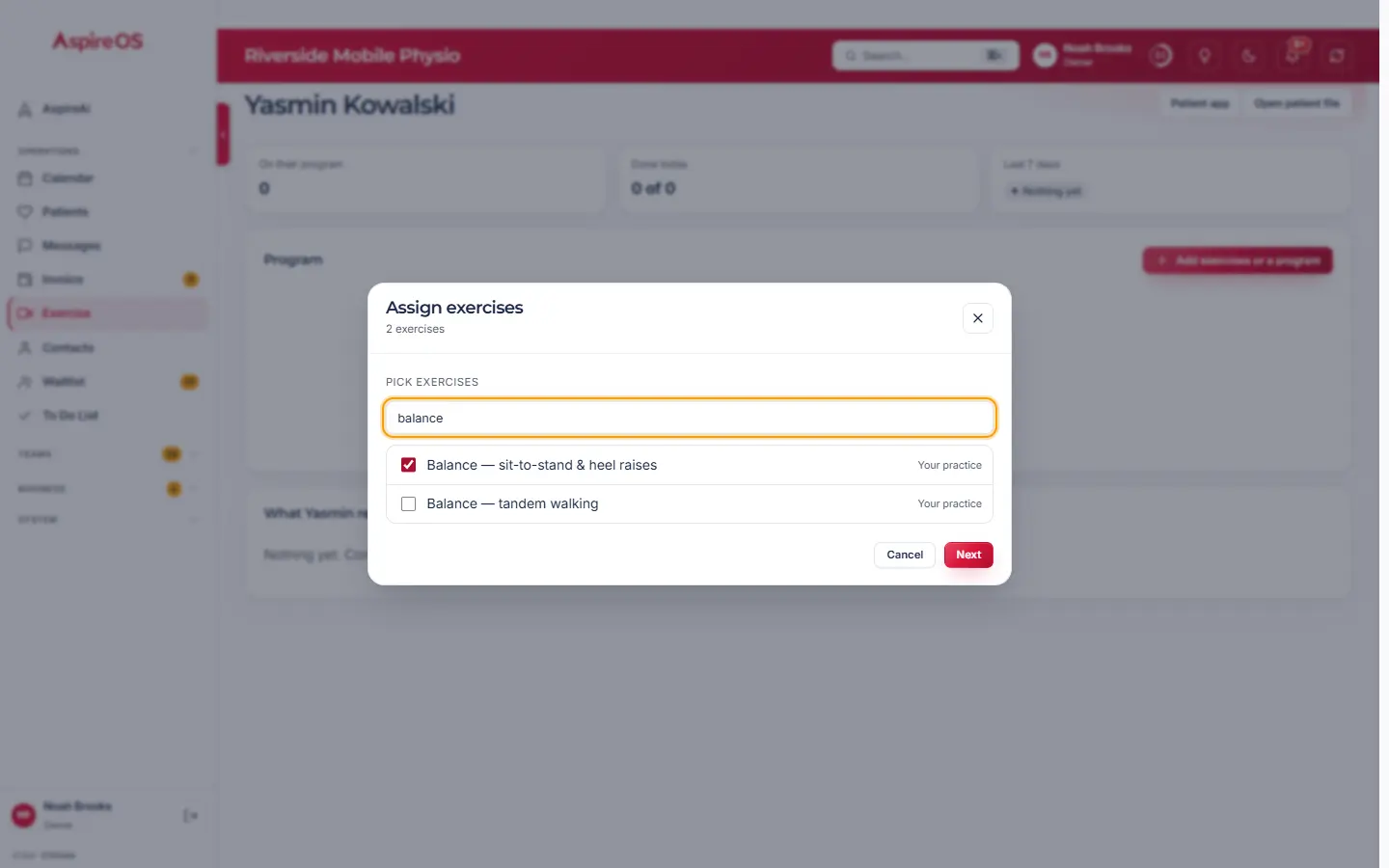
Pick the exercises
Type in Search exercises… to find each one and tick it. Your practice's own exercises and the built-in library are both listed. Click Next when you have them all.
Tailor each exercise
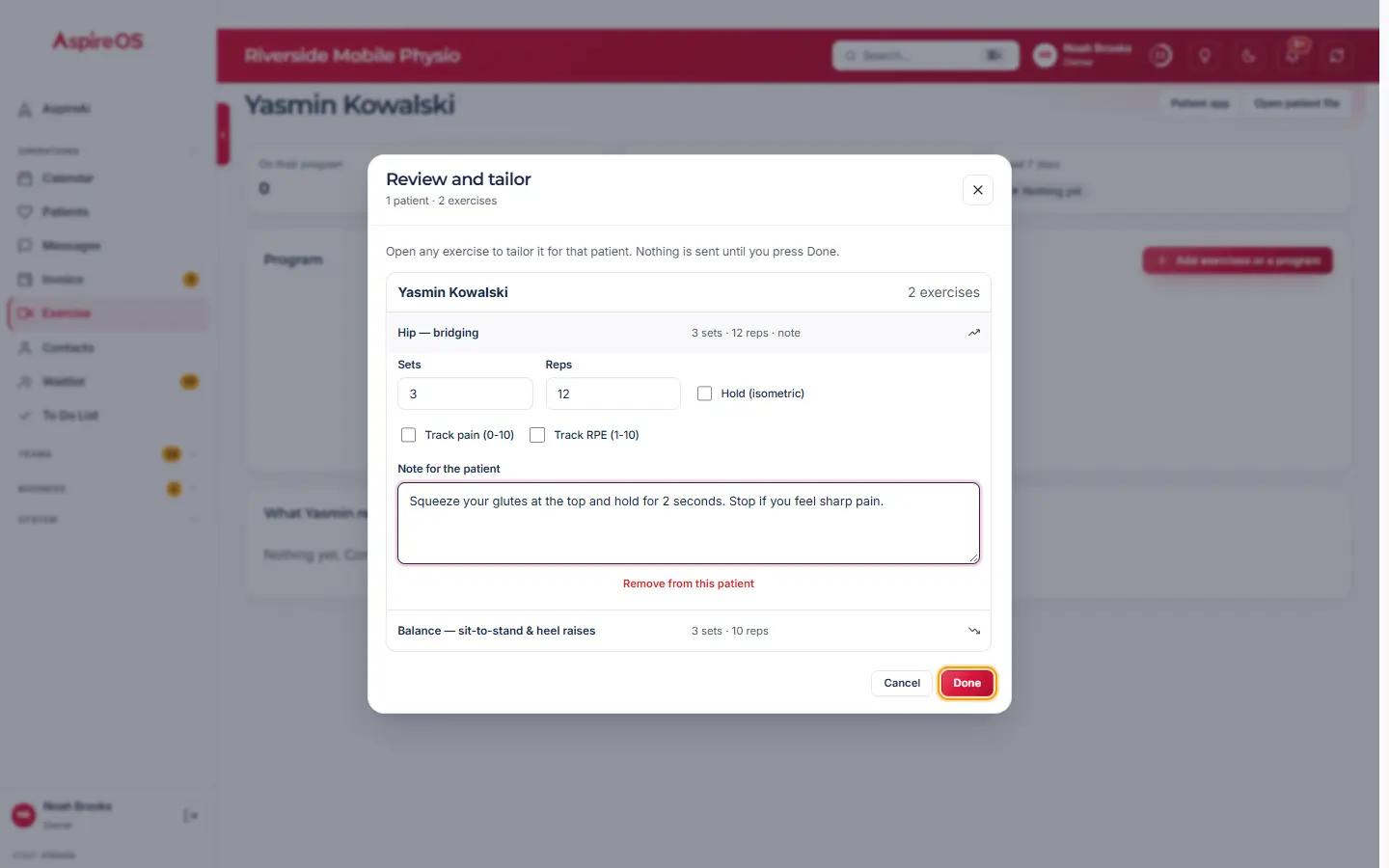
Click an exercise to open it. Set the Sets and Reps, tick Hold (isometric), Track pain (0-10) or Track RPE (1-10) if you want them, and add a Note for the patient.
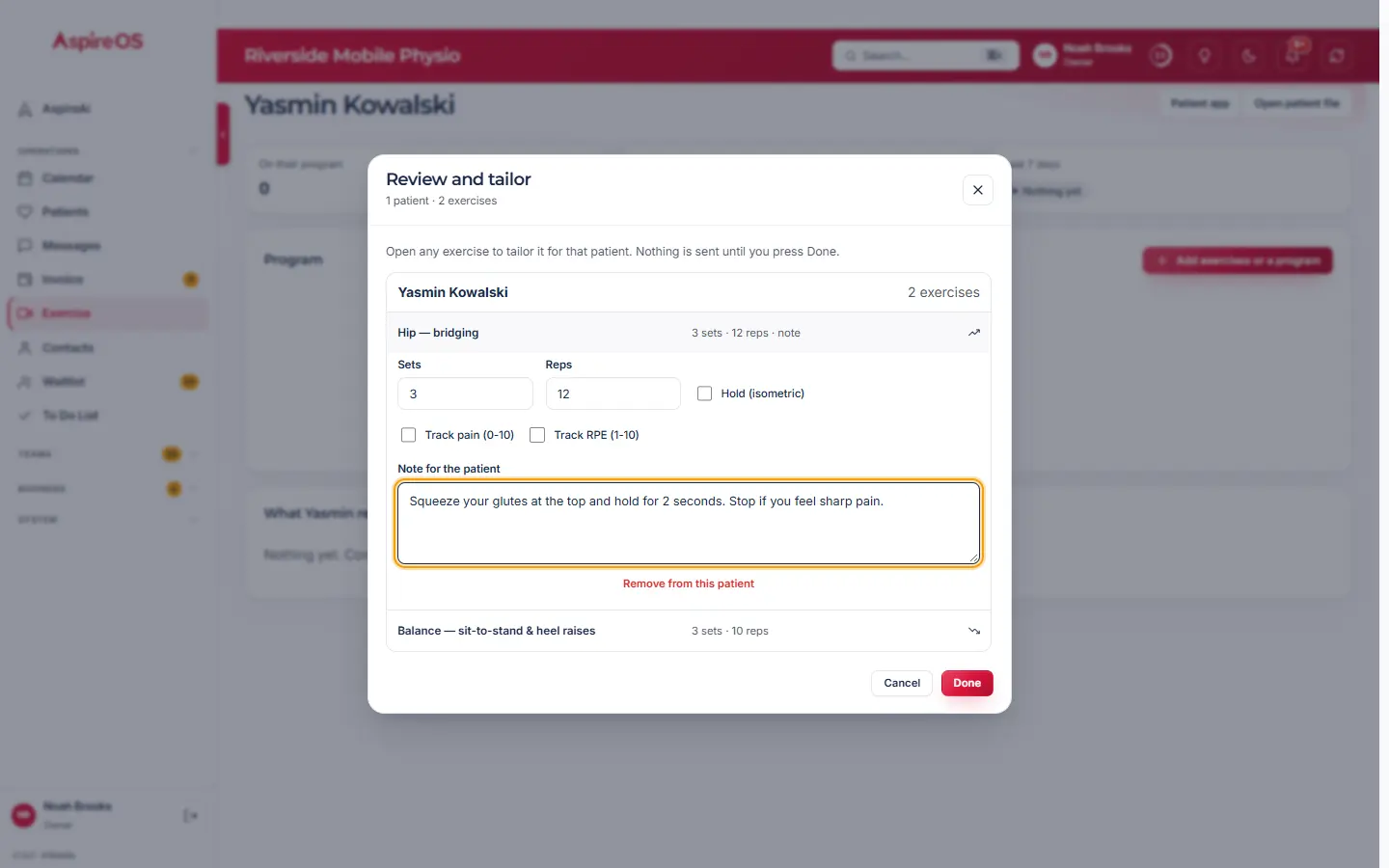
Press Done
Check the list, then press Done. Nothing reaches the patient until you do.
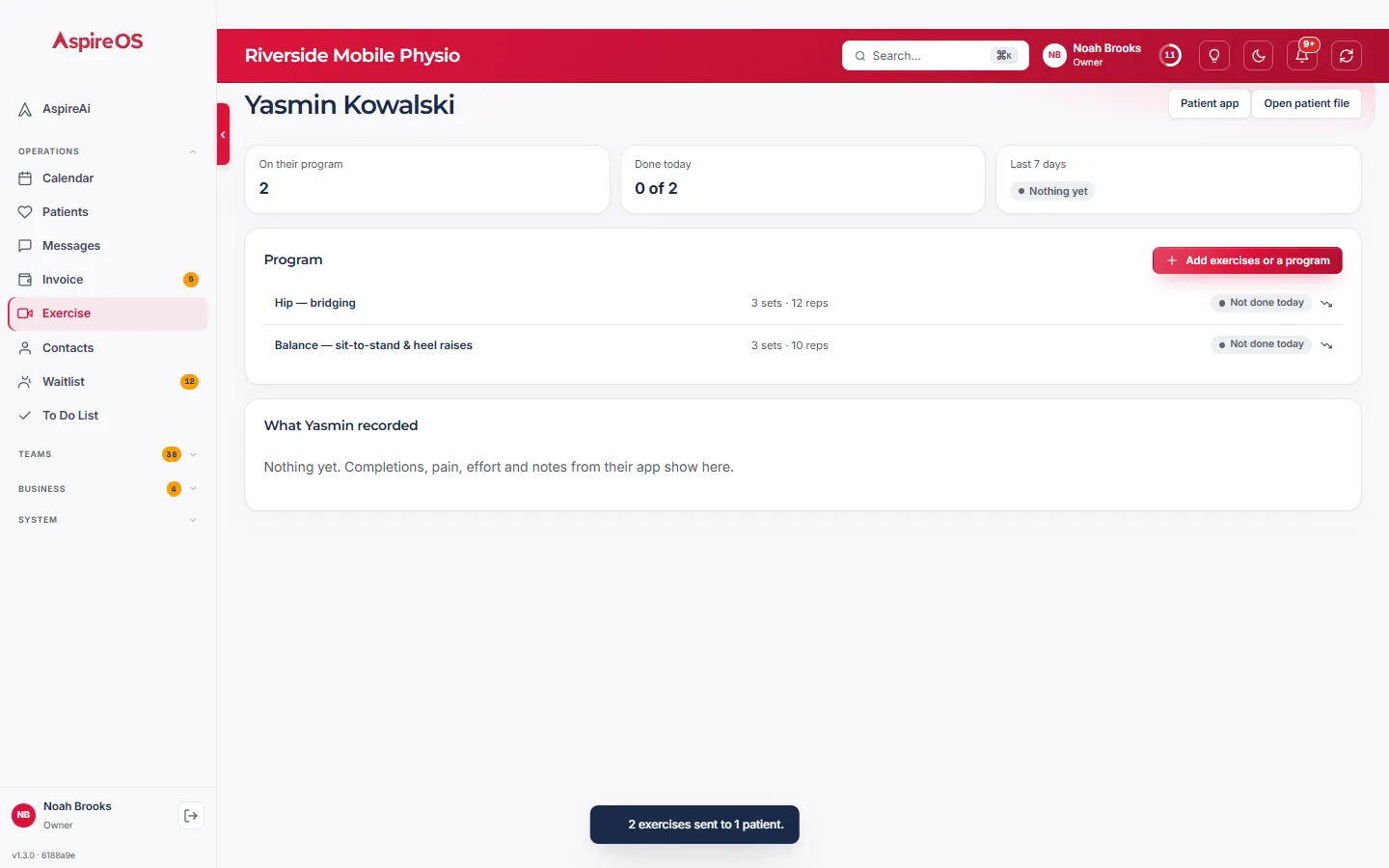
The program is live
You'll see a confirmation and the exercises listed under Program. The page also shows what the patient has done today and over the last 7 days.
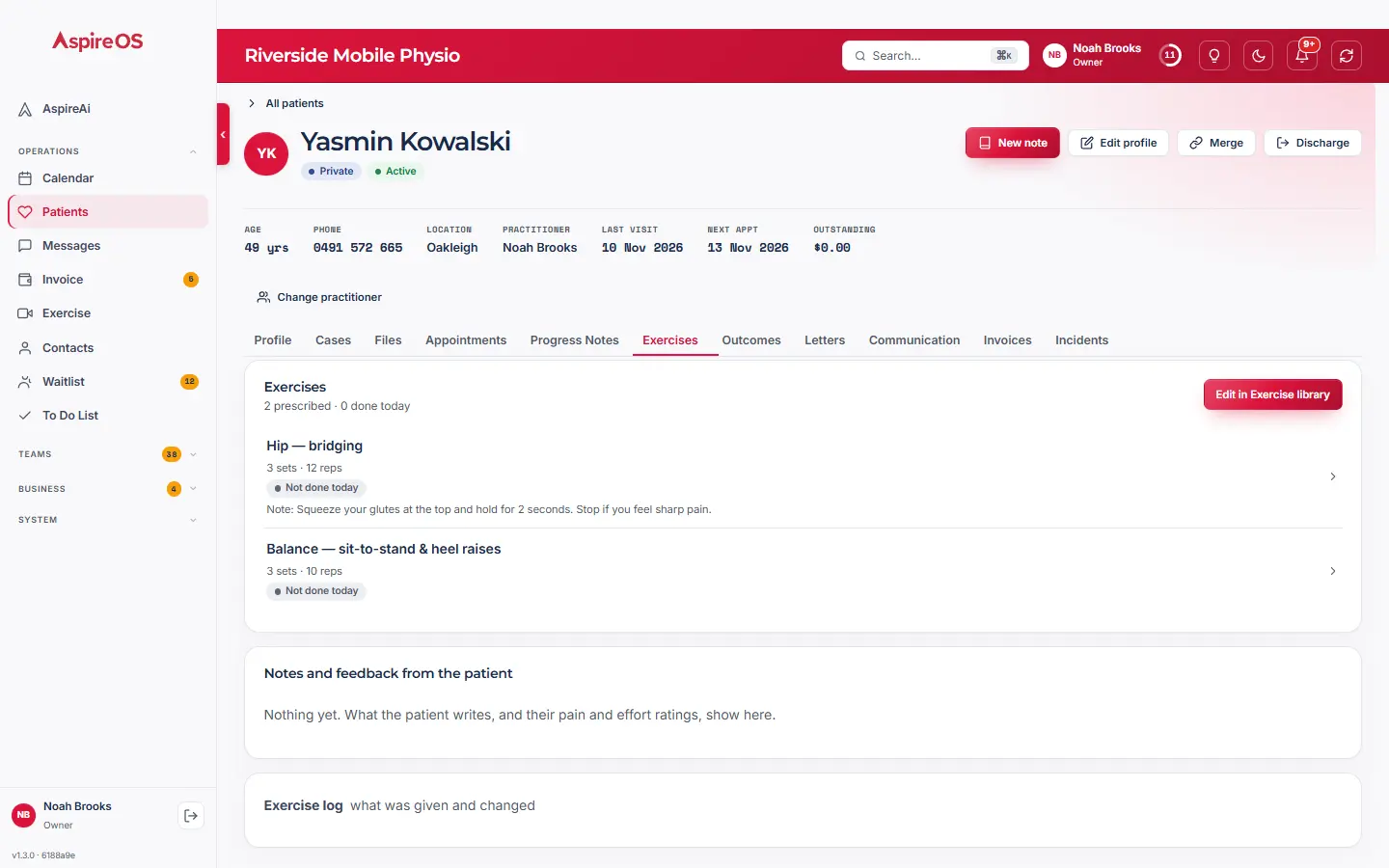
See it on the patient file
Back on the patient's Exercises tab, each exercise shows its dose, your note and whether it's been done today.
Screenshots taken 10 November 2026 on sample data. Your screens may differ slightly as AspireOS improves.
Still stuck?
Ask AspireAi inside AspireOS: it can walk you through any of these, or send a note to our support team for you.